

The max-element-depth constraint violated error in /word/webSettings.xml names a damaged document part, rather than a page-count limit. Owners recovered this Word 2013 failure by removing that part from a separate DOCX copy.
Try Open and Repair first. If the same webSettings error returns after saving and reopening, the targeted repair is more useful than repeatedly saving under another name. Use it only when the error names that exact file.
In this guide
1. Read the named location in the opening error
Expand Details in Word's opening error. Record both the message and the Location. The original report named Part: /word/webSettings.xml, with a line and column indicating where Word stopped reading it.
The reported document was about 500 pages, but later owners had the same failure with much shorter papers. Cutting chapters just to get under an assumed page limit isn't a repair for this message.
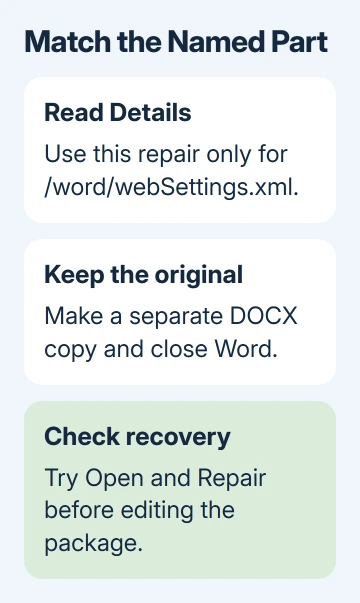
An error naming document.xml or a mismatched end tag needs a different repair. Keep the exact message and use the general Word document recovery steps when this error doesn't match.
Make an untouched backup before continuing. Copy the DOCX in File Explorer and name the working copy clearly, such as thesis-repair.docx. Close Word so the file isn't still open while you work on it.
This repair needs a real DOCX file and Windows desktop Word. It isn't a conversion for an old DOC file, a password-removal method, or a fix for a cloud download that never finished.
2. Give the duplicate to Word for repair
Open Word without double-clicking the problem file. Choose File > Open > Browse, locate the working copy, and select it once. Open the menu beside the Open button and choose Open and Repair.
Microsoft's file-corruption recovery procedure uses that file dialog. Opening the file from the Recent list skips that repair option.
If Word recovers the document, save it with a different filename. Close it, then reopen the saved copy. Check whether the error returns: seeing the pages once isn't enough when the next open fails.
For the original asker, changing the recovered file's name hadn't helped. The problem returned after reopening, and the Summary Info 1 repair entry didn't explain why. Don't keep repeating that loop.
If the repaired copy opens cleanly more than once and its content is intact, use that copy. Skip the package edit when ordinary recovery has already worked.
3. Remove only the matching webSettings part
A DOCX is a package containing several files. Renaming a working copy to ZIP lets Windows show those parts. The document's main text isn't stored in webSettings.xml, but check the whole document after changing a file inside the package.
Turn on filename extensions in File Explorer first. On Windows 11, choose View > Show > File name extensions. On Windows 10, use the View tab's File name extensions checkbox.
For Windows 8, open File Explorer's View > Options, select View, and clear Hide extensions for known file types. Windows 7 puts Folder Options under Organize > Folder and search options.
Rename the closed working copy from thesis-repair.docx to thesis-repair.docx.zip. Accept the extension-change warning. This is a filename change in File Explorer, not a ZIP format to choose in Word's Save As screen.
Open the renamed ZIP in File Explorer, then open its word folder. Remove webSettings.xml from this working package, leaving everything else alone. Return to the folder holding the ZIP and rename thesis-repair.docx.zip to thesis-repair.docx.
In the owner reports for this precise error, several people confirmed that this removed the repeated opening failure. One also reported that Word created a new webSettings.xml when the document was saved.
If Windows won't remove the item, check that Word is closed and that you're editing the working copy. Don't delete another XML file as a substitute. Ask a document-repair specialist to make the targeted change if the archive remains locked.
4. Check the repaired thesis as a complete document
Open the modified DOCX in Word. If it opens, save another copy from Word, close it, then reopen it. Success means that newly saved file opens without the same webSettings error.
Check the beginning, middle, and end of the paper. Inspect tables, equations, pictures, footnotes, headers, and the list of figures. Compare them with an intact copy or a previous PDF when one exists.
I'd check the list of figures before deciding a thesis is ready to use again. Later replies report a wrong page count and warn that copying plain text disturbed figure-list formatting. A file that opens still needs review.
If the page counter looks wrong, compare print preview and the actual pages before relying on that number. Keep the backup and the modified copy separate so further repair doesn't erase your only version of the content.
5. Recover through a different format only when needed
If Word 2010 still opens the original, use it to save a separate recovery copy. One owner reported success after saving as Word 97-2003 Document (*.doc). Keep that as a fallback, since an older format can change document features.
Compare the recovered DOC with the original before moving your work into it. Rebuilding a complex paper from plain text can discard formatting and automatic structures. The end-tag recovery guide covers a different XML failure.
Another later owner reported that moving to Word 2016 stopped the problem. That worked for an owner at the time, but Word 2016 is now obsolete. Ask your university or workplace which supported Word edition they provide.
If this repair fails, send your IT team the untouched file, the exact error location, and the result of opening your repaired copy. Ask for DOCX package recovery focused on webSettings.xml, rather than a general Office reinstall.
The Short Version
Try Open and Repair first. For a depth error naming /word/webSettings.xml, owners recovered a DOCX copy by removing that package part. Save, reopen, and inspect the complete paper before trusting the recovered file.
Checked November 17, 2026.






