

Office Upload Center can keep trying to upload a deleted file because working data remains in its cache. Close Office and restart Windows, then retry Resolve > Discard Changes. If it stays locked, use the Office cache-repair procedure.
The matching warning says the action can't finish because the file is open. This is different from OneDrive waiting to upload an ordinary file, or Office asking you to sign in. Check which app shows the warning before resetting anything.
In this guide
1. Protect real edits before discarding the stale item
Open Start, search for Microsoft Upload Center, and open it if installed. Find the failed document and check its filename. Review any other pending uploads before treating the entire list as unwanted cache data.
If a pending document contains work you still need, select its Resolve menu and use Save a Copy when offered. Save outside the synced folder and open that copy to check your latest edits before discarding anything.
Microsoft's Upload Center instructions describe these per-file actions. Discard Changes abandons that item's pending work instead of completing its upload.
If you deleted a test document on purpose, discarding its stuck entry makes sense. For a report with unsynced changes, first decide which copy contains the work. That button can clear a stuck item or throw away wanted edits.
If the warning instead says Upload failed, Sign in required, follow the account-specific steps. A deleted-file lock doesn't justify clearing saved passwords or changing the Microsoft account.
2. Release the file lock and retry the failed entry
Save and close open documents in Word, Excel, and PowerPoint. Close those apps, then restart Windows through Start > Power > Restart. After signing back in, open Upload Center before reopening the affected documents.
Select the unwanted failed item and try Resolve > Discard Changes again. If it disappears and doesn't return, the pending entry has been removed. Check that another document uploads normally before assuming Office uploads are working again.
The historical problem involved a file the owner had already deleted. Upload Center still reported that it was open. Deleting the original again couldn't release the cached working data that Office was trying to handle.
Don't clear unrelated temporary folders next. The original asker reported that temporary-file cleanup and two restarts left the entry stuck. Office's pending uploads use a separate cache.
If the exact lock warning returns immediately after restart, use the cache-repair steps. Repeatedly pressing Discard Changes won't make a locked cache accessible.
3. Repair the cache through Upload Center
The Office document cache holds working information for files saved to online services. When it becomes damaged, an upload can remain stuck and its repair action can fail. Clearing the cache lets Office rebuild that working data.
The Office document cache repair steps start with a Windows clean boot. This temporarily prevents extra startup programs from loading and holding the cache open.
Follow the linked Windows clean-boot procedure, which requires administrator access. For a managed PC, have IT do the cache repair and restore the original startup configuration afterward.
Once Windows has started with a clean boot, open Microsoft Upload Center. Select Settings, then Delete Cached Files, and confirm the cleanup. This is Office's own cache control, rather than a general Windows disk cleanup.
Then restore normal startup using the clean-boot guide's reset instructions and restart. Office should rebuild its cache and resume syncing. Reopen Upload Center and check whether the deleted filename has left the pending list.
I'd use that documented route before touching an AppData folder. It explains why a restart alone may not help: a startup component can load again and hold the same cache files open.
4. Treat the old manual-deletion fix carefully
An owner in the original Office 2013 discussion reported success after stopping upload processes, clearing OfficeFileCache under the Office 15.0 folder, and rebooting. A second owner confirmed that it helped them too.
The post didn't identify the three processes it stopped. A later reader asked which ones they were, without a usable answer in the saved thread. That missing detail makes it a poor set of instructions to copy onto a different PC.
Use the supported Settings > Delete Cached Files route instead of guessing process names or deleting all of AppData. The owners' results point to the cache; the linked repair steps give you a complete way to clear it.
A large queue of genuine uploads needs separate attention. Discarding items can abandon unsynced work. Compare one of those documents with its online copy before cleaning up a whole queue.
If Office opens documents as offline server copies, the Office offline-copy checks cover that related connection problem. It can exist even while OneDrive itself appears current.
5. Use your installed Office version's controls
The report involved Windows 8 and Office 2013, when the service was called SkyDrive. Upload Center belongs to Office. Your Office version determines the available controls, not just the OneDrive icon.
If newer Microsoft 365 has no Upload Center, don't download an old copy. Read the warning inside the affected Office app. Newer releases handle the cache differently and may have no separate upload window.
Some current Windows Office versions offer File > Options > Save > Cache Settings > Delete cached files. Use that control only if your installed app actually shows it, and save unfinished work separately before clearing the cache.
For persistent failures, give your Microsoft 365 team the Office version, exact lock message, and deleted filename. Ask them to inspect Office's pending upload cache separately from OneDrive's normal file sync.
For personal Office, use Help > Contact Support when available. Explain that you deleted the original file, but Discard Changes still says it's open. Include whether the clean-boot cache repair changed that result.
The Short Version
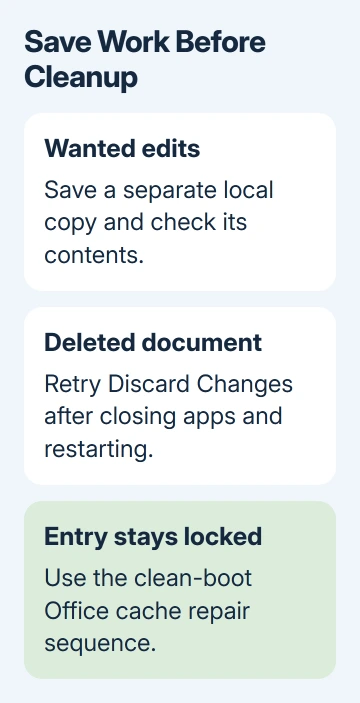
Keep wanted edits separately, restart Windows, and retry Discard Changes for the deleted item. If it stays locked, use the supported clean-boot cache repair. Avoid guessing process names or deleting broad folders.
Checked November 17, 2026.
 If you have any business, I can build it online






