

Office can open documents as offline server copies when its connection to cloud files fails, even while OneDrive says everything is up to date. Reopen the server document first. Office 2013 also has a sync setting to check.
That setting stopped the recurring warning for the owner. Current OneDrive versions use different controls, so don't reinstall just because General is missing. An offline-copy warning differs from deliberately keeping a file offline.
In this guide
1. Reopen the server document and protect recent edits
Choose the warning's option to reopen from the server. The original owner could edit the document after reopening it; the first attempt had opened an offline copy. Check the result before adjusting account or sync settings.
If you've already edited the offline copy, use File > Save As to keep a working copy in a folder that OneDrive doesn't sync. Open it and check your last change. Keep this copy until the cloud document contains the same work.
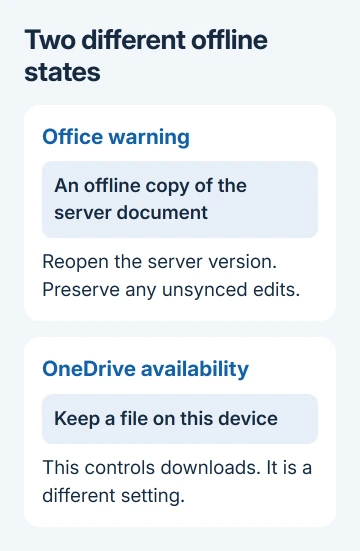
The warning describes the document Office opened. Keeping a OneDrive file on your computer lets you open it without downloading it again. Downloading every file won't repair the older Office connection behind this warning.
Compare the server document with the working copy you saved before continuing. Check a distinctive sentence near the last edit, instead of trusting a matching filename. Two documents can share a name while containing different changes.
When reopening works but other files show the warning, check Office integration next. If the server document won't open at all, record that error instead. Fix a permission or sign-in error before changing the sync setting.
2. Turn off the legacy Office sync option when it exists
For the older Windows desktop client, find OneDrive's cloud beside the taskbar clock. Right-click it and open Settings. Open General and look for Use Office to sync files faster and work on files with other people at the same time.
Clear that checkbox and apply the change. Close the affected document, open it again from the OneDrive folder and check whether Office still calls it an offline copy. Give the file time to upload after saving.
An owner said the recurring warning stopped in the original Office 2013 discussion. Their report covered Windows 7 and Windows 8 computers using Word documents.
Changing this option affects Office collaboration. Discuss it with colleagues who edit the same document together before keeping the change. Another reply questioned automatic merging but didn't confirm an alternative repair.
I'd try this setting before a cache repair on a matching older installation. It's a small change that stopped the original owner's warning. Write down the original choice; restore it if the warning persists.
Skip that control if it's missing; don't guess which current setting replaces it. Earlier advice mentioned the Windows 8 app's charms-screen option for offline files. That wasn't the confirmed fix, and the Windows 7 asker couldn't use it.
3. Check Office's upload queue separately from OneDrive
Open Start, search for Microsoft Upload Center, and open it if your Office installation includes it. Look at Pending Uploads for the affected filename. Office can have work waiting here while the OneDrive cloud icon looks healthy.
The Upload Center controls include Upload All for waiting uploads and Resume Uploads if uploads were paused. For a failed item, open its Resolve menu and use the action matching the error.
Use Open to Resolve when it is offered for that failed document. Read the prompt before choosing a version. If a conflict involves a colleague's edits, compare both versions instead of replacing one simply because its date looks newer.
When it works, the pending upload finishes and your saved change appears in the server document. A green OneDrive cloud icon doesn't tell you whether Office has finished its own upload. If it returns to the queue, note the full error.
Newer Microsoft 365 releases can manage the document cache without a visible Upload Center. If the Start search finds nothing, continue in the Office app rather than downloading an old Upload Center program from an unrelated site.
If the actual message is Upload failed, Sign in required, follow that account-specific repair. It covers a different symptom from a document that reopens correctly from the server.
4. Use a supported cache repair for repeated upload errors
The Office document cache stores working data for cloud files. A damaged cache can leave files stuck during upload. Try a cache repair if a pending-upload or cache error keeps returning, rather than clearing it for every offline warning.
In Office versions with the current control, open File > Options > Save, then look for Cache Settings > Delete cached files. Save pending edits elsewhere before accepting any option that also removes files with unfinished uploads.
For an older Upload Center installation, the supported repair uses a Windows clean boot, Upload Center > Settings > Delete Cached Files, and a normal restart. A clean boot temporarily stops extra startup programs so the cache isn't locked.
A deleted document still reported as open needs the stale Upload Center entry checks before another cleanup attempt.
Follow the linked Office cache repair procedure for that route, including restoring normal startup. On a managed PC, have IT perform it. Don't delete Office's cache folders by hand.
Reopen the document and check the server version for your saved change. If Office is still stuck, send support the offline-copy warning and the upload error. Repeated cleanup won't explain a separate account or permission failure.
When the server copy still won't stay current
Ask the Microsoft 365 team at work to compare Office's pending uploads with the OneDrive sync state. Include the Office version, Windows version, affected location, and whether reopening from the server temporarily works.
For a personal account, use OneDrive's Help & Settings > Get help support route when available. If ordinary files also fail, the general OneDrive sync checks cover filenames and paths that this Office-only workaround doesn't address.
Office 2013 is outside support. If work still depends on that installation, ask IT which current Office edition can replace it. Keep the preserved working copy until the online document has been checked.
The Short Version
Reopen the server document and keep any unsynced edits separately. On the matching older client, disable the Office collaboration sync checkbox. Check Office's own pending uploads before treating this as a general OneDrive failure.
Checked November 17, 2026.
 If you have any business, I can build it online






