

Page numbers that reset when Word reopens can be affected by tracked changes around sections. Keep the review copy intact. In a separate copy, turn off tracking, accept or reject existing changes, then set the section numbering again.
A section break that's easy to miss or a page-number formula can cause similar trouble. Check those when revisions aren't involved or can't be accepted. Link to Previous alone doesn't decide whether numbering restarts.
In this guide
1. Check tracked changes before resetting every section
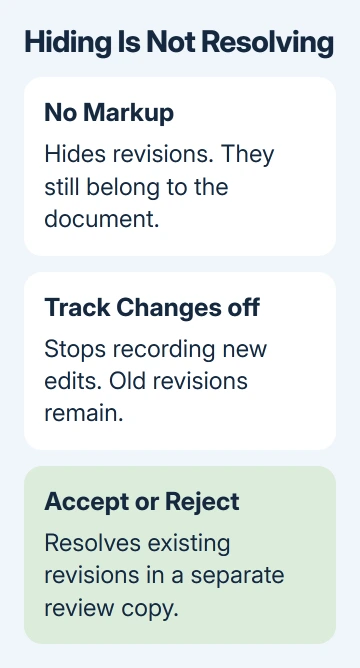
Save a separate copy and name it clearly as a numbering trial. In desktop Word, open Review, switch to All Markup, and look through changes that haven't been accepted or rejected. No Markup hides revisions without accepting them.
An owner in the page-number settings discussion confirmed that updating the numbers, accepting all changes, saving, closing, and reopening finally kept the correct numbering.
That owner had tried accepting only the apparent page-number change without success. Check all pending changes, not just the visible page number. Other changes can be connected with that section.
If the document is still being reviewed, get the editor's agreement before accepting revisions in the shared master. Use the separate copy to check the result while preserving the version that records the team's edits.
This matters in a thesis or contract. Accepting changes affects actual content and formatting, not only page labels. A separate copy lets you compare numbering while keeping the review history intact.
2. Resolve revisions in the separate copy
On the Review tab, turn Track Changes off so further edits aren't recorded. Then use Accept or Reject to decide the existing changes. Turning tracking off by itself leaves old revisions in the file.
For a copy in which every existing change has already been approved, use Accept > Accept All Changes. If some edits must be rejected, review them and use Reject instead. Don't accept unwanted content just to make page numbers behave.
Microsoft's tracked-change instructions explain the difference between hiding markup and resolving it. The Review controls are available in desktop Word on both Windows and Mac, with some menu differences.
Reset the affected section's numbering after resolving revisions. Save this trial copy, close it, then reopen the saved trial. Check the first page of the problem section and the pages on either side.
If the numbers stay correct after reopening, you can use that copy as the final document once the editor approves its changes. If numbering still restarts, accepting more edits at random won't help. Check the actual section boundaries next.
For the review controls themselves, Word's Track Changes walkthrough explains what is being recorded. Keep numbering repair separate from the decision about which edits belong in the finished document.
3. Find continuous sections as well as new-page sections
Open Home and select Show/Hide to display formatting marks. Look through the area where numbering restarts for Section Break (Continuous) as well as Section Break (Next Page). A section doesn't have to start on a new page.
Columns or a change of page orientation can introduce sections into a long document. A landscape table in the middle of a portrait report is a common reason to check the section boundaries around that page.
Click in the section whose numbering needs correction. Open Insert > Page Number > Format Page Numbers in Windows Word. Under Page numbering, choose Continue from previous section when the sequence should carry on.
For an intentional new sequence, choose Start at and its required value. Roman-numbered introductory pages and Arabic-numbered chapters need different settings, rather than one choice applied everywhere.
On Mac, open the relevant header or footer and use Page Number > Format Page Numbers from its header and footer controls. Check that your cursor is in the intended section before changing its starting number.
Link to Previous controls the relationship between header or footer content. The Page Number Format dialog controls continuation or restart. Check both when needed, because they do different jobs.
4. Inspect the page-number field if the number is still wrong
In Word for Windows, double-click the affected header or footer, then press Alt+F9 to show field codes. A normal page number uses a PAGE field. A formula wrapped around it can change the number that appears.
One owner found an extra calculation around the page field. Removing that calculation brought back the expected number. A formula subtracting a fixed number can make the visible label differ from the section's numbering setup.
If your page-number field contains an unwanted calculation, select the whole field and replace it with an ordinary page-number field. On Windows, Alt+Shift+P inserts PAGE at the cursor. Press Alt+F9 again to return to the displayed result.
Don't delete MERGEFORMAT simply because it appears beside PAGE. The later discussion explains that Word can add this normal field option itself. Another owner removed it and still had numbering restart after reopening.
If you need a different first-page layout or a separate numbering style, use the section page-number setup after correcting the field. A manually typed number won't follow later pagination changes.
When the reviewed document still resets
I'd stop resetting numbers once the same sections fail on every reopen. The accepted answer's macro made numbering continuous, but later owners said its result didn't survive saving. It wasn't a lasting fix for every document.
Keep the version with review history and the separate resolved copy. Give the document's editor or Microsoft Support the failing section, surrounding section breaks, Word version, and whether Track Changes is involved.
Use Help > Contact Support in supported Office, or request a document-structure review from your Office team. Keep the section breaks that trigger the reset in your sample, even if you replace private text.
If revisions must stay intact, ask the editor to use that sample instead of accepting the shared document's history. The confirmed fix requires resolving revisions. A macro that changes restart settings doesn't remove that limitation.
The Short Version
Resolve revisions in a separate copy, set its section numbering, save, and reopen. If it still resets, inspect continuous sections and calculated PAGE fields. Hiding markup or changing Link to Previous alone doesn't finish the repair.
Checked November 17, 2026.
 If you have any business, I can build it online






