

Ctrl+V normally keeps formulas in desktop Excel. If only results appear while ribbon Paste works, a macro or add-in may have reassigned the shortcut. Use Paste Special > Formulas for now, then check the shortcut.
A number displayed in a cell doesn't mean the formula disappeared. Select the pasted cell and check its formula bar before changing anything. A formula there means Excel kept the calculation; a plain number means only the result was pasted.
In this guide
1. Paste the formula through Excel's own menu
Select the source cell itself, rather than highlighting the number inside the formula bar. Press Ctrl+C, select an empty destination cell, then choose Home > Paste > Formulas. Keep the original cell intact while checking the result.
To use the Paste Special dialog in Windows Excel, press Ctrl+Alt+V after copying the cell. Select Formulas and confirm. Choose All instead when you need the copied cell's formatting and other contents as well.
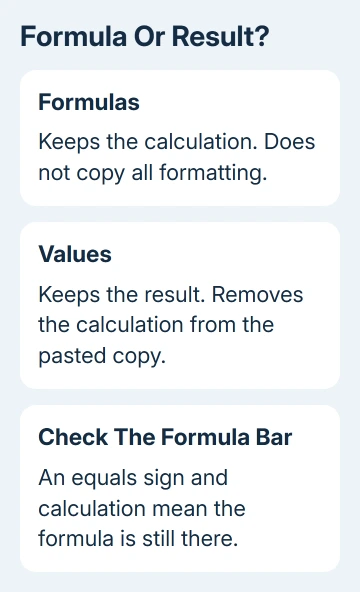
Microsoft says its paste options distinguish copying a formula from copying its displayed result. Formulas doesn't copy all the formatting; All does. If Formulas works, you can use it while you fix Ctrl+V.
Try this in a blank sheet: put 3 in A1, 4 in B1, and =A1+B1 in C1. Copy C1 into C2. A normal formula copy uses relative references, so inspect the new references rather than expecting identical formula text.
The important check is whether C2's formula bar starts with an equals sign and contains the calculation. If it contains only 7, Excel pasted the result without the formula. Undo the trial before testing a different paste command.
If your goal is to keep references unchanged, review the formula's dollar signs separately. A reference moving during copying is different from the formula being replaced with its result.
2. Compare Ctrl+V with the ribbon Paste command
Copy the same cell again and use the main Home > Paste button in another empty destination. Check the pasted cell's formula bar and compare it with the cell you pasted using Ctrl+V. Use cells from the same workbook for this comparison.
If ribbon Paste keeps the formula while Ctrl+V produces a value, concentrate on the shortcut. Changing calculation mode won't put a deleted formula back, and resetting the worksheet's number format won't repair a reassigned key.
If both routes paste values, check that the source really contains a formula. Text copied from an email or a browser can contain only the displayed number; Excel can't recover the original calculation from that number.
For a formula still present but appearing as text, use the formula display checks. In that case, the formula is still there, but Excel is displaying or reading it differently. The paste command isn't the problem.
A toolbar button labeled Values is meant to paste results. The Paste Values toolbar guide explains that separate command. Adding or removing it doesn't change what ordinary Ctrl+V should do.
3. Try Excel without its normal startup additions
Save open spreadsheets, then exit Excel completely. Press Windows + R, enter excel /safe, and press Enter. Look for the Safe Mode title, open a new blank sheet, and compare formula copying again.
Safe Mode bypasses startup folders, many add-ins, and other customizations. If Ctrl+V now keeps formulas, check what Excel loads when it starts normally. It doesn't mean the original workbook's data needs to be rebuilt.
Open Excel normally and choose File > Options > Add-ins. Select COM Add-ins in the Manage list, then Go. Write down the selected entries, clear one, exit the program, and start Excel normally to compare the result.
Restore an entry when disabling it makes no difference. Continue through the list, then check Excel Add-ins in the same Manage menu if needed. Test the actual shortcut each time, using the same simple source formula.
When one add-in brings the behavior back, ask its maker or IT team whether it intentionally changes paste shortcuts. Updating or reconfiguring that tool is better than repeatedly correcting formulas after they become fixed numbers.
These Safe Mode steps are for Windows desktop Excel. Excel for the web and Mac don't use the Windows Run command excel /safe. On those platforms, start with their Paste menu and check any keyboard customization separately.
4. Restore a shortcut reassigned by an Excel macro
Use this step when Ctrl+V alone is wrong and macros or startup workbooks are involved. Excel's OnKey command lets code replace a shortcut. Using it without naming a replacement macro restores the key's usual action.
In Windows desktop Excel, Alt+F11 opens its Visual Basic editor. Press Ctrl+G for the Immediate window. Type the following command into that window, then run it with Enter:
Application.OnKey "^v"The caret represents Ctrl, so this removes the current OnKey shortcut change for Ctrl+V in Excel. Return to Excel, copy a formula cell, and try Ctrl+V in an empty destination.
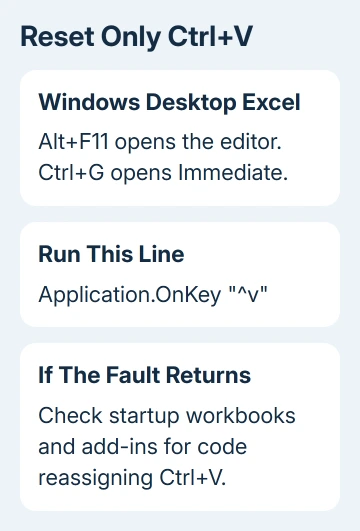
Don't add an empty string after the key. An empty string tells Excel to disable the shortcut instead of restoring it. Enter the line exactly as shown, with only the key specified.
If copying works now, the remaining job is to find the code that assigned the shortcut. This command doesn't delete the macro that made the change, so opening a particular workbook or restarting Excel can bring the behavior back.
I'd use this single-session reset before installing a permanent repair macro. It helps confirm whether code has changed the shortcut without adding another startup action that you'll later have to maintain.
5. Check startup workbooks when the change returns
In Excel, open File > Options > Advanced and inspect General > At startup, open all files in. A folder listed there can load workbooks automatically, in addition to Excel's XLSTART folders.
For your user startup folder, press Windows + R, enter %appdata%\Microsoft\Excel\XLSTART, and press Enter. A personal macro workbook can load code from there even when the document you're editing is an ordinary .xlsx file.
For Excel's installation startup folder, open File > Options, then select Trust Center. Choose Trust Center Settings > Trusted Locations and note the Excel startup entry's path. Its location depends on the installed version.
One owner confirmed that removing files from the startup locations restored normal copying. Their add-in changes hadn't helped, even though copying worked in Safe Mode. That is why startup workbooks need their own check.
Keep a copy of each startup file before moving it for this check. Restart and test Ctrl+V after each individual startup-file change, before restoring another item. Don't delete every startup file or reset unrelated toolbar customizations.
If both paste routes fail with a fresh formula in Safe Mode, report the Excel build and comparison results through File > Feedback or your Office support team. Attach a small sample file containing only invented information.
The Short Version
Inspect the formula bar, use Paste Special > Formulas, and compare ribbon Paste with Ctrl+V. For a shortcut-only failure, test startup additions and reset an OnKey assignment. Repair the code that reapplies it after restarting.
Checked November 17, 2026.
 If you have any business, I can build it online






