
The solver32.dll error in Excel 2016 was linked to a Solver startup bug involving Power Query and Power Pivot. Update Office first. Opening Solver in a fresh blank workbook was the temporary workaround.
This can happen even with Solver installed. A missing Solver button needs a separate check, and later owners still had error 53 after updating. Match your symptoms to these checks before replacing files.
In this guide
1. Install the available Office update
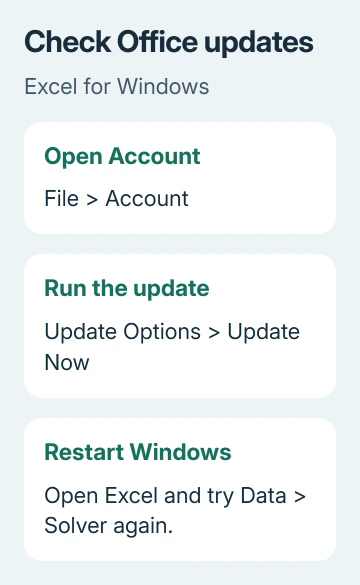
In Windows Excel, open File > Account and look under Product Information. Choose Update Options > Update Now when that control is available. Save your work when Office must close to finish updating.
Restart Windows after the update finishes, then open Excel. Open the workbook that failed and try Data > Solver again.
Check that Solver Parameters opens and that running a solve no longer brings up the Visual Basic file-not-found message.
The original asker had already disabled and re-enabled Solver, repaired Office, and uninstalled and reinstalled Office without clearing the error.
I'd check the update before another reinstall; those attempts had already missed the reported startup bug.
In December 2016, an Office representative announced fixes related to solver32.dll and Power Query and Power Pivot starting up.
That means the order in which Excel loaded components mattered, rather than every report describing a DLL that had vanished from disk.
An owner fixed the error by updating Office and restarting Windows. Other March 2017 replies still had the error after updating. If your copy still shows error 53, the old fix announcement doesn't explain why it's continuing.
If updating doesn't help, try the fresh-session check next.
Your organization may control updates, and some Office installations don't show this menu. Give IT the version from File > Account > About Excel so they can check updates offered for your edition and channel.
Office 2016 is old. Use your organization's supported replacement plan instead of hunting for a particular 2016 build. The old fix helps explain the error, but I'd stay with a supported Office release rather than download an obsolete one.
2. Try the blank-workbook startup workaround
Save all open Excel work and close Excel completely. Start it again and choose Blank workbook before opening the workbook that normally triggers the error. That lets Solver load before the other components used by your workbook start.
The temporary workaround used the same cell for the objective (the result Solver aims for) and the changing-cell range (the cells it can adjust). Use it only in the disposable blank workbook, not in your real financial or planning model.
- Click Data > Solver in the blank workbook.
- Note the cell shown in Set Objective.
- Put that same cell reference in By Changing Variable Cells.
- Select Solve, then close the Solver Results dialog if it appears.
- Keep the blank workbook open while you open the workbook you actually need.
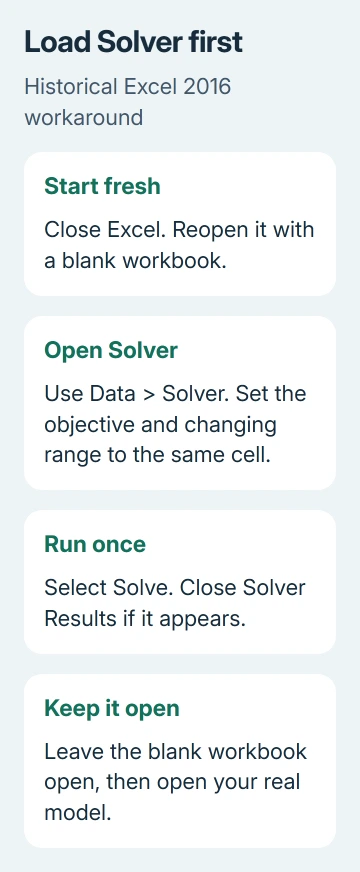
Try Solver in the real workbook now. That tiny run loads Solver first. Its one-cell setup isn't a useful model for your real problem, so keep your actual Solver settings when you return to your workbook.
If Solver works after this sequence, your error matches the old problem with the order in which components load. Finish the immediate task, then arrange the update or supported Office migration.
Having to repeat this every session is a workaround, not a lasting repair.
If Solver itself fails to open in the blank workbook, the sequence can't help. Record whether the error appears at that point or only after opening the original file. Continue with the add-in check instead of repeatedly clicking Solve.
3. Check which add-in list you opened
Open File > Options > Add-ins. In Manage, choose Excel Add-ins, then select Go. Check Solver Add-in, choose OK, and accept an installation prompt if Excel says it needs to install the component.
Solver belongs in this Excel add-in list. Choosing COM Add-ins opens a different group and won't give you the same Solver checkbox. That distinction matters because one old reply in the error discussion pointed readers at the wrong group.
Microsoft's Solver loading instructions place the command in the Analysis group of the Data tab once it loads. Check for that button before trying to change workbook code.
If Solver isn't listed, the dialog offers Browse to locate an installed add-in. On a managed computer, ask IT to verify the installed Office components rather than guessing a folder from a different Office version.
Solver on a Mac uses Tools > Excel Add-ins, but the Windows solver32.dll error and the Windows Office installation paths in this discussion don't describe the Mac installation.
Follow the menu path for the computer showing the error.
If the add-in loads but a Mac macro reads unchanged cells after a solve, that's the separate Mac Solver VBA timing problem. It doesn't call for replacing a Windows DLL.
4. Separate a loading error from a model problem
Once Solver opens, read any new message before continuing. A complaint about the objective, constraints, or a feasible solution is different from File not found: solver32.dll. Solver has loaded far enough to check your model.
Try a workbook whose Solver setup you already know works, if you have one.
If that runs normally while the original model fails, check the original model's objective, changing cells, and constraints before repairing the Office installation again.
For a solve that finishes but doesn't keep the required values as whole numbers, use the Solver integer-constraint checks. Those settings can't repair a component that fails to load in the first place.
Don't download an individual solver32.dll from a DLL collection. Solver is installed with Office, so a continuing missing-component error needs checking through Office installation support.
Random replacement files won't explain the startup-order problem.
Get the continuing load failure checked
For supported Office, use Help > Contact Support where available. Send the complete error, Excel version and 32-bit or 64-bit edition, whether Solver is checked under Excel Add-ins, and the blank-workbook result.
For managed Office, ask IT to verify the installed Solver component and update channel. Mention any Power Query or Power Pivot use and the failed repair attempts.
With those details, they can check why Solver won't load and see which repairs you've already tried.
The Short Version
Update Office, then try loading Solver in a fresh blank workbook before opening your model. Check Excel Add-ins if the Solver button is missing. A continuing error 53 needs the Office component checked, not a downloaded replacement DLL.
Checked November 17, 2026.






