
Excel for Mac 2011 can run past a VBA Solver call before Solver has changed the worksheet. Let the procedure that calls Solver finish, then use Application.OnTime to run another procedure that collects the results.
A waiting loop that kept VBA running didn't fix the reported problem.
This applies to the old Mac 2011 behavior, especially a loop that works on Windows but records unchanged starting values on the Mac. A missing Solver add-in or an unsolved mathematical model needs a different check.
In this guide
1. Confirm that Solver can solve the model manually
Duplicate the workbook before you rewrite the automation. Keep the starting values and expected result from a known working run so you can compare the rewritten sequence with the original.
In Excel for Mac 2011, check Tools > Add-Ins for Solver.xlam. With the add-in enabled, use Data > Solver to run one problem manually. Check the objective cell, changing cells, and constraints first.
For current desktop Excel on a Mac, the add-in route is Tools > Excel Add-ins > Solver Add-in. Don't copy a Windows Office14 folder path onto the Mac. The installed files and menu names differ.
If Solver isn't available at all, follow the missing Solver file checks before rewriting the loop. Scheduling another procedure won't fix an add-in that Excel can't load.
After the manual solve, inspect its message and the changing cells. A model that also fails manually needs its formulas or constraints corrected. Use the timing workaround when the model solves but VBA reads too early.
If the result ignores whole-number rules, check Solver's integer constraints. That is a model-setting problem rather than this Mac VBA scheduling fault.
2. Find the premature read in the VBA loop
Open the Visual Basic Editor through Tools > Macro > Visual Basic Editor in Excel 2011. Find the procedure containing SolverSolve, then examine the statements immediately after that call.
The usual loop sets inputs, calls Solver, records its output, and resets for another pass. That sequence works when the solve finishes before VBA reaches the result-writing statement.
In the reported Mac 2011 case, the procedure continued before the solve occurred. That meant the output table recorded the starting values, and resetting the cells could overwrite values Solver still needed.
Temporarily reduce the job to one case in the copied workbook. Watch the changing cells after the procedure finishes. If they update later while the recorded output remains unchanged, the read happened too soon.
Also check that the code refers to the intended workbook and worksheet. A Range without a workbook or sheet name uses the active context. Clicking another workbook can then make a delayed procedure read the wrong cells.
Keep the result-writing statements separate from the code that chooses the next dataset. That lets the next procedure collect the answer before the model resets for another case.
3. End the first procedure and schedule the next one
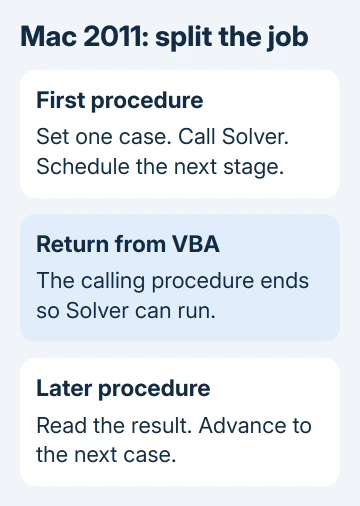
Replace the single uninterrupted loop with two stages. The first prepares one case and calls Solver. It schedules a second procedure through Application.OnTime, then ends so the original VBA procedure is no longer running.
The second procedure collects that case's results, advances the case counter, and prepares the next case if there is one. Keep the counter in a worksheet cell or another place that survives between procedure calls.
An owner fixed their Mac loop with OnTime in Microsoft's forum, ending the subroutine before the scheduled continuation ran. The earlier example used two procedures and stored the current case in a worksheet cell.
The timing call has this form:
Application.OnTime Now + TimeValue("00:00:10"), "SolverCycle"Here, SolverCycle names the procedure that runs later. This is the scheduling line, not a complete Solver macro. Your model's objective, constraints, input values, and output ranges still belong in their appropriate stages.
The example's ten seconds was a delay chosen for that workbook. It must exceed the time your slowest case needs. A fast first case doesn't tell you how long every later case will take.
Microsoft's OnTime reference says the scheduled procedure must take no arguments and cannot be declared in a custom class or form. Put that scheduled procedure, called a callback, in a standard module.
I'd start with one case and a generous delay, then check a small batch before restoring the full run. The useful result is a correctly recorded solution for each case, not simply a macro that reaches its final line.
4. Don't replace the callback with a busy wait
Adding DoEvents inside a Do While loop can leave the original procedure running. In this specific fault, Solver didn't begin until the calling procedure ended, so waiting inside it only postponed the solve.
Later replies reported that a timer loop failed. Change the sequence instead of making the pause longer inside the same procedure.
With OnTime, the first procedure ends and the continuation is a separate call. Don't read or record the results in the first stage. Otherwise your table can still record unsolved inputs even though the next procedure is scheduled correctly.
Use the actual case number when writing the output row. Inspect both ends of a short output table so you can catch an offset error before it affects hundreds of results.
Keep the workbook open and avoid starting the job again while callbacks remain scheduled. A second start can create overlapping work, which makes results difficult to match to their input cases.
When a calculation event is the better next step
A later contributor posted a more involved example that watched the workbook's SheetCalculate event, then scheduled another solve. Their sample included output showing different results across three runs.
A calculation event means a sheet recalculated. It isn't a dedicated Solver-completed signal. Other calculations can trigger it, so the code needs to check the workbook, sheet, active case, and whether the expected result is ready.
The thread's other participant said they would study that example, rather than confirming that it fixed their own workbook. Don't replace a working delayed continuation with the event version just because it has more code.
If a fixed delay is too slow or unreliable, ask the workbook developer to add checks for a finished solve and prevent duplicate scheduled calls. Supply the smallest workbook that reproduces the issue, with private data removed.
For current Excel, include its exact build and macOS version. Ask Frontline Systems' Solver support how VBA completion works in that release. Don't assume a Mac 2011 fault still affects a newer build.
The Short Version
For this Mac 2011 fault, end the Solver-calling procedure and read results in an OnTime continuation. Preserve the case counter between calls. Allow enough solve time; a loop inside the caller can keep Solver from starting.
Checked November 17, 2026.






