

Excel can report a missing Solver file when the add-in isn't installed or its saved entry points to an unavailable file. Load it through Excel Add-ins, use Browse for a missing entry, then repair Office if the file isn't there.
A missing Solver button and an error naming Solver.xlam aren't quite the same problem. The first can mean Solver hasn't been enabled. The second needs you to check the file Excel is trying to load.
In this guide
1. Read the file name and test a blank workbook
Copy the error text and folder path before dismissing it. Check when the message appears: at Excel startup, while loading a particular workbook, or when you select Solver. That tells you whether to check Excel itself or the workbook first.
Start Excel with a blank workbook and open Data. Look for Solver, normally in the Analysis group on Windows. If it isn't there, open the add-in list described next; Solver is a tool, not a worksheet function.
If Solver opens in a blank workbook but not your existing file, Excel can load the tool. Focus on the affected workbook or any macros it runs.
An Excel 2016 warning naming solver32.dll has a separate update and startup-order repair, including the old Power Query interaction.
A Mac 2011 macro that records unchanged Solver cells can need a later result-reading procedure after the Solver call ends.
A model that runs but returns fractional quantities needs the Solver integer checks rather than another add-in installation.
Save the affected workbook before changing its setup. I'd also keep a copy if it contains a model you need for work, so you can compare the repaired installation without overwriting its existing inputs.
2. Enable the bundled Solver through Excel Add-ins
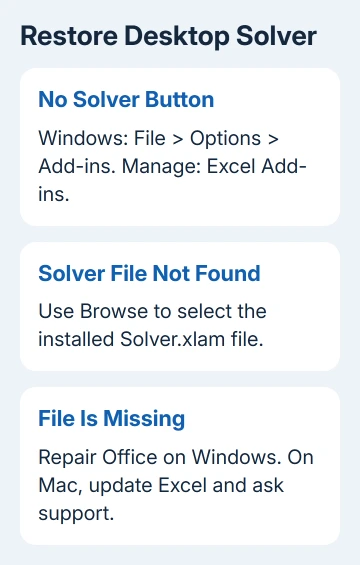
In Excel for Windows, choose File > Options > Add-ins. At the bottom, set Manage to Excel Add-ins, then choose Go. This isn't the COM Add-ins list or the store for web-based add-ins.
Select Solver Add-in and choose OK. If Excel offers to install a component that isn't currently installed, choose Yes. Return to Data and check for the Solver command.
Microsoft says to use Excel's add-in controls to load the bundled Solver. Opening Data > Solver should bring up the dialog where you set up your model.
On a Mac, use Tools > Excel Add-ins in the menu bar. Check Solver Add-In, choose OK, and look on the Data tab. A prompt offering to install the missing add-in can also appear here.
If the box is already selected but loading fails, Excel may still be unable to find the file. Continue with the file-location check.
3. Browse to the actual Solver.xlam file
In the same Excel Add-ins dialog, choose Browse if Solver isn't listed. Find Solver.xlam within your installed Office files, select it, and confirm the dialog. Then check that Solver is enabled in the list.
An XLAM file is an Excel add-in file. It adds features to Excel; it isn't a spreadsheet. Choosing your own workbook in its place won't restore the missing tool.
Use the installation on this computer, rather than copying a path from another PC. Office folders differ by installation and platform. The folder path in your error may no longer exist.
Frontline's desktop Solver instructions also use Browse to locate that file when its normal entry is absent. On Mac versions with a file-selection button labeled Select, use that control.
After adding the file, close Excel normally and open it again. Try Data > Solver with a blank workbook. Success means the dialog opens without the old missing-file prompt; a checked box by itself isn't the final test.
If Solver is installed but other Excel 2010 add-in commands have vanished too, check Trust Center and the intended tab before searching for another file.
If the file is missing, don't replace it with a look-alike download. Restore the installed Office component through the next repair route.
4. Repair missing Office files on Windows
Save work and close Office applications. In Windows 11, open Settings > Apps > Installed apps, find Microsoft 365 or your Office product, open its three-dot menu, and select Modify.
In Windows 10, use Settings > Apps > Apps & features, select the Office product and choose Modify. For a separately installed Excel product, select Excel instead of a suite you don't have.
For a Click-to-Run installation, Quick Repair checks and replaces damaged program files. If the problem remains, Online Repair checks more of the installation and requires internet access. Finish work in the other Office apps first.
For an older installation that uses an MSI installer, the dialog instead offers Repair, followed by Continue. Follow that installation's controls. This repair affects the Office installation, not just the currently open workbook.
When repair finishes, reopen Excel and repeat the add-in loading step. Try the blank workbook again before testing the original model. If the file is still missing, ask your administrator or Office support to check the installation package.
5. Follow the Mac update route separately
Windows' Modify and Quick Repair controls aren't available on macOS. In a Mac Office app, choose Help > Check for Updates, install the offered update, and reopen Excel before enabling Solver again.
If Office came from the Mac App Store, update it there instead. Stick with the place you installed Office from. Instructions for a different Office package can send you looking in the wrong place.
If the error names a path inside Microsoft Excel.app and the file is absent, give that exact path and your Excel version to support. Don't build missing folders inside the app or substitute an XLAM copied from a stranger's installation.
On a work Mac, ask IT to restore the approved Excel installation if the update doesn't restore the component. Ticking the Solver box won't reinstall missing Excel files.
6. Keep workbook and browser problems separate
If Solver works in a new workbook, open a copy of the affected file and try its Data > Solver command. If it fails only when a macro runs, the macro's link to Solver may be the problem, rather than the installed add-in.
Give the workbook's author the error and the result from the blank file. Don't broadly weaken macro security to make the prompt disappear. The trusted-workbook macro controls explain that separate permission decision.
These steps are for the traditional desktop Solver. A browser workbook doesn't load a local Solver.xlam through Windows' add-in dialog. Choose the browser's intended tool, or switch to desktop Excel for that workbook.
If Excel freezes before you can reach any add-in controls, follow the Excel not responding checks. Tell support whether Excel opens normally and whether the Solver file exists.
The Short Version
Load Solver through Excel Add-ins, browse to the installed Solver.xlam when needed, and confirm its dialog opens. Repair missing Windows Office files; use the Mac update and support route for an incomplete Mac installation.
Checked November 12, 2026.






