Excel 2010's Add-Ins tab can stay missing when Trust Center blocks all application add-ins, even with the ribbon checkbox selected. If that block was turned on by mistake, clear it, restart Excel, then load your trusted add-in again.
The older Add-Ins tab, a tool's custom tab, and Data's Analysis group are different places. Analysis ToolPak belongs on Data. Knowing which command you're missing keeps you from repairing a tab the tool never used.
In this guide
1. Remove the blanket block in Trust Center
In Excel 2010, open File > Options > Trust Center > Trust Center Settings > Add-ins. Look at Disable all Application Add-ins (may impair functionality).
A checked box blocks application add-ins you've selected elsewhere. Other security controls can appear unavailable while this block is on. Checking the tab in the ribbon settings won't get past this block.
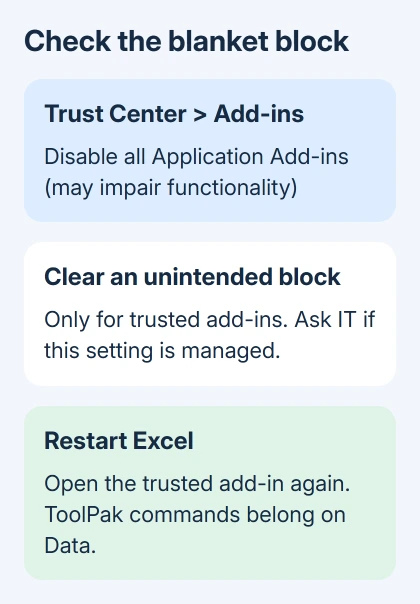
On a personal PC, clear that box only if you recognize and trust the add-ins you intend to load. Select OK to close the dialogs, save your work, quit Excel, and start it again. The security change takes effect after restarting the program.
For a managed workplace or school installation, ask the administrator about this security policy. If the checkbox is unavailable or turns itself back on, give IT its exact name and the missing add-in's publisher.
The asker in the missing-tab discussion confirmed that this setting was the cause after checking ribbon visibility and reinstalling Office without success.
After restarting, load the workbook or add-in that supplies those commands. If its tab returns, try a familiar feature in a practice workbook. That checks whether the add-in works, rather than just whether its checkbox is selected.
If the block was already off, leave the remaining security settings unchanged for now. The next step is to find the command's correct location, not to enable every macro or weaken protection across all documents.
2. Look on Data for Analysis ToolPak and Solver
For Analysis ToolPak, select the Data tab and look in the Analysis group for Data Analysis. ToolPak doesn't need to create the older Add-Ins tab to be installed correctly.
If Data Analysis is missing, choose File > Options > Add-Ins. Set Manage to Excel Add-ins, then select Go. Check Analysis ToolPak and select OK. Complete any installer prompt before checking Data again.
One owner restored Data Analysis by clearing the ToolPak checkbox, confirming, then enabling it again. Try that activation check if it's already selected but Data Analysis is absent after the Trust Center restart.
Analysis ToolPak - VBA is a separate entry. Enabling that entry alone isn't the same as enabling the normal Data Analysis command. Check the name so you don't activate the wrong entry.
Solver also belongs on Data > Analysis. If that is the missing command, activate Solver Add-in through the Excel Add-ins manager. If Excel instead reports a missing Solver file, follow the Solver file recovery steps.
Once the expected command appears on Data, stop troubleshooting the Add-Ins tab for that tool. If the command works where it belongs, you've fixed the problem even if the older tab stays hidden.
3. Load the workbook that supplies a legacy toolbar
The Add-Ins tab in Excel 2010 can display commands supplied by older Excel 97-2003 style toolbars. It won't necessarily remain visible in a blank workbook when nothing has loaded those toolbar commands.
Open the workbook or trusted add-in that previously supplied the toolbar. Compare that with a new blank workbook. If the tab appears only with the original workbook open, its visibility is tied to that workbook's commands.
This is different from today's Home > Add-ins Store interface. Don't hunt for that modern installation button in Office 2010, and don't install an unrelated Store product to replace an old business workbook's toolbar.
If a supplier built the workbook, ask whether it uses a legacy toolbar or a custom ribbon tab. Tell them which workbook version and Excel version you're using. Where the command belongs depends on how they built the tool.
If the file came from an unfamiliar source, don't enable its code just to make a tab appear. Get a trusted copy and the provider's installation instructions first. A missing toolbar isn't a reason to run unknown workbook code.
4. Check the correct add-in manager
Open File > Options > Add-Ins and find the product in the application add-in lists. Note its publisher and location. An add-in can be installed without being loaded in the Excel session you're using.
For a traditional Excel add-in, choose Excel Add-ins in Manage, select Go, and check its box. For a COM add-in connecting a Windows program to Excel, choose COM Add-ins instead. Use the product's instructions to decide which list applies.
If the file isn't listed, use Browse in the Excel Add-ins dialog only for the trusted add-in file the provider supplied. Keep that file where its instructions say it belongs, so Excel can still find it next time.
For more detail on the two managers, use the Excel add-in management guide. That also separates current Store products from traditional desktop files, which prevents mixing up installation methods.
Restart Excel after changing the loaded item and try its command again. If the tab appears but using it produces an error, record that error for the provider. The tab is now loading, but the tool itself needs attention.
5. Restore a hidden tab without resetting the ribbon
Right-click the ribbon and choose Customize the Ribbon. Under Main Tabs, check Add-Ins if it's available but unchecked. If the missing product uses its own named tab, check that tab instead.
Select OK and reopen the workbook that supplies the commands. Remember that the original asker already had Add-Ins checked: this visibility setting can't override Trust Center or create commands that haven't loaded.
Send the publisher or help desk your add-in name, Office bit version, Trust Center setting, and add-in manager entry if commands remain missing. Ask them to confirm compatibility and where the command should appear.
Office 2010 support ended in 2020. If that add-in is essential to your work, ask IT to test its replacement on a supported Office version. Reinstalling the old suite won't restore its support.
The Short Version
Clear an unintended blanket add-in block, restart Excel, and load the trusted workbook or add-in. Look on Data for ToolPak and Solver. Only then change ribbon visibility for the tab the product actually uses.
Checked November 16, 2026.