A OneDrive iPhone app that signs in but won't show any files can have broken saved account settings, even when it asks you to check Wi-Fi or cellular. Reset the affected account after confirming that another app can use the connection.
If just one document won't open, check that file. If your work account fails on every device, ask your helpdesk to check the account. Neither is the same as an iPhone-only file list that stopped loading after an app update.
In this guide
1. Check whether the connection or only OneDrive fails
Load a new page in Safari. If it also won't load, restore Wi-Fi or cellular access first. OneDrive can't retrieve online files while the phone has no working connection, even if it still shows saved folder names.
If Safari works, compare OneDrive on Wi-Fi and cellular when both are available. Open Settings > Cellular, locate the OneDrive entry, then check its cellular-data permission before judging the cellular result.
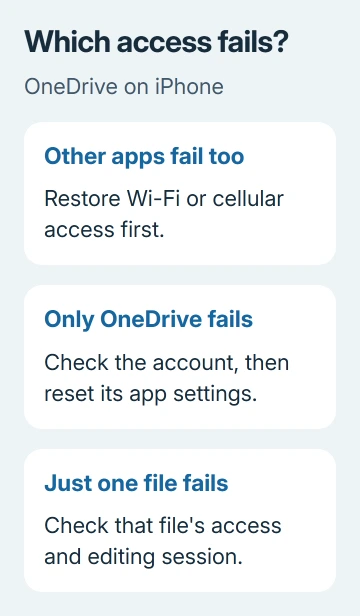
In one owner's report, the error appeared after login and said to check Wi-Fi or cellular. That account still worked through both the iPad and desktop apps. That made resetting the iPhone app's account settings a sensible next step.
Check which account you've opened too. The app can list both personal storage and a college or business account. Select the one containing the missing files before comparing the phone with another device.
If one network works, use it for urgent access and report the failing network to its administrator or provider. If other apps work on both connections but OneDrive still won't load any folders, continue with the account reset.
2. Reset the affected account in current OneDrive
Before resetting, preserve any recent edits that haven't uploaded. Check the saved document using another working device, or save an important local document elsewhere if the app lets you.
Before the reset, have your login ready, including access to the account's verification method.
In OneDrive, open Profile > Settings > Account. Select the affected account if you've added more than one, then choose Reset. This is the route in Microsoft's current iPhone app troubleshooting instructions.
After the reset, reopen OneDrive. Complete any sign-in prompts using your original email address. Check a familiar folder and a known document. A displayed account name alone doesn't confirm file access.
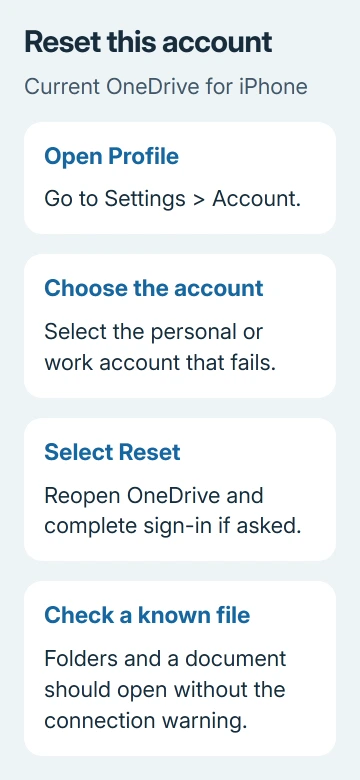
You'll know the reset worked when your folder list loads and a file opens without the connection warning. If only one account recovers, record which account still fails.
Knowing which account still fails helps your work administrator check its OneDrive service and login.
If the error prevents access to account settings, skip to reinstalling after protecting your work. Repeatedly trying that menu won't help if the error blocks its Reset control.
3. Recognize the older Clear Account Settings fix
An owner cleared this error through Settings > OneDrive > Clear Account Settings in older iOS versions. They reopened OneDrive and added their personal and business accounts again.
A later reply drew a distinction between this iOS setting and the old Clear Account Cache and sign-out controls inside OneDrive. In that report, those controls didn't do the same job, so signing out wasn't the fix that worked.
That report dates to 2017. Don't expect the current app to present every old control with the same label. On recent iOS, app-specific settings are grouped under Settings > Apps; older iOS places app entries directly in Settings.
Use the current in-app reset when available. If your installed version still offers Clear Account Settings in iOS Settings, that is the historical control the successful reports describe.
Leave the phone's system-wide reset controls alone if that switch is absent.
A loop that returns to the password screen before reaching the file list is a different symptom. The OneDrive iPad work-login guide explains that account-reset and organization-approval route for an iPad.
4. Update or reinstall an app that still can't load files
Open the App Store, tap your profile picture, and look for a OneDrive update. Install it if offered, then try the file list again. Keep the account-reset result so you can tell support what changed after updating.
If the current app still fails or won't open its settings, touch and hold OneDrive on the Home Screen. Choose Remove App > Delete App and confirm, then restart the phone normally before reinstalling Microsoft OneDrive from the App Store.
For Face ID phones, hold side button + volume up button until the shutdown slider displays. Drag it to switch off. Press that same side button for startup, releasing when Apple's logo shows.
Home button phones show the shutdown slider after you hold the side button. Drag it to switch off. Older models use the top button instead. Hold that button again to restart, releasing when Apple's logo shows.
After reinstalling, sign into the correct account and complete verification. Check folders and a known file again. Offline files may need downloading again, so check availability before depending on the phone without a connection.
For a managed college or work phone where deletion is blocked, ask IT to repair the app through its approved installation process. Keep required authentication and management apps installed.
5. Handle a single-file error separately
If folders load and other files open, focus on the file that still fails rather than resetting the whole app again. Note the affected file's name and type, then check whether a working device can open that same file.
For a file open in another editing app, save its changes and close that app before retrying the OneDrive action. If access was shared with you, confirm with the owner that the account you're using still has access.
For missing shared pictures or previews rather than the entire file list, use the OneDrive mobile photo-access checks. A file-type or sharing problem shouldn't send you through another full iPhone reinstall.
Give support the account and access results
For an organizational account failing across devices, ask your organization's helpdesk to check its OneDrive access and the failed sign-in. Send the exact warning, time, iOS version from Settings > General > About, and OneDrive version.
For a personal account, open OneDrive's profile menu and look for Help & Feedback to contact support. State whether the reset or reinstall changed anything and whether all files or one file fails.
Keep screenshots free of private document names.
The Short Version
First confirm the connection and account, then reset OneDrive's affected account. The older Clear Account Settings fix is real, but current instructions use Profile > Settings > Account > Reset.
Reinstall if needed and send account-wide failures to the helpdesk.
Checked November 17, 2026.