
A OneDrive work account that signs in elsewhere but returns to the login screen on iPad can have faulty saved account settings. Reset the affected account if settings open; otherwise reinstall OneDrive and sign in again.
If the account also fails in a browser, have your organization check the sign-in failure first. Reinstalling OneDrive on the iPad won't repair a blocked account or complete a required security approval.
In this guide
1. Reset the affected account when settings are accessible
In Microsoft's forum, one owner ended this loop by clearing OneDrive's account settings. Their work account already opened on the web and on other devices, but the iPad app kept returning to its login screen.
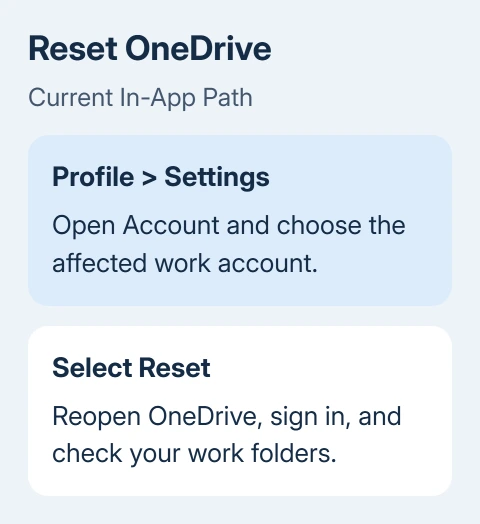
The report used the older Settings > OneDrive > Clear Account Settings control. Current OneDrive help gives an in-app route: open Profile > Settings > Account, select the affected account if several are listed, then select Reset.
Use the current route when you can reach it. Close and reopen OneDrive after the reset, then sign in to your work account again. Complete your organization's verification request instead of submitting the password again.
The confirmed report used the older clear-account control in iPad Settings. A version without that control needs the current route instead. Use the in-app reset or continue to reinstalling.
Before resetting, preserve edits that haven't uploaded. Check the files in another working copy of your account. An offline copy on the iPad isn't a substitute for knowing that recent changes reached your work storage.
The reset worked if the app stays signed in and opens your usual work folders. Open a familiar file as well as the folder list. If sign-in returns to the first screen again, compare account access before deleting the app.
2. Tell an iPad loop from an account-wide failure
Open your organization's usual OneDrive web address in Safari. Enter the work email address you used in the app. If Safari shows another personal or work account, switch accounts before comparing the results.
If the browser opens your files, the account can reach OneDrive through that session. The iPad app can still face its own sign-in or device-management requirement. Record any message it shows before returning to the login screen.
If browser sign-in fails, note the code and time. Ask the helpdesk to check that sign-in attempt and whether the account has OneDrive access. Don't keep changing the password when the message asks for approval or device compliance.
If only your Windows computer has a sign-in problem, the desktop OneDrive sign-in guide covers its saved account and sync-client checks. The Windows reset command isn't an iPad repair.
The original owner could sign in on their iPhone and Mac as well as the web. Because those sign-ins worked, resetting the account on the iPad was a sensible next step. It didn't mean that two-factor authentication should be turned off.
If your iPad alone fails, continue with the app repair. If several people in the same organization are affected, report the shared failure to IT before adjusting each device separately.
3. Reinstall OneDrive if the loop blocks its settings
When the app won't let you reach Account > Reset, Microsoft's OneDrive reset instructions recommend uninstalling and reinstalling as the next option. This gives you a fresh app setup.
- Confirm that important recent work is available outside the failing app.
- Touch and hold OneDrive on the Home Screen.
- Choose Remove App, then Delete App, and confirm. Choose deletion rather than hiding the icon; hiding keeps the app.
- Restart the iPad normally.
- Download Microsoft OneDrive again through the App Store, then launch it.
- Sign in with your work or school email address and complete the organization's verification steps.
iPads without Home: press and hold a volume button along with the top button. Once the shutdown slider is visible, drag it to turn the iPad off. After shutdown, restart by holding its top button, releasing once Apple's logo is visible.
iPads with Home: keep the top button down until the power slider appears, then drag it. After it shuts down, restart with its top button, releasing once Apple's logo is visible. Use a normal restart here.
If the company installed and manages OneDrive, the delete option may be unavailable. Ask IT to reinstall the app through its approved process. Keep any organization-required management or authentication apps in place.
After reinstalling, check the account name and familiar work folders. Download offline copies again as needed. If the same loop returns immediately, capture its wording and move to the organization's sign-in checks.
4. Check the work account's approval requirements
A work sign-in may open another authentication screen or ask for a verification code. Follow the request belonging to the sign-in you just started. If the app returns to the login page before you reach that screen, tell your administrator.
Tell IT whether the app reached a password, verification, or device-management screen. Include the browser result and any recent change to your password, security method, or company policy.
Don't disable two-factor authentication to get past the loop. The helpdesk can check sign-in records and the organization's access rules without weakening the account's protection.
If personal OneDrive opens but work OneDrive doesn't, have IT check the work account. A working personal account doesn't test the employer's tenant, which is the organization's Microsoft 365 environment.
If the app opens the wrong account after reinstalling, check the account name in the profile menu before changing files. The OneDrive account guide explains why personal and work storage remain separate.
I'd give the helpdesk the exact sign-in time with the time zone. That makes a repeating login screen easier to match to a recorded sign-in attempt than a report that it happened sometime this morning.
5. Escalate a loop that survives the fresh installation
Install any OneDrive update offered by the App Store and record its version. Record the iPad model and iPadOS version from Settings > General > About. Keep the latest error and the results of the reset or reinstall together.
Ask the organization's helpdesk to review the failed app sign-in and report unresolved failures through Microsoft 365 support. Tell them whether the failure affects just this iPad, this account on several devices, or several coworkers.
If Safari still opens the work files, use that approved route for urgent access while IT checks the app. Keep track of where you edited a file so you can verify the current copy when the app works again.
The Short Version
Reset the affected account from OneDrive's settings when possible. If the loop blocks those controls, preserve unsynced work and reinstall the app. A failure across the app and browser needs the organization's sign-in checks.
Checked November 16, 2026.






