

Edge forgets your website logins when it's set to delete cookies each time it closes. Cookies are the small files a site leaves to keep you signed in, so switching that setting off usually fixes it.
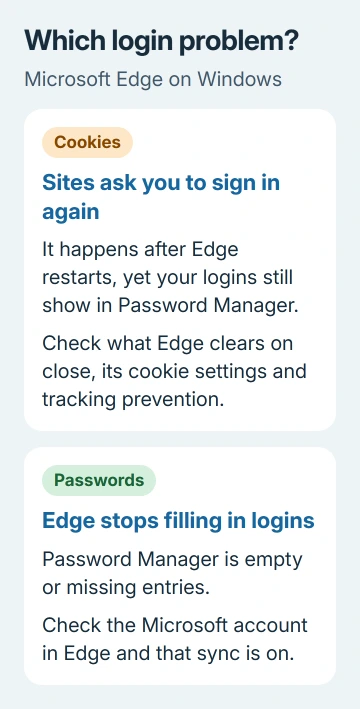
Check one thing first, though. If sites sign you out after a restart, that's a cookie problem. If Edge has stopped filling in your saved passwords, that's a different fault with its own fix.
In this guide
1. Signed out, or passwords missing?
Open Settings and more > Settings and go to Passwords and autofill > Microsoft Password Manager. If your saved logins are listed there, the passwords are fine and Edge is losing its cookies instead.
A Norton vault that won't open needs its own extension and server checks; Edge's saved-password list belongs to a different password manager.
An empty list means a password problem, and section 6 deals with that. Sections 2 to 5 are all about cookies.
2. Stop Edge clearing cookies when it closes
This is the setting behind most of these reports:
- Select Settings and more > Settings > Privacy, search, and services.
- Select Clear browsing data, then Choose what to clear every time you close the browser.
- Turn off Cookies and other site data.
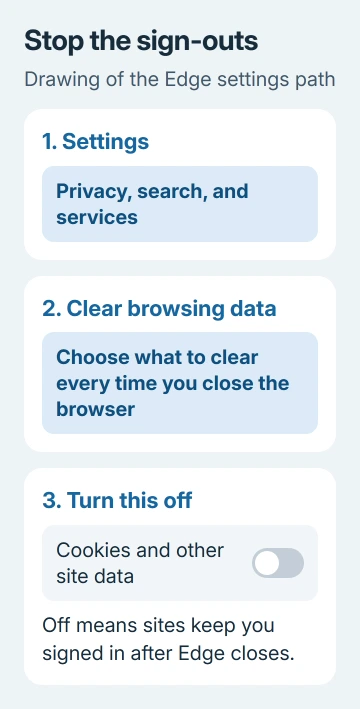
Microsoft's cookie help page is blunt about that switch: turning it on logs you out of most sites whenever Edge closes. Now close Edge, open it again and visit a site you'd signed in to. You should still be signed in.
I'd change only this one switch and test before touching anything else, so you know which setting was behind the sign-outs.
If your list also shows Hosted app data, leave that off as well. During the 2020 wave of forgotten logins, one owner found that clearing it on close signed them out of sites too, and with it off, their logins stayed.
3. Let your sites keep their cookies
The main cookie switch matters as well. Under Privacy, search, and services > Cookies, Allow sites to save and read cookie data should be on. With it off, Edge blocks all cookies and no site can keep you signed in.
For a site that still logs you out, add it under Allowed to save cookies with Add site. That lets the one site save and read its cookies even if you block cookies in general.
Block third-party cookies can trip up sign-ins that pass through another company's login page. The same help page warns that blocking them may stop some pages from displaying correctly.
When the affected service is Drive and downloading does nothing, allow its download cookies in Edge and retry one file.
To see whether a problem site saves anything at all, sign in to it, then open Cookies > See all cookies and site data and search for its name. If nothing's listed, the site isn't being allowed to store cookies.
If its data is listed now but gone after a restart, go back to the clear-on-close list in section 2.
4. Ease off Strict tracking prevention
Tracking prevention set to Strict blocks the most trackers, and it can also stop some sites from signing you in. Balanced is the recommended level, and it's the one to try first.
Change it in Privacy, search, and services > Tracking prevention. To keep Strict for everything else, add the problem site under Exceptions > Add a site.
You can also switch it off for one site straight from the address bar. Select View site information (the icon just before the web address) and turn off Tracking prevention for this site.
5. Make sure you're not in an InPrivate window
InPrivate windows throw their cookies away once you're done with them, so any sign-in you make there is gone when you close the window. You can spot one by the word InPrivate at the top left.
If Edge keeps opening that way, start it from the Start menu instead and compare. If a normal window keeps you signed in, the shortcut you'd been using is the culprit.
6. When Edge forgets the passwords themselves
Saved passwords live in Microsoft Password Manager, which Edge offers in a profile signed in with a personal Microsoft account. Use the account you saved them under, and check Settings > Profiles > Sync if they came from another device.
If Edge stopped offering to save new ones, open Settings and more > Passwords and turn on Ask to save passwords and passkeys. That switch never deletes passwords you've already saved.
For a CSV transfer that leaves this collection empty, use Edge's password import route and check the destination profile.
7. Update Edge, and check whether Windows forgets too
The 2020 wave of forgotten logins came from a bug in Edge 86, and a later Edge update fixed it. Type edge://help in the address bar to fetch any update, then restart Edge.
If Outlook and other apps also lose saved passwords after a Windows update, look at Windows rather than Edge. The Outlook sign-in loop steps cover that side, including the browser settings Outlook.com depends on.
When you clear Edge's data by hand later, pick only cached images and files unless you really want every site to sign you out.
When nothing keeps you signed in
A fresh profile tells you quickly whether yours is damaged. Add a profile from the profile picture, sign in to one site there, then close and reopen Edge. If the new profile keeps you signed in, your old profile's data is the problem.
Then report it from Settings and more > Help and feedback > Send feedback, with the diagnostic data box ticked. Mention the sites, your Edge version and any extensions you run, since those are the first things the Edge team asks for.
The Short Version
Stop Edge deleting cookies when it closes, keep cookies allowed, ease off Strict tracking prevention and update Edge. Missing passwords are a separate account and sync check.
Checked November 19, 2026.
 If you have any business, I can build it online






