

Google Drive downloads can stall in Microsoft Edge when cookies are blocked. Allow Google's download cookies first. A missing Download command or a message about too many downloads needs a different fix.
First, check whether Edge starts a download at all. An empty downloads list points toward the website or its permissions; an entry with an error means Edge tried to download the file.
In this guide
1. Let Google's download service use cookies
Open Edge's Settings > Privacy, search, and services > Cookies. Older layouts put this under Cookies and site permissions > Manage and delete cookies and site data. Searching Settings for cookies helps when the sidebar looks different.
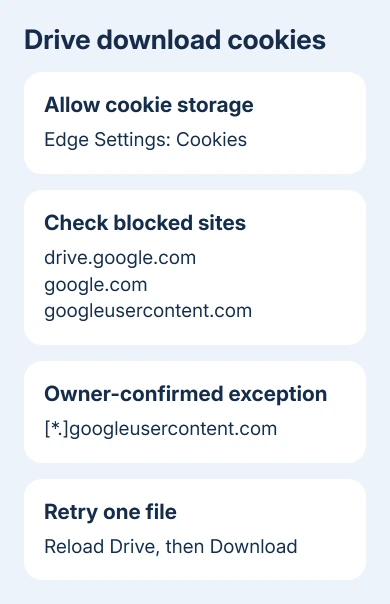
Make sure Allow sites to save and read cookie data is enabled. Look through the blocked-site list for drive.google.com, google.com, and googleusercontent.com. Remove a block that you added for one of those domains.
Under Allowed to save cookies, choose Add site and enter drive.google.com. If the dialog offers Include third-party cookies on this site, select it for this Drive exception.
Older Edge layouts call the list Allow. One owner used [*.]googleusercontent.com, which covers Google's download subdomains. Add that exception if needed, then reload Drive and retry one ordinary file.
Google's download troubleshooting steps explain that blocked cookies can stop its secure download server from communicating with Drive. The Edge owner confirmed downloads worked after allowing googleusercontent cookies.
Keep the exception limited to the service you need. I'd try that before allowing third-party cookies for every website. A working download should now appear in Edge's downloads list, with a completed file you can open.
If the exception doesn't help, check extensions next. Repeatedly adding unrelated Google addresses or clearing the entire browser makes the results harder to interpret.
2. Turn off extensions for one download
Type edge://extensions in the address bar. Turn off the extensions, reload the Drive tab, and try the same file. Content blockers and privacy extensions can change a website's requests independently of Edge's cookie controls.
If downloading works, enable each extension separately, retrying the download between switches. When the failure returns, give that extension a site exception, update it, or remove it. Turn the others back on after checking them.
This isn't the fix for every case. In the original thread, turning off extensions, restarting Edge, and trying InPrivate didn't solve the asker's problem. The cookie exception did, so move on if turning off extensions doesn't help.
An InPrivate window also isn't a substitute for checking cookie permissions. It has its own browsing restrictions. Use the normal Drive window for this comparison, using one account and the same file throughout.
3. Check whether the owner permits downloading
A file that opens but has no usable Download option may have downloads restricted by its owner. Viewers and commenters don't always have permission to download, print, or copy a shared file. Browser repair won't change that permission.
Select your Google profile picture and check the signed-in account. The link might give your work account access that your personal account lacks. Use the account the owner invited before blaming the browser.
Ask the owner to allow downloading or send an approved copy. Explain that viewing works but downloading doesn't, and include the file link. That's more useful than asking them to share the same restricted link again.
For a Google document, spreadsheet, or presentation, open the item and use File > Download, then select the format you need. A Word document or PDF is an exported copy; it won't keep updating when the online original changes.
4. Follow a limit message instead of changing Edge
A message about too many users viewing or downloading a file means Drive has temporarily restricted it. That's different from Download doing nothing. The restriction usually resets within 24 hours.
Wait and retry the same shared file later, or ask its owner for another approved way to receive it. If the file is urgently needed for work, give the owner the exact message rather than repeatedly testing browser settings.
Trying several files at once can make the results harder to understand. Start with one small file you own. If that downloads but the shared item doesn't, check the shared item's permissions or message rather than the Downloads folder.
For several files, select them in Drive and use Download. Don't drag a Drive item straight onto the desktop; that isn't Drive's supported download method. Leave Drive open until preparation finishes.
5. Read the download entry when a transfer starts
Press Ctrl+J in Windows Edge to open Downloads. Find the attempted file. A completed entry means Drive delivered it; select its folder control to find the saved copy without searching folders manually.
An entry marked with a network error needs the Edge download network checks. That situation differs from the original cookie fault, where the owner reported that nothing appeared in the downloads list.
If the saved copy opens but the website still behaves strangely, clear Edge's cached files with the cache selected. Avoid selecting saved passwords or all cookies as part of a routine cache cleanup.
Try that identical file using a different installed browser. If that works, you can retrieve the file and tell support it's downloadable. Keep your usual default browser during this comparison.
When Drive still won't send the file
For an organization account, give the administrator the file link, affected account, exact message, and whether another browser works. Ask them to check download restrictions and any managed Edge cookie or extension rules.
For an Edge-only failure on your own PC, press Alt+Shift+I to open Send feedback. Include the Edge version from About Microsoft Edge and whether Ctrl+J contains an entry. Keep private file contents out of the report.
The Short Version
Check Google's cookie exceptions when Drive downloads never start. Test extensions next, then separate owner restrictions and download limits from browser faults. A visible network error needs the connection checks.
Checked November 23, 2026.
 If you have any business, I can build it online






