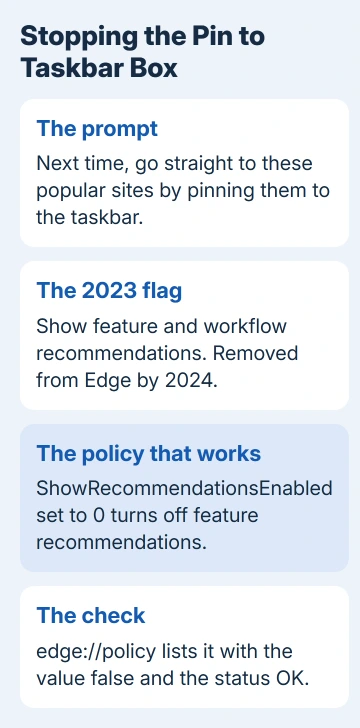
The box Edge shows as you close it, urging you to pin popular sites to the taskbar, is one of its feature recommendations. Owners never found a switch for it in Settings, and the 2023 flag that hid it is gone.
What still works is ShowRecommendationsEnabled, a policy setting normally used by IT. Set it to 0 and Edge stops every feature recommendation, this one included. It takes about two minutes in Registry Editor and is just as quick to undo.
In this guide
Where the pop-up comes from
The message reads "Next time, go straight to these popular sites by pinning them to the taskbar", and it started turning up around Edge 117 in September 2023. The asker saw it every few days on four Windows 10 PCs, all fully updated.
Edge files prompts like this under feature recommendations: the little dialogs, pop-out panels and banners that nudge you toward something it thinks you'll use.
The tip to try vertical tabs when you have lots of tabs open is another one, and it's the example given in the policy reference for ShowRecommendationsEnabled.
1. Try the old flag, if your Edge still has it
In 2023 the fix that spread was a flag, one of the experimental settings on Edge's flags page. Type edge://flags in the address bar, search for Show feature and workflow recommendations, set it to Disabled and restart Edge.
One owner reported the box gone after that, though they noted an earlier suggestion had held for only three days.
The flag didn't last either. In September 2024 an adviser on Microsoft's forum wrote that it had been removed, so if the search on the flags page comes up empty, move straight to the policy.
2. Turn off recommendations with the policy
Close Edge before you start. You'll add one value to the registry, Windows' settings database, and that's the only thing to change there. I'd go straight to this route, since a policy stays put through Edge updates.
- Press Windows+R, type
regeditand press Enter, then select Yes when Windows asks for permission. - Paste
HKEY_LOCAL_MACHINE\SOFTWARE\Policies\Microsoftinto Registry Editor's address bar, just under its menu, and press Enter. - If Microsoft has no key (folder) called Edge under it, right-click Microsoft, choose New > Key and name it
Edge. - Right-click Edge, choose New > DWORD (32-bit) Value and name it
ShowRecommendationsEnabled. - Double-click the new value and check that Value data is 0, then select OK.
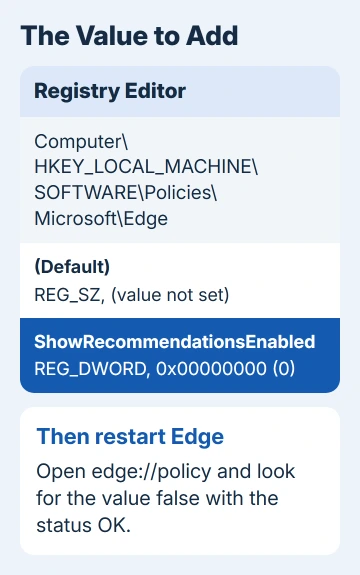
A new DWORD value starts at 0, so step 5 is only a check. The name has to match exactly, with no spaces, or Edge ignores it.
If you'd rather not click through Registry Editor, the .reg file that adviser posted does the same in one go. Paste these lines into Notepad, save the file as ShowRecommendationsEnabled.reg, double-click it and confirm:
Windows Registry Editor Version 5.00

[HKEY_LOCAL_MACHINE\SOFTWARE\Policies\Microsoft\Edge]
"ShowRecommendationsEnabled"=dword:00000000
3. Check that Edge picked it up
Open Edge and go to edge://policy. ShowRecommendationsEnabled should be in the list with the value false and a status of OK. If it's missing, select Reload policies and look again.
If the status shows an error instead, the value's name or type is wrong. Go back to Registry Editor and check that it's a DWORD, not a string (text) value, and that the name is spelled exactly as in step 4.
What changes once the policy is on
Edge will now say it's managed by your organization, both in its menu and in Settings. Any policy brings that line, as with Secure DNS turned off for managed browsers, and here it just means Edge has seen your new value.
You also lose the other nudges, like that vertical tabs suggestion. If you ever want them back, delete ShowRecommendationsEnabled in Registry Editor and restart Edge, and everything returns to how it was.
On a work PC, a Mac or a phone
IT can set the same thing in Group Policy, under Administrative Templates > Microsoft Edge.
The setting is called Allow feature recommendations and browser assistance notifications from Microsoft Edge, and setting it to Disabled turns the prompts off. It needs the Edge policy templates (MSEdge.admx) installed first.
On a Mac, the policy exists as a preference key with the same name, which IT can push out in a configuration profile. Edge on Android and iPhone doesn't support it, so a phone has no equivalent switch.
What didn't work for owners
Pinning the suggested sites and then unpinning them didn't stop the box for one owner. The asker sent feedback from Edge and got no reply, and repeated calls to Microsoft's support line ended with the agents unable to turn it off.
Changing taskbar settings in Windows won't help either, since the prompt comes from Edge itself. Icons that return after you unpin them are a separate Windows issue, covered in unpinned apps coming back on the taskbar.
When a prompt still appears
If edge://policy shows the policy as OK and a box still pops up, read it closely. A different prompt, such as one asking to make Edge or Bing your default, may not count as a feature recommendation.
Press Alt+Shift+I in Edge to send feedback with a screenshot of that prompt. Include its exact wording and your Edge version from edge://settings/help, so the Edge team can match your report to the right prompt.
The Short Version
The pin-to-taskbar box is an Edge feature recommendation, and the old flag is gone. Add a DWORD named ShowRecommendationsEnabled, value 0, under HKEY_LOCAL_MACHINE\SOFTWARE\Policies\Microsoft\Edge, then check edge://policy.
Checked November 19, 2026.
 If you have any business, I can build it online