Edge's STATUS_INVALID_IMAGE_HASH error often means security software is trying to load code that the browser's protection rejects. Update that security product first, then restart Windows and reopen the page.
An Edge update can expose an incompatible component in another app. Updating old Symantec software restored pages for one owner. If updating doesn't help, check the Windows event log for the blocked file.
In this guide
1. Update the security product, then restart Windows
Open the security app and check its product version. Update the app itself, rather than just its threat definitions, the files it uses to recognize threats. A program update can replace the parts that interact with Edge.
Give IT the error and ask them to upgrade the security software on your PC. Some security products receive program upgrades only through company management tools; their local update button may update definitions alone.
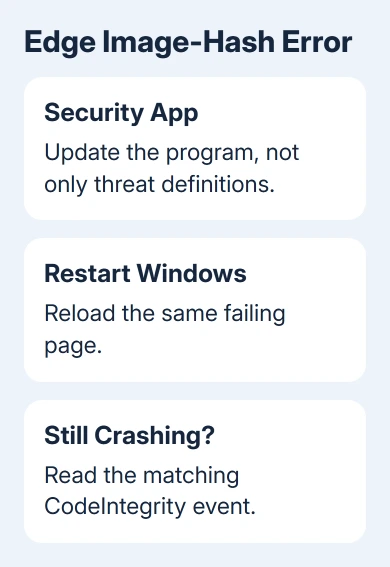
After the upgrade, save any open work and reboot Windows. Open Edge normally and revisit a page that consistently crashed. Check that the page stays open. Reaching the browser's start screen alone doesn't tell you if the crash is fixed.
An owner reported success after discovering an old Symantec version. Another participant said updating or disabling Symantec hadn't helped their machine, so the product name alone doesn't identify every case.
Don't keep security software disabled to make Edge work. Parts of the security app can stay active even when you pause protection, so that test can be misleading. Give its vendor the installed product build and ask about Edge compatibility.
I'd check this before deleting browser data. Cookies and history aren't the blocked program file, and removing them can create extra sign-in work without changing the component that crashes the page.
2. Read the matching CodeIntegrity event
Right-click Start and open Event Viewer. This is the Windows tool that records system and application events. In its left pane, expand this path:
Applications and Services Logs > Microsoft > Windows > CodeIntegrity > Operational
Reload a failing Edge page, then return to the log. Look for Event ID 3033 around that time. If the list is long, use Filter Current Log and enter 3033 in the event-ID field.
Open a matching event and read its General details. Look for an entry naming msedge.exe, Edge's program file, and the DLL it tried to load. A DLL is a file containing code that another program uses.
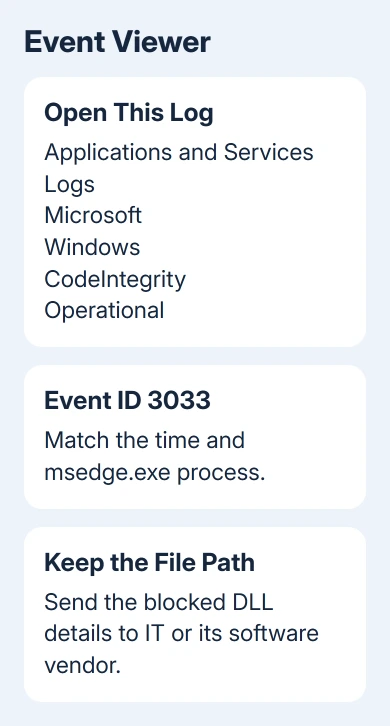
Copy the process path, blocked-file path and event time into your support notes. Match the event to Edge and to your failed page load. An unrelated older event doesn't identify the cause of today's browser crash.
The engineer's explanation of this crash shows how to use this log to find the blocked program file. It also explains why software loading its own components into a browser can trigger the failure.
If there isn't a matching event, don't guess which system file to remove. Continue with the browser update and repair checks, and tell support that this particular log didn't show the blocked component.
3. Update or repair the app named by the event
Read the blocked file's path for the software folder it belongs to. A path inside a security product's folder gives IT or that vendor a concrete component to check. Send the complete path rather than only the DLL's filename.
Ask whether the installed product build supports your current Edge and Windows versions. Use the software maker's supported repair or update steps. If the product is obsolete, have IT replace or remove it through its supported uninstaller.
Don't delete a DLL by hand. The file may be part of a security service or another installed application, and deleting it can leave that software partly installed. Repair the app that the file belongs to instead.
Restart after repairing the product and reload the failing page. Keep the earlier event details. If a different file is now blocked, send both entries to support so they can check what changed.
If Chrome shows the same code too, mention it. Both browsers use Chromium, but their policies and repair procedures aren't interchangeable. The Chrome crash-code guide separates that browser's other common error codes.
4. Update or repair Edge if the component check doesn't settle it
If settings still open, enter edge://settings/help. Let Edge check for updates and restart when prompted. Record the complete version shown there, especially when the crash began immediately after an update.
On Windows 11, open Settings > Apps > Installed apps, find Microsoft Edge, open its three-dot menu and choose Modify. Approve the administrator prompt and select Repair. Keep the PC online while the repair runs.
On Windows 10, open Settings > Apps > Apps & features, select Microsoft Edge, then choose Modify > Repair. Close Edge for other signed-in Windows users too before starting the repair.
The supported Edge repair procedure should preserve browser data and settings. Ask IT to handle the installation when a managed PC offers no Modify control.
Repair can fix a damaged browser installation, but it doesn't update your separate security software. If the same blocked-file event returns after repair, send that event to the app's vendor rather than repeat the browser repair.
For a window that freezes without this error code, use the Edge not-responding checks. A blank graphics problem and an image-hash crash don't call for the same first fix.
Why old registry and rename fixes aren't the repair
Historical replies suggest setting RendererCodeIntegrityEnabled to zero. Microsoft's policy reference now marks that policy obsolete and says it doesn't work after Edge 118.
Some owners renamed msedge.exe or used Windows 8 compatibility mode to load pages. Those historical workarounds didn't repair the outdated component. Leave the current browser's executable and protection settings intact.
If the fault continues, press Alt+Shift+I in Edge to open Send feedback. Give IT the event details if Edge won't stay open. Include the security-product build and the result after updating it.
The Short Version
Update the security app's program components, restart, then check Event ID 3033 for a blocked DLL. Repair the product that owns it and Edge if needed. The old renderer-integrity registry setting no longer works on current Edge.
Checked November 23, 2026.
 If you have any business, I can build it online