Selecting headphones for Windows doesn't always change Edge's saved output device. Open the per-app sound controls and set Microsoft Edge to the headphones there, while a video is playing.
Start here when other apps use your headphones while Edge stays on speakers. If Windows doesn't list the headphones at all, fix their connection first. Edge can't select a device the computer doesn't recognize.
In this guide
1. Select the headphones for Edge in the app mixer
Connect your headphones and start a video in Edge. Keep the sound low while changing devices, since playback is currently going through the speakers. Leave the video running so Windows can show Edge among the active apps.
On Windows 11, open Settings > System > Sound > Volume mixer. Under Apps, find Microsoft Edge, expand its controls if needed and choose the headphones as its Output device.
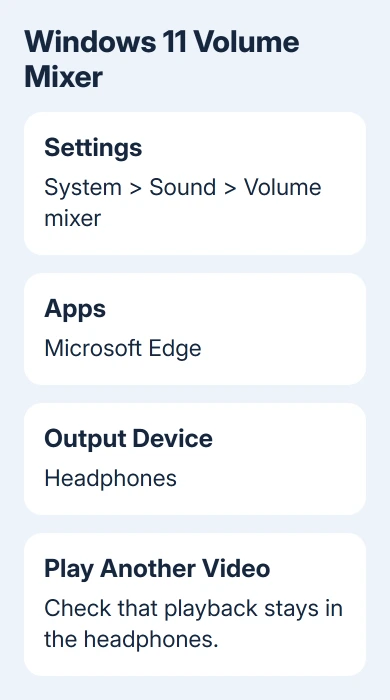
On Windows 10, open Settings > System > Sound. Scroll to Advanced sound options and select App volume and device preferences. Change the Output choice for Microsoft Edge to your headphones.
These are app settings, separate from the main Windows output selector. If Edge isn't listed, let the video play for a moment and reopen the app controls. Also check that the app's volume isn't muted there.
The Windows app-audio instructions explain why an app may play through something other than the Windows default. That's why changing the device from the taskbar can leave Edge playing through the old one.
Listen for playback in the headphones, then start a second video. One historical owner found that a restart helped the first video but the next one returned to speakers. Checking another video catches that incomplete result immediately.
2. Refresh an output choice Edge isn't honoring
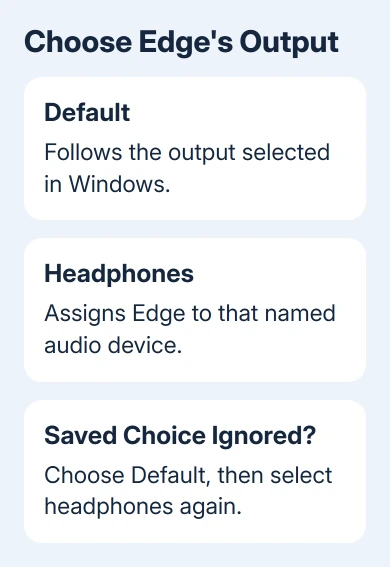
If Edge already shows the right headphones but still plays through speakers, change its per-app output to Default, then select the headphones again. Pause and resume the video after the change.
One owner reported needing this switch after reboot because Edge wasn't honoring the saved app output. This gives you a workaround when Edge ignores the saved choice. Reinstalling the headphone driver each time isn't necessary.
Close sound settings and keep listening. The accepted answer's owner said sound became poor after that window closed. The sound reached their headphones, but it still didn't sound right.
If changing the route works only until the next restart, write that down. Tell support whether the output list still shows headphones after the failure or has actually returned to speakers. Those are different behaviors to reproduce.
I'd try this short switch before resetting Edge. Another owner in the thread reset the browser without solving the audio fault. Clearing favorites, cookies or browsing history isn't needed to change an app's playback device.
3. Set the Windows default when every app should follow it
Choose the main output device as well when you want all ordinary audio to follow your headphones. On Windows 11, use Settings > System > Sound > Output and select the headphones from the listed devices.
On Windows 10, use Settings > System > Sound > Choose your output device. Then return to Edge's per-app output and choose Default to make it follow Windows, rather than stay assigned to a particular device.
Selecting headphones directly keeps Edge assigned to them. Default follows your Windows choice, which is useful when you move between headphones, speakers and a monitor. Pick the behavior that matches how you use the computer.
Windows can list an HDMI or DisplayPort display among its audio devices, even if you never use it for sound. Read the device name rather than choose the first entry, especially after connecting a dock or external display.
If the headphones don't appear in that list, compare another app before changing Edge again. The PC headphone connection checks cover wired sockets and connections when Windows can't use the device at all.
For paired Bluetooth headphones missing specifically from the playback list, use the Bluetooth output-device checks. Pairing the device and making its audio output available aren't always the same step.
4. Update Edge and Windows if the route keeps reverting
Choose Help and feedback in Edge's three-dot menu, then select About Microsoft Edge. Let the check finish and restart if requested. Return to the same videos that previously switched back to speakers.
On Windows 11, open Settings > Windows Update > Check for updates. For Windows 10, choose Settings > Update & Security, then open Windows Update. Install updates offered for your supported system and restart when requested.
The original asker briefly reported success after installing updates and restarting, then said the next video returned to speakers. The next video is an important check because the restart hadn't fixed their problem for good.
If your headphones work in other browsers through the same connection, keep that comparison in the report. Tell support which browser plays correctly and which ignores the selected output.
If every app sounds bad or loses audio, continue with Windows audio services and drivers. An Edge-only route problem doesn't justify replacing a driver that is working normally for the rest of the computer.
5. Restart audio services for a wider sound fault
Finish calls or recordings first; restarting these services will interrupt audio. Press Start, type services.msc, open Services and locate Windows Audio. Right-click it and choose Restart.
Repeat for Windows Audio Endpoint Builder, then test the same audio in Edge and another app. Administrative permission may be required; have IT perform this step if your computer blocks the controls.
If several apps still sound wrong, open Device Manager and locate its Sound, video and game controllers category. Right-click the audio device and select Update driver. Also check for a supported driver through your PC maker.
When Edge still ignores the selected device
Send a report through Settings and more > Help and feedback > Send feedback. Include the Edge version, Windows version, headphone connection type and exact output-device name shown in the mixer.
Say when the sound switches devices: during the first video, a later one or after Windows starts. Mention any quality change after closing sound settings. Give the headphone or PC maker those results if other apps have the same fault.
The Short Version
Set Edge's own output device while a video plays. If the saved choice is ignored, switch it to Default and back. Use Default for following Windows, and report a route that reverts after another video or restart.
Checked November 23, 2026.
 If you have any business, I can build it online