

Windows Resource Protection did not find any integrity violations is the clean result from sfc /scannow. Every protected Windows file matched the good copy Windows keeps, so the scan had nothing to repair.
That rules out damaged Windows files, but it doesn't fix whatever sent you to SFC in the first place. Run DISM next to check the store those good copies come from, then look at the app, driver or drive that started the trouble.
In this guide
What the clean result covers
SFC checks the files that make up Windows itself, such as its system DLLs, core programs and built-in drivers. It compares each one with a cached copy in the component store (the WinSxS folder) and swaps out any that don't match.
Microsoft's own System File Checker page says the message means "You do not have any missing or corrupted system files." Nothing is hiding behind it. It's a pass.
What SFC skips matters just as much. It doesn't test your drive or SSD, your memory (RAM), apps you installed yourself, or drivers from your PC maker or graphics card company. A clean scan and a crashing PC can both be true.
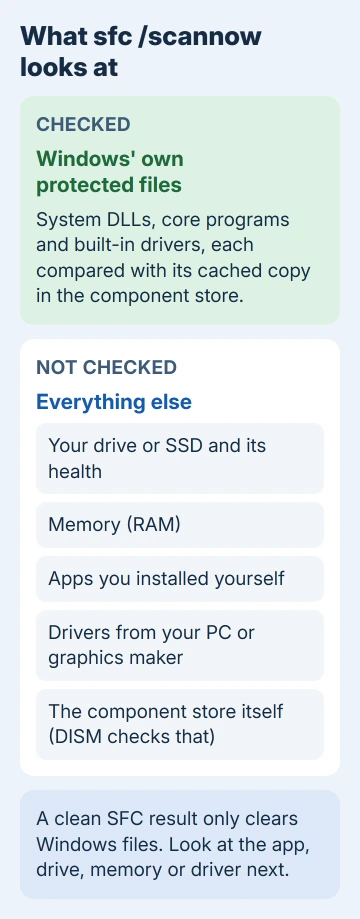
So the useful question is why you ran it. Edge crashing needs a very different repair from a hard disk warning, which is why the fixes further down are sorted by the reason you ran SFC.
Why a second scan can come back clean
If SFC found corrupt files one day and comes back clean the next, the first run usually did its job. SFC fixes what it can during the scan, so the next run has nothing left to report.
One owner had SFC fail to fix some files, ran nothing but a virus scan, and got a clean result on the next try. They were told to check the antivirus history for what it had changed, and that's where I'd look too.
To see what earlier runs repaired, start an administrator Command Prompt and paste this line. It copies SFC's entries out of CBS.log, the file where Windows records them, into a text file on your desktop:
findstr /c:"[SR]" %windir%\Logs\CBS\CBS.log >"%userprofile%\Desktop\sfcdetails.txt"The file holds entries from every SFC run on the PC, each stamped with a date and time. Find the run you're curious about by its time and you'll see whether it repaired anything.
1. Run DISM, then SFC once more
DISM checks the component store itself, the source SFC copies its good files from. Run it before you rule out Windows' files for good: SFC is the quick check, and DISM is the deeper one that can repair the store.
Type cmd in Start, right-click the result and pick Run as administrator. Then run:
DISM.exe /Online /Cleanup-image /RestorehealthIt downloads any replacement files it needs from Windows Update, so keep your PC online and give it several minutes. When it finishes, run sfc /scannow again and read the new result.
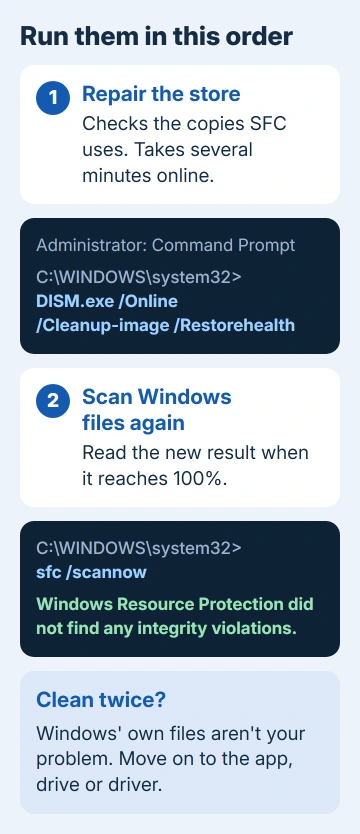
A clean DISM run followed by a clean SFC scan tells you Windows' own files really aren't the problem. If DISM stops with an error instead, our guide to the corrupt-files result covers DISM failures and the repair source it needs.
2. Repair the app that keeps crashing
When one app crashes or won't open, the problem usually lives in that app's own files or settings. SFC doesn't touch those, so repairing the app is your next move.
On Windows 11, open Settings > Apps > Installed apps, click the three dots next to the app and choose Advanced options. On Windows 10, go to Settings > Apps > Apps & features, click the app and choose Advanced options under its name.
Try Repair first. If it isn't there or doesn't help, choose Reset, which also clears the app's settings and sign-in. Older desktop programs have their Repair or Change button in Control Panel, under Programs and Features.
3. Back up first if Windows warned about the disk
A warning that Windows detected a hard disk problem is about your drive's health, which SFC can't see at all. So the clean result tells you nothing either way about a failing drive.
Copy your documents and photos to an external drive or cloud storage before you do anything else. Then run chkdsk C: /scan in an administrator Command Prompt. It checks the drive's file system for errors while Windows keeps running.
If the disk warning comes back after that, treat the drive as failing. The drive maker's own app or your PC maker's hardware diagnostics can test it, and a drive still under warranty can be replaced.
4. Read the crash for blue screens and restarts
Blue screens tend to come from a driver or hardware, not from Windows' own files. Write down the stop code and any driver file the screen names, then look them up in our blue screen guide.
Type reliability in the Start menu and open View reliability history. It shows a timeline of crashes and failed updates, so you can see what broke on the day your trouble started.
For random freezes or restarts with no pattern, run Windows Memory Diagnostic from the Start menu. It tests the memory before Windows loads, and the result appears after you sign in. If no message shows, look in Event Viewer's System log.
Similar messages that mean something else
A result saying Windows Resource Protection could not perform the requested operation means the scan didn't finish. Run SFC again in safe mode, and check that the PendingDeletes and PendingRenames folders exist under C:\Windows\WinSxS\Temp.
If SFC found corrupt files and repaired them all, the repair worked and you're done. If it found some it couldn't repair, that's when you need DISM and, sometimes, a repair source.
When everything comes back clean
If DISM and SFC both come back clean and the problem goes on, Windows' files are off the table. Reset this PC with Keep my files reinstalls Windows without deleting your documents, though you'll have to reinstall your apps.
Windows 11 keeps it under Settings > System > Recovery, and Windows 10 under Settings > Update & Security > Recovery.
A reset won't fix a failing drive or bad memory, so call your PC maker first if Windows gave you a hardware warning. Its support line can run remote diagnostics and arrange a warranty repair.
The Short Version
The no integrity violations message means Windows' protected files are fine. Run DISM, then SFC again. If both are clean, look at the app, the drive, the memory or the driver behind your actual problem.
Checked November 19, 2026.
 If you have any business, I can build it online






