System.Management.ManagementException: Invalid namespace means a program asked Windows Management Instrumentation (WMI) for a section that isn't there. WMI is how apps read hardware details, and its sections are called namespaces.
Either WMI's own database got damaged, often after a crash or a blue screen, or the app needs a namespace that only its companion driver adds. A quick look in WMI Control tells you which one you're dealing with.
In this guide
1. Check WMI Control before anything else
Press Windows + R, type wmimgmt.msc and press Enter. Right-click WMI Control (Local) in the left pane, choose Properties and stay on the General tab.
The same panel also sits in Computer Management, under Services and Applications, if you'd rather open it from there.
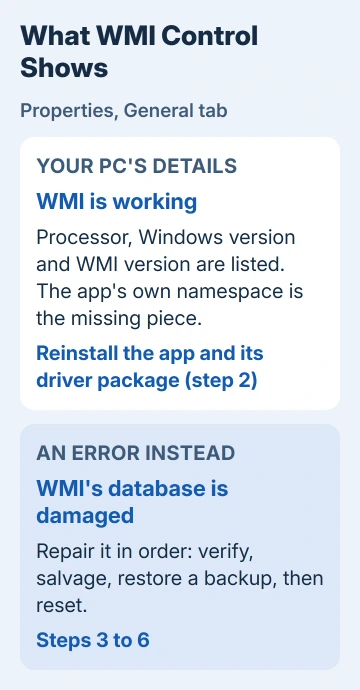
On a healthy PC, the General tab lists your processor, your Windows version and the WMI version. When WMI's database is damaged, you get an error message there instead of those details.
So that one tab decides your next step:
- Your PC's details show up: WMI itself is fine, and the namespace the app wants is missing. Go to step 2.
- An error shows up: WMI needs repairing. Skip to step 3.
These steps are the same on Windows 11, Windows 10 and Windows 7. Only the Settings paths for removing an app differ, and step 2 gives both.
2. Reinstall the app and the driver it depends on
When WMI Control looks normal, the namespace comes from software that's missing or broken. Laptop lighting, fan and hotkey tools often come in two pieces: the app you see and a system driver or service that feeds it.
If that second piece is gone, the app shows this error the moment it opens. Reinstalling both, in the right order, puts the namespace back:
- Uninstall the app that shows the error. On Windows 11 it's in Settings > Apps > Installed apps, and on Windows 10 in Settings > Apps > Apps & features. Restart afterward.
- Go to the support or downloads page for your laptop or PC model on the maker's site. Get the current version of that app, plus any system interface, control or chipset package listed beside it.
- Install the driver or service package first and restart. Then install the app and open it.
I'd always try this before touching WMI itself, because a clean reinstall can't break anything that already works.
Maker tools talk to WMI all the time, which is also why one of them can keep WMI Provider Host busy on an idle PC. Save the full error text, including the lines under it, in case the maker's support asks for it.
The same exception shows up when a program needs a newer Windows than the PC runs. Code that reads the storage namespace added in Windows 8 fails this way on Windows 7.
So if your system is older, check the app's minimum Windows version before you reinstall anything.
3. Ask WMI to check its own database
Click Start and type cmd. When Command Prompt appears, choose Run as administrator in the results pane and click Yes when Windows asks. Then run:
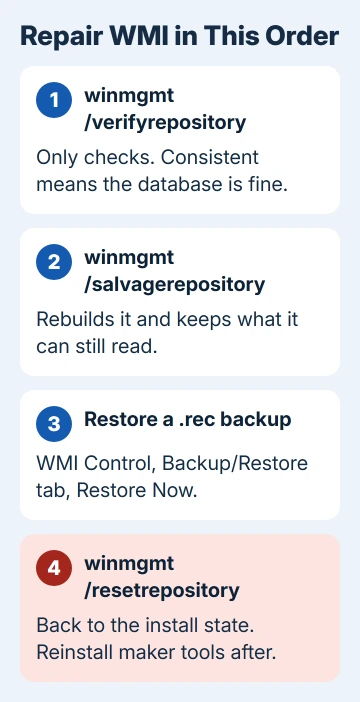
winmgmt /verifyrepositoryA healthy result reads WMI repository is consistent. That means the database isn't your problem, and the fix is in step 2. If the check comes back inconsistent, carry on with step 4.
Microsoft's WMI support engineers put this check before any repair, and their article on repository corruption names invalid namespace as one of the symptoms.
Rebuilding a repository that was fine can break the apps that registered their own namespaces in it. That's why the check comes first.
4. Salvage the repository
Run this next, in the administrator window you already have open:
winmgmt /salvagerepositorySalvage checks the database again. If it's damaged, salvage rebuilds it and merges in everything it can still read from the old copy.
That merge is why it comes first: namespaces your laptop maker's tools added can survive it, as long as the damaged copy is still readable.
Run winmgmt /verifyrepository again afterward. Once it says consistent, restart your PC and open the app that failed. If verify still complains, or your app still fails, move on to the backup.
5. Restore a WMI backup
WMI backups are files ending in .rec, and restoring one fixed exactly this pop-up for one owner. Their laptop had blue-screened, and afterward the app that ran the keyboard lights failed at startup, so the lights stayed on.
The only backup they could find was C:\Windows\System32\wbem\corrupted.rec. They restored it from WMI Control even though they "didn't hold much hope".
When they checked WMI Control a little later, it showed the PC's details again. The lighting app opened, and they could finally switch those lights off.
To try it on your PC, open C:\Windows\System32\wbem in File Explorer and search the folder for .rec. Then go back to WMI Control's Properties, open the Backup/Restore tab, click Restore Now and pick the file.
No .rec file at all? Go to step 6.
Once everything works again, click Back Up Now on that same tab. With a clean backup saved, the next crash only needs a quick restore, not a reset.
6. Reset the repository as the last step
winmgmt /resetrepositoryA reset puts WMI back the way it was when Windows was installed. Windows' own namespaces come back, but anything an app added later is gone.
So reinstall your maker's tools afterward, the way step 2 describes, and restart once more.
Don't delete the Repository folder inside C:\Windows\System32\wbem to force a rebuild. Deleting it can damage Windows or the apps that use WMI, which is exactly why the reset switch exists.
When the error keeps coming back
If verify still reports a problem after a reset, or the pop-up returns after every restart, the damage goes wider than WMI. Run System File Checker (sfc /scannow) next, from that administrator window.
If SFC stops with files it can't fix, run DISM and then SFC again. A repair install of Windows, which keeps your files and apps, is the deeper fix after that.
When WMI checks out and only one app fails, the app maker has to sort it out. Send their support the full error text, the WMI Control result and the app version.
For a PC still under warranty, the maker's support also covers the tools that came with it.
The Short Version
Open WMI Control's Properties. If your PC's details show, reinstall the app and the driver package it depends on.
If an error shows, run winmgmt /verifyrepository, then /salvagerepository, then restore a .rec backup. Use /resetrepository only last.
Checked November 19, 2026.