A Windows 11 taskbar that stays black with a spinning blue circle, and makes the screen flash black when you click it, is stuck loading. It often starts right after an update.
Restart Windows Explorer first; it takes seconds. If the taskbar stalls again at every sign-in, repair Windows in place, which installs a new copy of Windows over your current one and leaves your apps and files alone.
Then restart or shut down fully. Two owners in a forum thread fixed it this way, and neither saw the repair work until after that restart or shutdown.
In this guide
How do you get to Settings without the taskbar?
Press Ctrl+Shift+Esc for Task Manager, or Ctrl+Alt+Delete and choose it there. The owner in that thread could still reach every other app that way, even with the taskbar dead.
Windows+I opens Settings. If Settings won't come up, open Task Manager, select Run new task, type ms-settings:recovery and select OK; that opens the Recovery page you'll need in step 3.
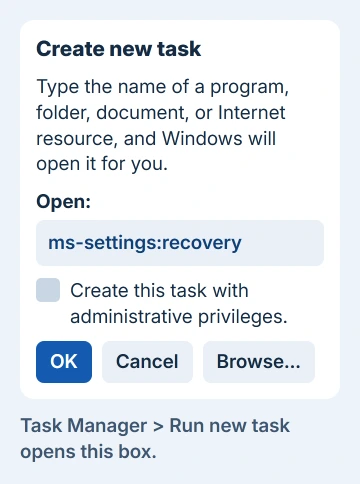
The same Run new task box starts anything else you need, such as cmd for a command prompt. Tick its administrative privileges box whenever a step calls for an admin window.
1. Restart Windows Explorer
Find Windows Explorer under Processes in Task Manager, select it and choose Restart task. For a second the screen goes bare, then the taskbar and desktop come back.
If the taskbar comes back and keeps working, it was a one-off stall. If it's stuck again straight away, or after the next restart, the problem is deeper than Explorer; that's where the owner landed.
A taskbar that loads but shows blank buttons is a different fault, and clearing the icon caches is the fix for that one.
2. Rule out the quick suspects
The owner tried these before the repair that worked, and none of them helped. They're still quick to rule out on your own PC, so give each one a short try and move on.
Uninstall the latest update. With Settings unreachable, the owner removed it from PowerShell; if Settings opens, use Windows Update > Update history > Uninstall updates. Their trouble began after the February 2024 preview update KB5034848.
System Restore is the other undo button: press Windows+R, type rstrui.exe and pick a restore point from a day when the taskbar still worked.
The owner's antivirus blocked the restore, and after they uninstalled it, the older restore points were gone.
They also ran sfc /scannow and the three DISM health checks, did a clean boot, deleted the IrisService registry key, and ran a malware scan and Dell's hardware check.
Nothing changed, which is why I'd go straight to step 3 once these fail.
3. Repair Windows in place
A repair install lays a fresh copy of your current Windows version over the old one, and your programs, documents and settings stay put. Open Settings > System > Recovery, or run ms-settings:recovery from Task Manager.
Find Fix problems using Windows Update on that page and press its Reinstall now button.
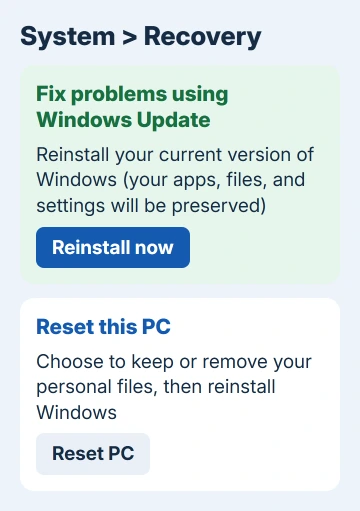
Choose whether Windows can restart without asking 15 minutes after it installs, select OK, and don't unplug or disconnect the PC until it's finished.
Microsoft's Reinstall now steps say the button needs a Windows 11 PC that has had the February 2024 optional update, and that it might not appear on a computer an employer or school runs.
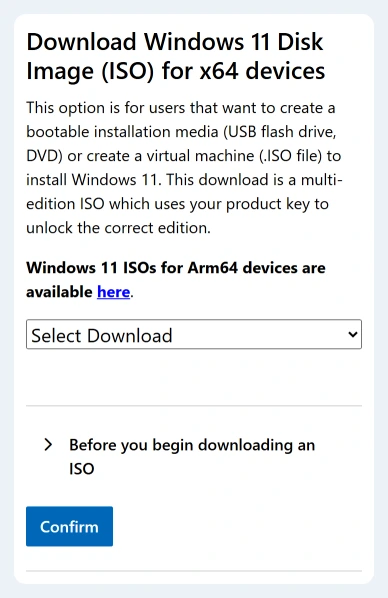
Without the button, the Windows 11 download page does the same job. In its Download Windows 11 Disk Image (ISO) section, get the multi-edition ISO, mount it, run setup.exe and keep your files and apps when it asks what to keep.
4. Restart or shut down fully after the repair
This is the part that caught both owners out. Right after the in-place upgrade the taskbar was still stuck, and the asker reported back "I just performed an In-place Upgrade, and the issue still exists."
Three days later they wrote again: after shutting down and coming back later, everything worked.
Their advice for anyone else was to "just shutdown your computer and turn it back on in an hour or so." A second owner found that one restart after the upgrade did it.
A restart always reloads Windows from scratch. A normal Shut down with Fast startup on is different: Windows stores its core and drivers in a file on disk and loads them back at the next start, so you don't get a truly fresh start.
To switch the PC off completely, hold Shift as you click Shut down, then leave it off for a while before you power it on.
5. Reset this PC if the repair doesn't hold
If the repair hadn't worked, the adviser's next suggestion was Reset this PC, choosing Keep my files. It's on the same Recovery page, and it keeps your documents but removes your apps and settings, so list what you'll need to reinstall.
Neither owner needed it, since the repair plus a shutdown or restart did the job. Treat it as the step before a clean install, not an early one.
When nothing brings the taskbar back
If the whole screen stays black after you sign in, not just the taskbar, that's a different fault, and the black screen checks start from there.
For a taskbar that survives a reset, reach a Microsoft support person through Get Help. Say that it began after an update and that a repair install and a reset didn't fix it, so they skip the basics.
The Short Version
Restart Explorer from Task Manager (Ctrl+Shift+Esc) first. If the taskbar keeps spinning, repair Windows in place with the Reinstall now button under System > Recovery, or run setup.exe from the Windows 11 ISO without removing anything.
Then restart, or hold Shift as you choose Shut down and leave the PC off for a while. That's what finally fixed it for both owners; a reset with Keep my files comes after that.
Checked November 19, 2026.