Install error 0x800f020b next to an HP printer driver means Windows Update downloaded a printer driver, then found no printer to put it on.
The entry usually reads HP - Printer - 20.80.3.9568, a September 2023 driver for the HP DeskJet 3630 series, and it fails on plenty of PCs that have never had that printer.
What cleared it for owners was deleting the leftover HP driver package in Print server properties, then restarting and checking for updates. Rather not touch drivers? Microsoft's Show or hide updates tool can hide the offer instead.
In this guide
Why Windows keeps offering an HP driver
Windows Update offers a driver when something on your PC matches one of its hardware IDs, the codes a device uses to tell Windows what it is. The catalog entry for this driver lists IDs for a DeskJet 3630 on USB and on a network.
When the install runs and finds no matching printer, it fails with 0x800f020b, and Windows Update offers it again at the next check. That's the loop you're seeing in your update history.
Where owners got rid of the error for good, the trigger turned out to be something HP had left behind: an old printer driver still installed in Windows, or HP software from a printer that was long gone.
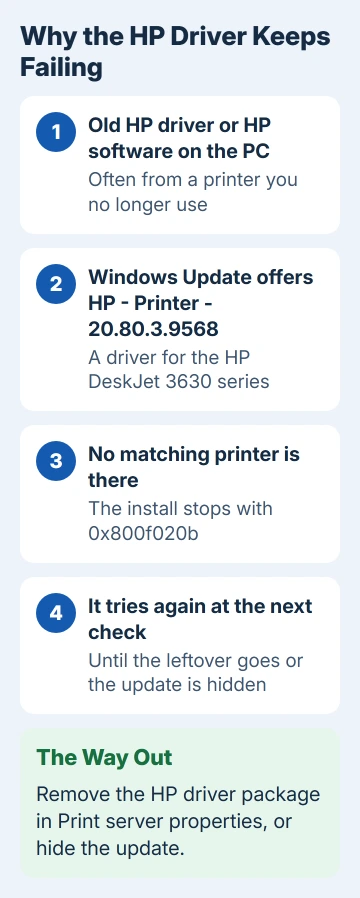
The failed install doesn't affect a printer you use today. It's a single driver offer, separate from Windows' monthly security updates, so the entry is an annoyance rather than a risk.
1. Delete the leftover HP driver package
This fix cleared the error on two Dell laptops that had never been near an HP printer. Their owner put it simply: "the only thing I had to do was to remove the Drivers and Driver Package from the Print server Properties".
- On Windows 11, open Settings > Bluetooth & devices > Printers & scanners, scroll to Related settings and select Print server properties. On Windows 10 it's Settings > Devices > Printers & scanners, with the same link.
- Open the Drivers tab. If the buttons are grayed out, select Change Driver Settings and approve the administrator prompt.
- Select an HP driver, choose Remove, pick Remove driver and driver package, then OK. Windows lists the package's files; select Delete. Repeat for every HP entry you don't use.
- Restart, open Settings > Windows Update and select Check for updates.
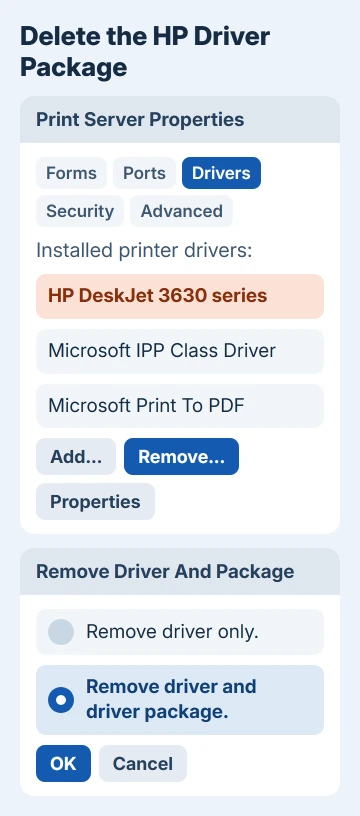
If Windows says the driver is in use, a printer you still have installed depends on it. Remove that printer under Printers & scanners first, then add it back afterwards if you still print to it.
The failed entry can take a check or two to disappear. Another owner pressed Download and install a few more times after the cleanup before the HP driver finally dropped off the list.
2. Uninstall old HP printer software
One owner who did have HP printers traced it to a DeskJet they'd retired. The printer was gone from Windows, but its HP device software was still installed, and uninstalling it made the error vanish.
- Open Settings > Apps > Installed apps (on Windows 10, Apps & features) and type HP in the search box.
- Uninstall HP printer software, scanner tools or HP Smart for any printer you no longer use. On an HP laptop, leave the laptop's own support apps alone.
- Empty Windows Update's download folder. In an administrator Terminal window, type
net stop wuauserv, then delete everything insideC:\Windows\SoftwareDistribution\Download(keep the folder itself). - Run
net start wuauserv, restart the PC and look for updates once more.
Clearing that folder is safe, because Windows just downloads again whatever it still needs. When other updates fail as well, our steps to reset Windows Update components go further than this one folder.
3. Hide the update so Windows stops offering it
If you've never owned an HP printer and just want the entry gone, hiding it is quickest. One owner with an HP LaserJet, not a DeskJet, fixed it this way with the Show or hide updates troubleshooter from Microsoft.
- Download wushowhide.diagcab from Microsoft's download site and open it.
- Select Next, then Hide updates.
- Tick the failing HP printer driver in the list, select Next, and close the tool when it finishes.
A hidden update stays hidden until you run the same tool again and pick Show hidden updates. It doesn't remove anything, so it's the gentlest of the three fixes.
The tool runs on an older troubleshooting engine that Microsoft is phasing out, and one owner found it no longer worked for them. If it won't open on your PC, fix 1 does the job without it.
4. Own a DeskJet 3630? Set it up again cleanly
Owning a DeskJet 3630 doesn't change the cause. One owner with a DeskJet 3630 still got the error, and it cleared only after they removed software left by an older HP model, which is fix 2.
Windows now leans on its own built-in driver (the IPP class driver) for many printers: Microsoft's printer driver timeline has Windows always preferring it since July 1, 2026.
I'd remove the DeskJet under Printers & scanners, restart, and add it again so Windows sets it up with a driver that fits. If scanning or ink levels go missing afterwards, install HP's software for your exact model from HP's support site.
Our page on printer drivers in Windows covers picking between the built-in driver and the maker's package.
If 0x800f020b comes back later
Check Print server properties again. A printer you add later can bring an HP driver package back, so remove it again, then hide the update to keep the list clean.
Blocking every driver from Windows Update also silences the error, but it stops driver fixes for your graphics, Wi-Fi and everything else, so I'd keep that as the very last resort.
If nothing sticks, open the Get Help app and give Microsoft support the exact entry name and the error code, or take both to your PC maker if the computer is still under warranty.
The Short Version
Install error 0x800f020b on an HP printer driver means Windows Update found a driver but no printer to install it on. Delete the HP driver package in Print server properties, restart and check for updates.
Remove old HP software and empty the update download folder if it returns, or hide the offer with Show or hide updates.
Checked November 19, 2026.