

When PowerPoint is the only program that won't print, suspect the printer driver, not the printer. Slides are graphics-heavy pages, and some drivers, PostScript ones especially, choke on them while Word's text pages go through.
To get pages out today, save the deck as a PDF and print that. For a lasting fix, switch the printer from its PostScript driver to its PCL driver. That swap is what got printing working again for the original poster.
In this guide
What PowerPoint shows you
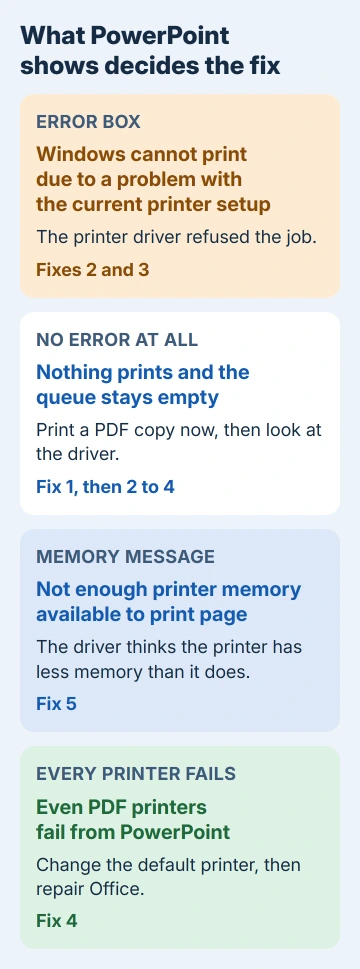
The failure usually looks one of three ways, and each points to a different step:
- A box titled Microsoft PowerPoint that says "Windows cannot print due to a problem with the current printer setup." The driver is refusing the job, so go to fixes 2 and 3.
- Nothing at all. No error appears and no job reaches the print queue. Print the PDF from fix 1 now, then try fixes 2, 3 and 4 in order.
- "Not enough printer memory available to print page." That message has its own setting, covered in fix 5.
One quick test sorts out the rest. Make a new presentation with one slide that just says Test, and print it. If that prints, the trouble is inside your original file, and the PDF route still gets it onto paper.
If the test slide fails too, try a second printer. If PowerPoint fails on every printer, PDF printers included, while Excel and Word print fine, skip straight to fix 4.
1. Save a PDF and print that copy
In PowerPoint, choose File > Save As, pick PDF in the file type list and save. File > Export > Create PDF/XPS does the same job. Open the PDF in a PDF reader or your browser and print it from there.
Use Save As rather than printing to Microsoft Print to PDF. A PDF printer goes through the same printing route that's failing, and one owner found even their PDF printer stopped working from PowerPoint while Excel kept printing.
This workaround got another owner's slides onto paper while they hunted for the cause. If the PDF prints, your printer, cable and network are fine, and the problem sits between PowerPoint and the driver.
For handouts or notes pages in the file, saving PowerPoint as a PDF walks through the export options on Windows and Mac.
2. Switch the printer to its PCL driver
Many office laser printers have two drivers, one per printer language: PostScript, often marked PS at the end of the printer's name, and PCL, shown as PCL6 or PCL 5e. PowerPoint can fail on one and print happily on the other.
One owner's color laser failed from PowerPoint on its PostScript driver, failed again after they reinstalled that driver, then printed on the PCL one. In their words: "SUCCESS with the PCL driver."
- Get the PCL driver for your printer model from the maker's support site. It usually sits right beside the PostScript download.
- On Windows 11, open Settings > Bluetooth & devices > Printers & scanners, pick the printer and choose Printer properties. On Windows 10, it's Settings > Devices > Printers & scanners, then Manage > Printer properties.
- On the Advanced tab, open the Driver list and pick the PCL entry. If it isn't there, click New Driver and point Windows at the download.
- Click OK and print a single slide.
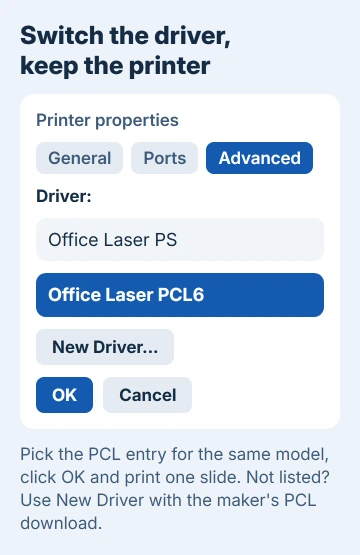
If it prints, keep the PCL driver. I'd make this switch before any reinstall: it's what actually fixed it for that owner, and it takes about five minutes.
3. Remove the old driver completely, then reinstall
PowerPoint's error box tells you to reinstall the driver, but deleting the printer alone leaves the driver files on the PC, and a fresh install picks the same files up again.
- In Printers & scanners, select the printer and choose Remove.
- On the same page, open Print server properties under Related settings, go to the Drivers tab, select the driver and click Remove.
- Choose Remove driver and driver package, then OK. Do the same for other printers from the same maker, since their drivers often share files and one stale file can survive.
- Restart and set the printer up again with a current driver, taken from the maker's website or from Windows Update, the two routes Microsoft recommends for printer drivers.
If a clean copy of the same driver prints, a damaged file was to blame. If it fails exactly as before, the driver type is the problem. Go back to fix 2.
4. When every printer fails from PowerPoint
A failure on every printer, while other programs print fine, means the driver isn't the common thread anymore. PowerPoint itself is.
Change the default printer first. PowerPoint loads your default printer, so switching it can clear the fault. On Windows 11, open Settings > Bluetooth & devices > Printers & scanners and switch off the Let Windows manage setting.
That setting is also why Windows keeps changing your default printer on its own. Select a printer that works, or a built-in one such as Microsoft XPS Document Writer, click Set as default and restart PowerPoint.
If nothing changes, repair Office. On Windows 11, right-click Start, choose Installed apps, open the three-dot menu next to Microsoft 365 or your Office version and pick Modify. Windows 10 has it under right-click Start > Apps and Features.
Choose Online Repair. Quick Repair is faster, but it only finds and replaces damaged files. Online Repair takes longer and fixes everything it can, which is what you want here.
5. Printer memory errors and poster-size slides
"Not enough printer memory available to print page" means the driver thinks the printer has less memory than it really does. Some drivers start at the lowest setting, and a full slide overruns it.
Open Printer properties, go to the Device Options tab and set Printer Memory to the amount actually installed. The printer's configuration page or manual lists it. If your driver has no such tab, this setting doesn't apply to it.
On PowerPoint 2010, a slide printed at poster size or sent to a plotter can throw the same current printer setup error. Microsoft's fix is hotfix 2760388, followed by a registry value that switches it on.
After installing the hotfix, open Registry Editor and use File > Export to save a copy you can double-click to undo. Then go to HKEY_CURRENT_USER\Software\Microsoft\Office\14.0 and create a new key named Gfx.
Inside Gfx, create a DWORD (32-bit) value named FavorTiledPrinting and set it to 1. The value does nothing without the hotfix, and it only applies to PowerPoint 2010.
If PowerPoint still won't print
Print the same file from another computer to the same printer. If it prints there, something on your own PC is at fault. If it fails there too, call the printer maker's support line with the model, driver version and exact message.
For PowerPoint itself, use Contact Support at support.microsoft.com if you're on Microsoft 365 or a current version. PowerPoint 2010 stopped getting updates in October 2020, so on 2010 the PDF route or a newer PowerPoint is the way out.
The Short Version
Save the deck as a PDF and print the PDF to get pages out now. Then switch the printer to its PCL driver, or remove the driver package and reinstall the newest one.
If every printer fails from PowerPoint, change the default printer and run Online Repair. Fix the memory message on the Device Options tab, and use hotfix 2760388 for poster prints in PowerPoint 2010.
Checked November 20, 2026.
 If you have any business, I can build it online






