

The Windows Script Host box that pops up at startup almost always means something is still trying to run a script that your antivirus already removed or blocked.
Delete the startup entry that calls it, usually with the free Autoruns tool, and the box goes away. The first line of the message tells you which case you're in, so read it before you change anything.
In this guide
Read the message first
Windows Script Host runs .vbs and .js script files, both for Windows itself and for your programs. Its error box usually names the script it tried to start, and the words around that name tell you what went wrong.
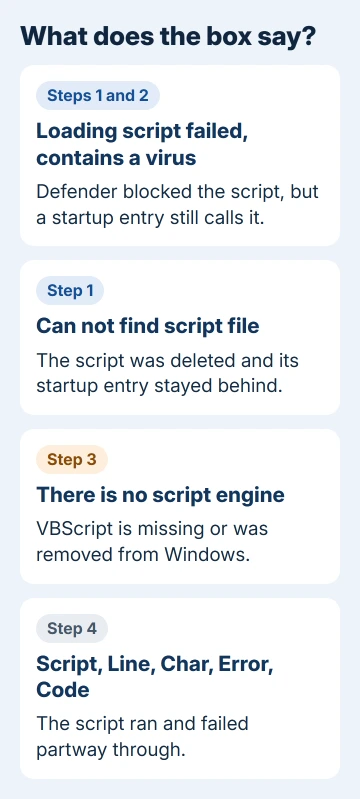
"Loading script" plus "Operation did not complete successfully because the file contains a virus or potentially unwanted software" means Defender blocked the script while a startup entry still calls it. Start with steps 1 and 2.
"Can not find script file" followed by a path means the script is gone, usually deleted by your antivirus, but whatever launched it is still there. Step 1 is your fix.
"There is no script engine for file extension" means VBScript itself is missing or was removed. Step 3 covers it.
A box listing Script, Line, Char, Error and Code means the script did run and failed partway through. That's step 4.
1. Remove the leftover startup entry in Autoruns
Autoruns lists everything that starts with Windows, including scheduled tasks that Task Manager's Startup list leaves out. It's free and made by Microsoft's Sysinternals team.
Download it from the Autoruns download page, unzip it, then right-click Autoruns64.exe and pick Run as administrator.
Type vbs into the Filter box, or the script's file name from the error. Entries whose file no longer exists show up in yellow, most often on the Logon or Scheduled Tasks tab.
Right-click the entry that matches the path in your error, choose Delete, confirm and restart. That's exactly what one owner did, and their next startup came up clean.
Nothing turns up? Open the Options menu and untick Hide Microsoft Entries and Hide Windows Entries. The script can sit in a Windows folder, the way one owner's Maintenance.vbs sat in System32 and ran from a scheduled task.
2. Scan for whatever planted the script
The virus wording means Defender caught the script, but the program that dropped it may still be hiding on the drive. Start a Full scan from Windows Security, then the Microsoft Defender Offline scan listed under Scan options.
That second scan restarts the computer and looks at the drive before Windows loads, so it catches things a normal scan can miss. If you're not sure how to start either one, these Windows 11 scan steps show where each scan lives.
In the original thread, the script sat in a folder called wupdater_cloud under AppData\Roaming. A volunteer cleaned up the rest with a custom fix script and guessed at the source: "Possibly a fake browser update or a game hack/mod."
If the scans leave the folder named in your error behind, delete that folder too. Then think about passwords you've typed since the box first appeared, and change the important ones from your phone or another PC.
3. Reinstall VBScript on 24H2 and newer builds
VBScript, the language most of these scripts are written in, is on its way out of Windows. On 24H2 and later it's an optional feature that should come preinstalled, though some upgraded PCs ended up without it.
Open Settings > System > Optional features, click View features, search for VBSCRIPT, tick it and install it. From Terminal (Admin), this command does the same job:
DISM /Online /Add-Capability /CapabilityName:VBSCRIPT~~~~One owner used that command to rescue an app installer that failed because it couldn't find vbscript.dll.
Don't remove VBScript just to silence the box. An owner who tried it swapped the missing-file error for the no-script-engine one, and reinstalling VBScript brought the old error back, so the entry from step 1 still had to go.
4. When the box shows a line and an error code
A box with Script, Line, Char, Error and Code means the script started and then hit a problem inside itself, such as Permission denied. The Script line shows the file, and its folder usually tells you which program it belongs to.
If you recognize the program, update or reinstall it, or ask its maker. A script you don't recognize running from AppData, Temp or ProgramData is a bad sign: delete its entry as in step 1 and run the scans in step 2.
If the error returns after you delete the entry
An entry that reappears once you've deleted it means something is writing it again, usually malware the scans missed. Open Autoruns after the next restart and note which tab it came back on.
That's the point to stop deleting by hand. Copy your files to a USB drive and reset the PC under Settings > System > Recovery (Settings > Update & Security > Recovery on Windows 10), or have a repair shop clean it for you.
The same kind of leftover startup entry is behind the LogiLDA.dll error at startup, so that page helps if your box names a .dll rather than a script.
The Short Version
A Windows Script Host box at startup points to a startup entry that still calls a deleted or blocked script. Run Autoruns as administrator, filter for vbs, delete the matching entry and restart.
Then run a full scan and an offline scan. On version 24H2 or newer, a no-script-engine message means VBScript needs reinstalling from Optional features.
Checked November 19, 2026.
 If you have any business, I can build it online






