A hard drive that vanishes from File Explorer and Disk Management each time the PC wakes from sleep, then returns after a restart, is often a SATA port that didn't wake up properly. To Windows, it looks as if someone pulled the cable.
Turning on Hot Plug for that port in the BIOS cured it for one owner once new cables, other ports, a replacement drive and power settings had all failed. A drive that connects by USB is a different case, covered near the end.
In this guide
Check what Windows recorded
Right-click Start, open Event Viewer, then expand Windows Logs and select System. Look for warnings with disk in the Source column around the time the PC woke, especially Event ID 157, which reads Disk 0 has been surprise removed.
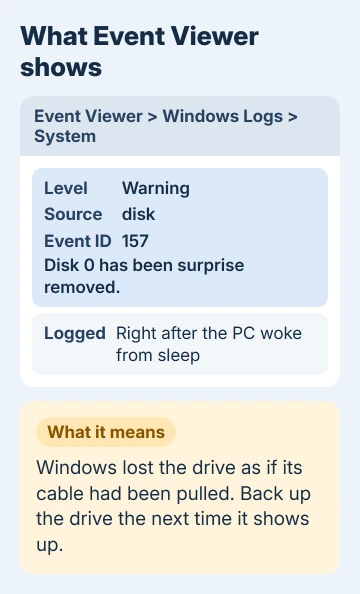
Windows logs that event when it suddenly loses touch with a disk it expected to stay connected. Microsoft's notes on Event ID 157 list a failing disk and a disk unplugged while Windows is running among the causes.
The owner's log also showed paging errors and a Delayed Write Failed message, which means Windows couldn't finish saving data to the drive when it dropped out.
So copy anything important off it the next time it shows up after a restart, before you change anything.
Then open Disk Management from the same right-click menu. If the disk doesn't appear in the list at all, keep reading. If it's listed but has no drive letter, it's a different problem, and our missing drive guide covers giving it one.
1. Turn on Hot Plug for the drive's SATA port
Hot Plug lets a SATA port, the motherboard socket the drive's data cable plugs into, handle a drive connecting or disconnecting while the PC is running.
Turning it on fixed the problem for the owner, on an ASUS TUF GAMING X570-PRO board: "Solved! Solved! Solved! and Solved!"
They also put every other change back to the defaults afterward, power settings included, and the drive kept working after sleep. That tells you Hot Plug was the fix, not one of the earlier tweaks.
For an internal drive, I'd go straight to this setting before trying anything else. It takes five minutes, and it's the only setting you change.
On an ASUS board, press Delete as the PC starts to open the BIOS in EZ Mode, then press F7 for Advanced Mode. Open the Advanced tab and look for SATA Configuration, which some Intel boards call PCH Storage Configuration.
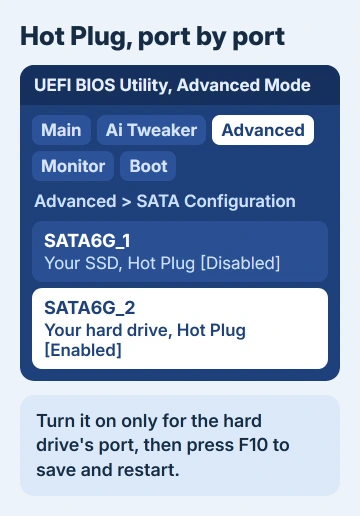
Each port has its own Hot Plug item, and ASUS manuals list it as Disabled out of the box. The page shows which drive sits on which port, so set Hot Plug to Enabled for the one with your hard drive, then press F10 to save and restart.
On other boards, look for Hot Plug in the SATA or storage settings. Change only that switch while you're in there; the rest of the BIOS controls how the PC starts.
2. Update the BIOS
One adviser pointed out that a BIOS update had fixed the same fault on other X570 boards. The owner's BIOS was already current, so this didn't apply to them.
Get the update from the download section for your exact board model on the maker's site, and read the notes for the new version first. Keep the power steady until the update finishes.
3. Change the hard disk power settings
Open Control Panel > Power Options, select Change plan settings next to your plan, then Change advanced power settings.
Under Hard disk, set Turn off hard disk after to Never. Under PCI Express, set Link State Power Management to Off.
For the owner, this was only half a fix. The drive showed up after waking, but saving a file to it failed with an error that the drive didn't exist, and a rescan in Disk Management made it vanish again.
So use the power settings as a stopgap when you can't get to the BIOS setting. If Hot Plug solves it, you can put them back the way they were.
What didn't help
Before finding Hot Plug, the owner updated and reinstalled drivers, swapped SATA ports and cables, changed the drive letter and checked for Windows updates. They even replaced the hard drive.
Switching hybrid sleep off, and later Fast Startup, made no difference either.
That doesn't mean those checks are useless for you. A loose cable can cause the same symptom, so unplug it at both ends and plug it back in once.
If the drive only ever disappears after sleep, though, the port's power handling is the place to look.
A USB drive that disappears after sleep
An external drive gets its power and connection through the USB port, so the SATA Hot Plug setting doesn't touch it. The owner, whose drive was internal, briefly tried a Western Digital fix for USB power, and the drive dropped out again.
For a USB drive, plug it straight into the PC instead of a hub, and use one of a desktop's rear ports. Our external drive guide goes through the power side in more detail.
When the drive keeps vanishing
Contact the motherboard maker's support with your board model, BIOS version and the Event ID 157 entries. Other owners of the same board family have reported this, so they may know of a fix for your model.
Run the drive maker's health test too, because a failing disk can log Event ID 157 as well.
Until it's sorted, setting sleep to Never in Settings > System > Power & battery (Power & sleep on Windows 10) keeps the drive available. That's what the owner planned to do before Hot Plug worked.
The Short Version
A SATA hard drive that vanishes after sleep often needs Hot Plug turned on for its port in the BIOS. Back up first, check Event Viewer for Event ID 157, then update the BIOS or relax the disk power settings if Hot Plug isn't there.
Checked November 20, 2026.
 If you have any business, I can build it online