

The Class not registered box with CLSID {C62A69F0-16DC-11CE-9E98-00AA00574A4F} means something that loads with PowerPoint, usually an add-in, is trying to show a VBA form that Windows can't open.
Start PowerPoint in safe mode to confirm it, then remove or update that add-in. For one owner, an old MathType add-in on 64-bit Office was behind the error, and uninstalling it cleared the fault.
In this guide
What the error means
The long code is a class ID, the address Windows uses to find a piece of software. This one belongs to UserForms, the dialog boxes VBA macros can show, which depend on a file called Fm20.dll being registered.
So PowerPoint itself is usually fine. Something it loads at startup wants to show a form, and either the forms library isn't registered or the add-in doesn't match your Office, as happened with an older MathType on 64-bit Office.
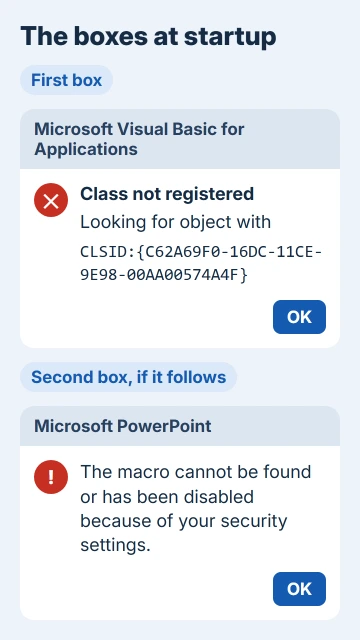
If a second box follows saying "The macro cannot be found or has been disabled because of your security settings", that's the same add-in failing one step later. It goes away with the same fix.
1. Start PowerPoint in safe mode
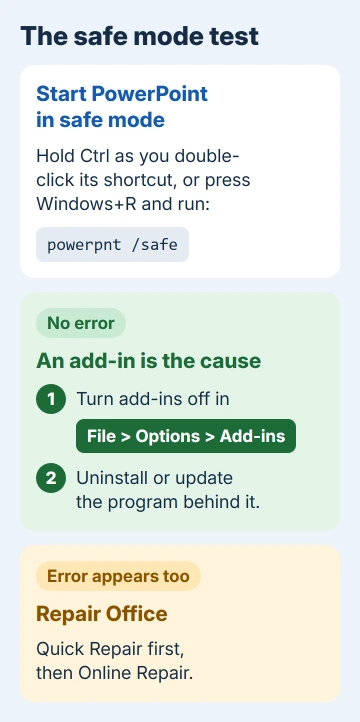
Close PowerPoint, then hold Ctrl while you double-click its shortcut, and answer Yes to the safe mode question. Or press Windows+R, type powerpnt /safe and click OK, as Microsoft's safe mode steps show for each Office app.
Safe mode opens PowerPoint with its add-ins switched off. If you get no error that way, an add-in is the cause and fix 2 tracks it down. If the box still appears, go straight to fix 4.
To leave safe mode, close PowerPoint and open it normally. The same test is how you'd hunt down the add-in when PowerPoint keeps crashing instead of showing an error.
2. Turn the add-ins off one group at a time
In PowerPoint, go to File > Options > Add-ins. At the bottom, set Manage to PowerPoint Add-ins and click Go, then clear the boxes one at a time, or select an add-in and click Remove. Do the same with COM Add-ins.
Restart PowerPoint after each change. When the error stops, the add-in you switched off last is the culprit. The guide to PowerPoint add-ins shows where each kind lives if a name doesn't ring a bell.
Don't assume that list shows everything, though. The asker had removed every add-in they could see, yet a MathType add-in still loaded, because some add-ins put themselves back through the registry each time Office starts.
3. Uninstall or update the program behind it
Add-ins usually arrive with a program, such as an equation editor or a reference manager. Open Settings > Apps > Installed apps on Windows 11, or Apps & features on Windows 10, uninstall the matching program and restart PowerPoint.
That's how the asker on PowerPoint 2010 finally got rid of it. Unticking add-ins and an Office repair hadn't helped, but uninstalling MathType 6.7a cleared the fault.
Can't tell which program the add-in belongs to? In Registry Editor (type regedit in Start), browse to HKEY_CURRENT_USER\Software\Microsoft\Office\16.0\PowerPoint\AddIns.
That path is for Microsoft 365 and Office 2016 or later; PowerPoint 2013 uses 15.0 and 2010 uses 14.0. Each key in there is an add-in that loads at startup.
Before you change anything there, right-click AddIns, pick Export and keep the file as a backup. Inside each key, the add-in's file path usually names the program that installed it, and that's the one to uninstall.
If you need the program, install its newest version instead. The older MathType failed on 64-bit Office, and its maker fixed that in a later release, so look on the maker's website for a build that matches your Office.
To see which Office you have, open File > Account > About PowerPoint. The first line of that window ends in 32-bit or 64-bit.
4. Repair Office if safe mode shows it too
If the box shows up even in safe mode, the problem is probably in Office's own files. Close every Office app, then right-click Start and choose Installed apps (on Windows 10, Apps and Features).
In the list, click the three dots at the end of the row for Microsoft 365 or Office and pick Modify. On Windows 10, click the Office entry itself, then Modify.
Choose Quick Repair first, since it's faster. If the error survives, run Online Repair, which reinstalls Office and takes longer.
A repair didn't help the asker, because their problem was the add-in, so keep it for when safe mode shows the error too.
5. Re-register Fm20.dll only as a last resort
The classic advice for this CLSID is to register the forms library again from an administrator Command Prompt with regsvr32 fm20.dll. Two owners reported trying it, and the error stayed for both.
For one, Windows couldn't find the file at all. The other replaced both copies, in System32 and SysWOW64, registered them and still got the box.
I wouldn't download a loose copy of Fm20.dll from a website. A repair (fix 4) puts Office's own files back, and that's the safer way to get a working copy.
If the error returns or nothing works
A System Restore to a date before the error cleared it for the asker, but it came back a few weeks later because the add-in was still installed. If yours keeps returning, assume the add-in is still there and go back to fix 3.
On a work PC, add-ins often come from IT, so ask them before uninstalling anything.
For a personal PC, Microsoft's support team can help through the Get Help app; have the exact error text and your version from File > Account ready.
The Short Version
The Class not registered box with CLSID {C62A69F0-16DC-11CE-9E98-00AA00574A4F} usually comes from an add-in trying to show a VBA form.
Start PowerPoint with Ctrl held or with powerpnt /safe. If it opens cleanly, turn off add-ins under File > Options > Add-ins and uninstall or update the program behind them.
If safe mode shows the error too, run a Quick Repair, then an Online Repair.
Checked November 20, 2026.
 If you have any business, I can build it online






