

PowerPoint for Mac only offers the laser pointer while a slide show is running. Start the show, click the Pen button, the second of the four small buttons in the lower-left corner, and choose Laser Pointer, or press Command-L.
If Laser Pointer isn't in that menu at all, right-click the slide and look under Pointer Options, then update PowerPoint. One owner on version 16.18 couldn't get it anywhere until the 16.20 update fixed it.
In this guide
Where the laser pointer lives on a Mac
Nothing in Normal view turns the laser pointer on, which is why people go hunting through the ribbon and come up empty. It's a slide show tool, so you pick it once the show has started.
- On the Slide Show tab, click Play from Start or Play from Current Slide.
- Move the mouse. Four helper buttons appear in the lower-left corner of the slide.
- Click the second one, the Pen button.
- Choose Laser Pointer from the menu that pops up, then point at whatever you want people to look at.
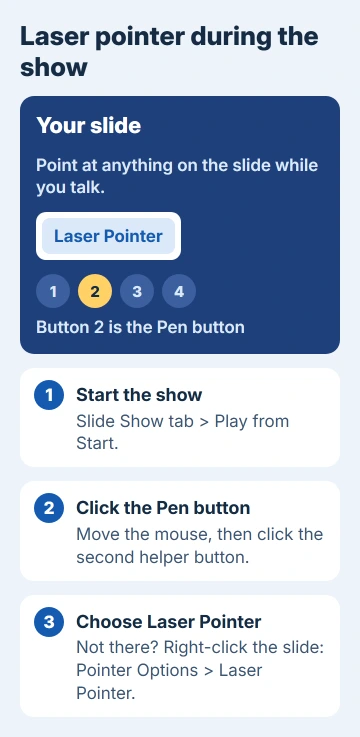
The pointer is red unless you change it. Microsoft's own laser pointer steps for Mac use the same route.
1. Right-click the slide and use Pointer Options
When the Pen button's menu has no Laser Pointer, try the slide's own menu. During the show, right-click the slide, or Control-click it, and choose Pointer Options > Laser Pointer.
That's how one owner on PowerPoint 2019 for Mac got it back. Choosing it there turned the Pen icon into a laser pointer icon, and from then on the Pen button's menu listed Laser Pointer too, even after quitting and reopening PowerPoint.
It isn't a sure thing, though. The same trick did nothing on four other Macs of theirs, two on 16.18 and two older ones running PowerPoint 2016. If it fails for you as well, skip to fix 3.
2. Press Command-L
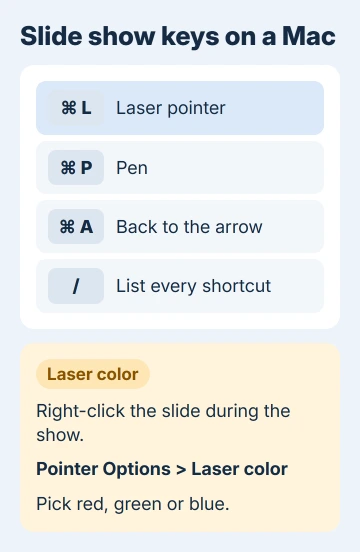
Command-L turns on the laser pointer during a slide show, and it's quicker than any menu once you know it. Press Command-P for the pen and Command-A to go back to the normal arrow.
I'd press it first whenever the menu looks wrong, because it tells you in a second whether the tool works at all.
The show has to be the active window for the shortcut to work, so if you've switched apps, press Command-Tab to get back to it first. Forget a shortcut mid-talk? Press the forward slash key (/) and PowerPoint lists them.
On a version where the feature is broken, the shortcut won't help either. On 16.18, the owner tried Command-L, Control-L and Option-L, and the laser pointer still didn't show.
3. Update PowerPoint
This is the fix that finally worked. A couple of months after posting, the owner was back with good news: "Fixed on PowerPoint 2019 for Mac version 16.20 (181208)".
- Check your version with PowerPoint > About PowerPoint.
- Choose Help > Check for Updates. Microsoft AutoUpdate opens and lists what's waiting.
- Select Update, then reopen PowerPoint and start a slide show.
If you got PowerPoint from the Mac App Store, open the App Store, select Updates in the sidebar and update it there instead. If Check for Updates isn't in the Help menu, install the latest Microsoft AutoUpdate and look again.
While AutoUpdate is open, turn on its option to update Microsoft apps automatically, so the next fix arrives on its own.
4. Check whether your PowerPoint has it at all
For the Mac, Microsoft's page names PowerPoint for Microsoft 365, PowerPoint 2021 and PowerPoint 2024. PowerPoint 2019 for Mac isn't on that list, yet the owner's copy showed the laser pointer from 16.20 on.
PowerPoint 2016 for Mac is the one to worry about. The owner's two Macs on it never showed the laser pointer, whatever they tried. If About PowerPoint says 2016, use the pen instead, or move to a current version.
5. Look for a shortcut clash
If the menu works but Command-L does nothing, something else may be grabbing the shortcut. Some macOS settings and utility apps can take over Office shortcuts, and window managers, clipboard tools and screenshot apps are common culprits.
Quit those apps and try again. You can also check System Settings > Keyboard > Keyboard Shortcuts for anything assigned to Command-L.
Laser color and the arrow that keeps vanishing
To change the color, choose Laser Pointer, then right-click the slide and pick Pointer Options > Laser color. The choices are red, green and blue, and green or blue often stands out better on a slide that's already full of red.
A plain arrow that keeps disappearing is normal. The pointer is set to Automatic, so it hides after three seconds without movement and reappears as soon as the mouse moves.
To change that, use the pointer button at the slide's lower-right corner, which can set the arrow to always show or always hide.
What didn't help
Removing add-ins didn't change anything for that owner. They took out MathType and the Adobe Acrobat add-in, started PowerPoint in safe mode, and the laser pointer was still missing until the update.
On a Windows PC instead
PowerPoint for Windows has the same tool with different keys. Press Ctrl+L during the show. For a quick point, hold Ctrl, then click and drag across the slide.
The laser color on Windows is in Slide Show > Set Up Slide Show, under Show options. And if you also want your notes in view while you point, Presenter View on a Mac or PC keeps them on your screen only.
If it still won't show
Report it from Help > Feedback in PowerPoint, which took over from the Smile button a moderator pointed the owner to, and include your version number. For help from a person, use Help > Contact Support.
One more thing to check after a talk: if your mouse pointer then vanishes over Outlook, a PowerPoint slide show still running can be the reason.
The Short Version
Start a slide show, click the Pen button in the lower-left corner and choose Laser Pointer, or press Command-L. If it isn't there, right-click the slide and choose Pointer Options > Laser Pointer.
Still missing? Update with Help > Check for Updates, since 16.20 fixed it for the owner stuck on 16.18. Their two Macs on PowerPoint 2016 never showed it, so on 2016 use the pen instead.
Checked November 20, 2026.
 If you have any business, I can build it online






