Winload.efi is the program that loads Windows itself, and this error means the boot manager couldn't start it. The file itself is often fine: the boot settings point at a partition that no longer matches, so Windows can't be found.
Run Startup Repair from the recovery screens first, then rebuild the boot files with the bcdboot command. Copying a fresh winload.efi into place rarely helps; one owner tried it twice with no luck.
In this guide
What the error screen means
The recovery screen names the file, \Windows\System32\winload.efi, with an error code such as 0xc000000e or 0xc0000225.
Under it you'll read: "The application or operating system couldn't be loaded because a required file is missing or contains errors."
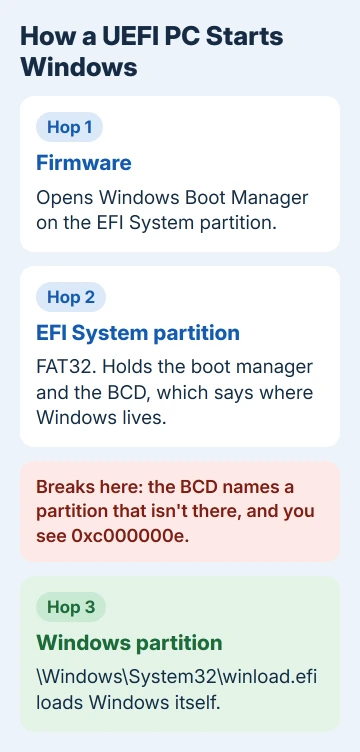
A UEFI PC starts Windows in three hops. The firmware opens Windows Boot Manager on the small EFI System partition, the boot manager reads its boot configuration data (the BCD), and the BCD says which partition holds winload.efi.
For code 0xc000000e, Microsoft's troubleshooting page says it happens when the BCD names a device that doesn't exist. That's why the fixes rebuild the chain rather than replace the file.
1. Undo recent drive or BIOS changes
A drive you added or removed, a BIOS reset or a new boot order can each leave the BCD pointing at the wrong place. Put the old drive back or unplug the new one, then check that Windows Boot Manager is first in the BIOS boot order.
If the PC only ever had one drive and nothing changed, skip to step 2. If the Windows drive is missing from the BIOS list, or the error began after cloning to a new SSD, work through the 0xc000000e disk checks first.
2. Run Startup Repair
Startup Repair checks the boot files and settings and fixes what it can by itself.
- Start the PC, and when the logo shows, press the power switch and hold it for a forced shutdown. Do that twice.
- On the third start, let it run, wait for Automatic Repair, then select Advanced options.
- Choose Troubleshoot > Advanced options > Startup Repair and let it run and restart.
If BitLocker is on, the recovery tools will ask for its recovery key, so look the key up on a phone or second PC first.
No Automatic Repair screen at all? Make a Windows installation USB stick on another PC. The Download Windows 11 page on Microsoft's site has a Download Now button under Create Windows 11 Installation Media.
Boot the broken PC from that USB stick and pick your language and keyboard. A current Windows 11 stick then offers Repair my PC > Next, and an older one shows Next > Repair your computer. Both open the same screens.
Startup Repair keeps a log at C:\Windows\System32\LogFiles\Srt\SrtTrail.txt, and reading SrtTrail.txt helps when it gives up.
3. Write fresh boot files with bcdboot
bcdboot rebuilds the EFI System partition from your Windows folder: it copies in clean boot files and writes a new BCD that points at the right place. Open Troubleshoot > Advanced options > Command Prompt, then:
- Type
diskpart, thenlist vol. Find the Windows volume (large, NTFS) and the EFI System volume (FAT32, usually 100 to 300 MB, often labeled SYSTEM). - Type
select volfollowed by the FAT32 volume's number, thenassign letter=S, thenexit. - Type
dir C:\Windows. If it doesn't list folders such as System32, trydir D:\Windows, because the recovery screens often give drives different letters. - Run bcdboot with your Windows letter:
bcdboot C:\Windows /s S: /f UEFI- When it reports that the boot files were created, type
exitand select Continue.
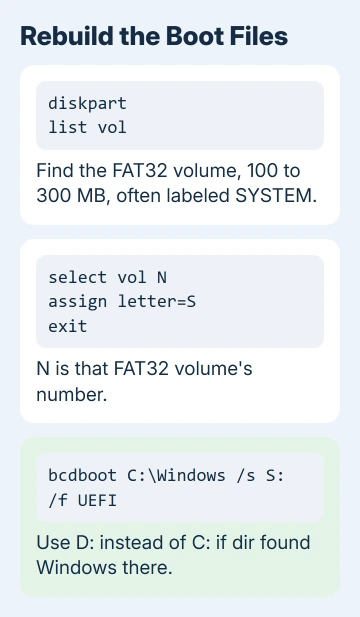
The /f UEFI part tells bcdboot to build the \Efi\Microsoft\Boot folder a UEFI PC needs. If the older bootrec /fixboot command says Access is denied, use bcdboot as the fix for that error too.
4. Build a new boot partition with a temporary Windows
Even when bcdboot changes nothing, Windows can still come back. The owner who'd copied winload.efi twice had also tried SFC, chkdsk, System Restore and a bcdboot rebuild, and bootrec /fixboot gave them Access is denied.
What finally brought their old Windows back was a temporary second install, which builds a brand-new EFI System partition. It's an advanced fix, so back up the drive or make a full image of it first, as that owner did.
- Shrink the Windows partition by about 50 GB with a bootable partition tool, leaving free space after it.
- Boot the Windows USB stick and choose Install Windows 11. On Select location to install Windows 11, delete the old EFI System and Microsoft Reserved partitions, pick the free space, and leave the old Windows partition alone.
- In the new Windows, open Command Prompt > Run as administrator and add the old one to the boot menu with bcdboot pointed at its Windows folder, such as
bcdboot E:\Windows. Then restart and pick the old Windows. - Once the old Windows runs, delete only the temporary install's partition, then run
sfc /scannowin Command Prompt > Run as administrator.
Don't skip that last scan. The owner's built-in apps wouldn't start until SFC repaired the leftover damage, and afterwards the recovery screens worked again too, a sign the PC was back to normal.
Keep the new EFI System and reserved partitions, because they start the PC now. They sit between Windows and the freed space, so Windows can't simply be extended over it. Format that space as a second drive or leave it empty.
5. Reinstall as the last resort
An in-place repair install (Windows reinstalled over itself) keeps your apps, but it has to run from a working Windows, which is why the temporary install in step 4 is so useful.
If you don't have the time or tools for that, Troubleshoot > Reset this PC > Keep my files reinstalls Windows while keeping your documents, though your apps go.
Erasing the drive for a clean install wipes everything on it. Get your files off first, or have a repair shop rescue them if the drive won't show up anywhere.
The Short Version
Winload.efi errors usually mean the BCD points at the wrong partition. Undo drive changes, run Startup Repair, then assign the EFI partition the letter S and run bcdboot C:\Windows /s S: /f UEFI. A temporary second Windows is the deep fix.
Checked November 20, 2026.
 If you have any business, I can build it online