

A PowerPoint eyedropper that picks gray from every color on the slide can be an Office bug. Start by installing any available Office updates.
One Windows owner fixed this by updating Office. They also found that sampling the same colors from a screenshot outside PowerPoint worked.
That workaround helps when the picker works in another app but fails inside the slide. A missing eyedropper in browser PowerPoint is different: that version doesn't include the tool. The fixes here cover the Windows desktop app.
In this guide
1. Update Office before changing the presentation
Save your work, open File > Account, and choose Update Options > Update Now. If the menu first offers Enable Updates, select that, then check again. Let the update finish before reopening PowerPoint.
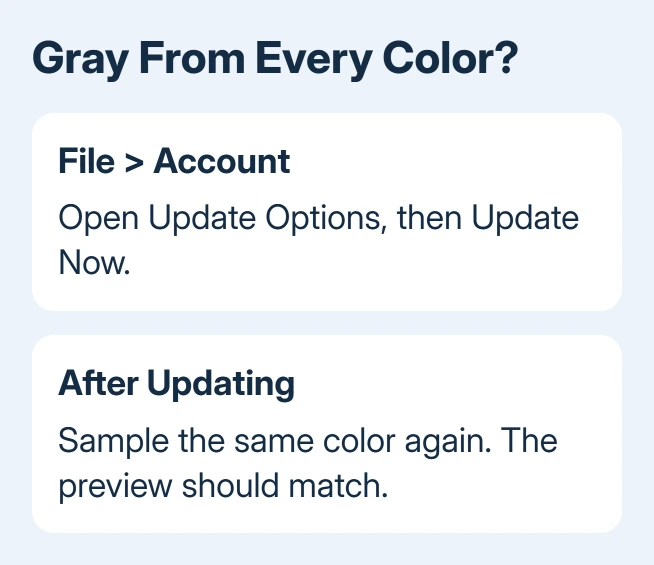
An owner on Microsoft's forum updated Office 365 ProPlus from build 7369.2130 to 7766.2092 and the fault stopped. Those are historical builds, not versions to install now. Install what your update control offers now.
Return to the same slide and try the color again. If the preview now shows the color you're pointing at instead of gray, the update has fixed the sampling problem. Save the presentation once the intended fill has been applied.
If Update Options is missing and you only see About PowerPoint, updates may use another method or be managed by your organization. Follow the Office update options for Microsoft Update, or have IT check the installed Office build.
Office 2016 is an old release. If no further updates are available, ask IT which supported Office edition you can use. Don't download that historical build. Continue with the screenshot method when you need the color immediately.
2. Select what should receive the color
Click the shape that needs a new fill. Open Shape Format > Shape Fill > Eyedropper. In some versions, selecting a shape brings up a tab labeled Format. For lettering, choose Text Fill instead of Shape Fill.
The pointer changes to an eyedropper. Hold the mouse button and move over the source color. A preview should follow the sampled color; pausing can show its RGB values, the red, green, and blue numbers used to describe it.
Release over the color you want. The selected object should receive that color. Press Esc to cancel a sample rather than applying an unwanted fill. For a small color patch, Enter or the spacebar can make selection easier.
Check that you're changing the right part of the selected object. Changing text fill won't recolor a shape's interior. Changing the outline won't recolor its center.
If sampling previews the right color but leaves the center unchanged, check which fill or outline control you're using.
For a slide background, right-click the slide's empty canvas, choose Format Background, open Color, and select Eyedropper. Apply it to that slide first. Use Apply to All only when every slide should share the new background.
If every bright source patch still previews as gray, try sampling outside PowerPoint next. That helps you tell a sampling failure from a color applied to the wrong part of an object.
3. Sample a screenshot in another app
Take a screenshot containing the slide color you need. On Windows 10 or 11, press Windows key + Shift + S, capture the relevant area, and view the capture in Snipping Tool or paste it into Paint.
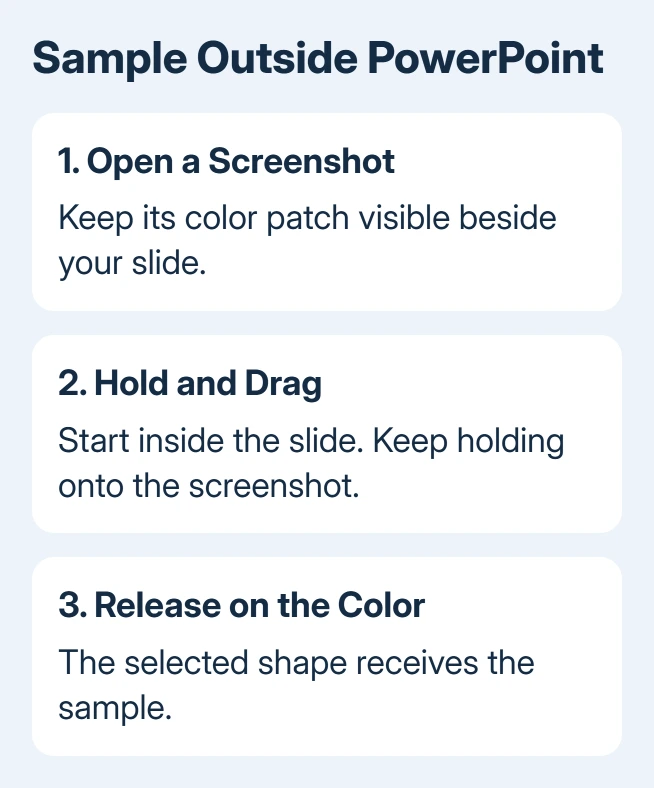
Arrange the screenshot beside PowerPoint so the color patch remains visible. Keep the target shape selected in the presentation. Open Shape Fill > Eyedropper again.
Hold inside the slide, then drag onto the screenshot without releasing. Release when the pointer reaches the desired color. Releasing inside PowerPoint ends the sampling gesture; clicking the other app won't continue it.
This is the workaround the affected owner described: colors within PowerPoint came out wrong, but colors sampled from another app worked. They used a screenshot to make the slide's own colors available outside the faulty window.
Try a large, flat-colored part of the screenshot rather than a text edge or a shadow. Edge pixels contain blended colors, so an accurate sample from an edge can still look different from the main fill.
I'd take this route when a slide must go out today. It gets the intended appearance without rebuilding the deck. If the preview remains gray outside the application too, skip to the blank-presentation check.
4. Enter known color values when matching a brand
For a company logo or template, ask for its approved RGB values if they're available. Open Shape Fill > More Fill Colors, choose the custom color controls, and enter those red, green, and blue values.
This avoids having to sample a screenshot. It also avoids choosing a slightly blended pixel around a logo's edge. Inspect the recolored slide before using that fill on other shapes.
Use the RGB values meant for screens. A print specification using a different color system isn't automatically the same set of RGB numbers. If the approved values aren't available, use the external sample rather than inventing a match.
Mac users have a separate Colors dialog and confirmation step. Follow the Mac eyedropper fixes for that layout; the Windows update report doesn't describe a Mac repair.
5. Check a plain shape in a new file
Start a new, blank deck and add one plain shape. Try sampling a clearly different color from another shape, then from the screenshot. If sampling works in the new deck, send the affected slide to support instead of repairing all your files.
If the plain shape fails too, note the version shown in File > Account > About PowerPoint, your Windows version, and whether sampling outside PowerPoint works. Report the gray-only sampling to Microsoft 365 support with those details.
The asker had already reinstalled Office without success. I'd check the installed build before attempting another reinstall. If PowerPoint also closes unexpectedly, deal with its recurring crashes as a separate fault.
The Short Version
Update Office, then try the eyedropper with the intended shape or text selected. If slide colors still turn gray, hold the mouse button and sample a screenshot in another app. Use known RGB values when exact matching matters.
Checked November 21, 2026.
 If you have any business, I can build it online






