The PowerPoint message The image part with relationship ID rId2 was not found in the file means the presentation can't retrieve an image it refers to. Look for an earlier copy with the pictures still in place before replacing them.
An Office update can prevent an old software fault, but it can't bring back pictures already missing from a saved deck.
PowerPoint 2013 had a widely reported version of this problem. A damaged presentation can produce this message too, so check whether the pictures survive in another copy and whether the loss returns after saving.
In this guide
1. Preserve the deck and look for an intact copy
Keep the damaged presentation and make a separate working copy through File > Save As. Use a name that clearly distinguishes it from the original. Don't overwrite a backup that might still contain the pictures.
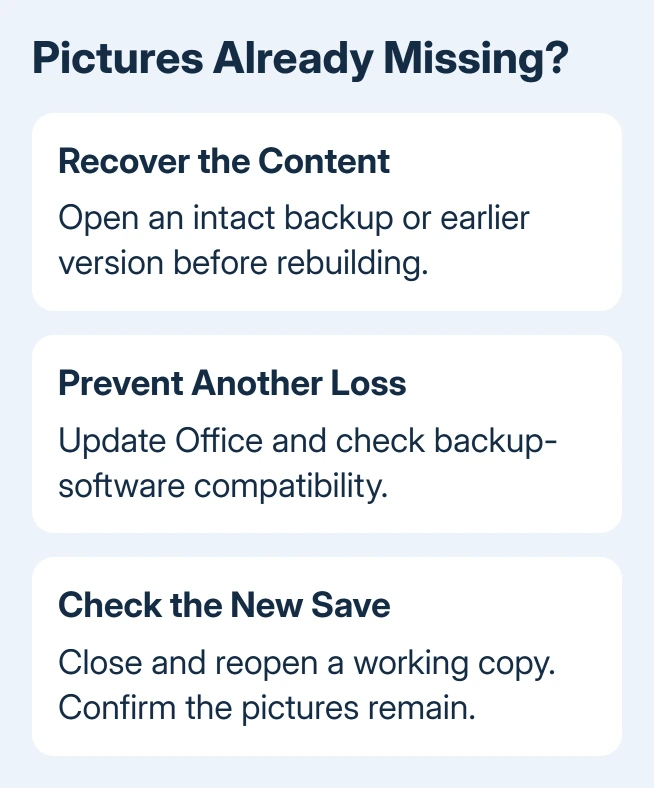
Open the last copy you sent by email, a backup from before the failure, or a separately saved version. Check several affected slides. An older deck with working pictures is more useful than a newer copy with the same error placeholders.
For a deck stored in OneDrive or SharePoint, check Version History. In Microsoft 365 desktop PowerPoint, click the title-bar filename and choose Version history. Open an earlier version in its separate window before deciding to restore it.
Other Office versions can put the command under File > History or File > Info > Version History. This history depends on cloud storage; a local file doesn't gain cloud versions when you sign in to PowerPoint.
The Office version-history instructions explain those menu differences. Compare the pictures and recent text edits before restoring anything. The newest changes may need to be copied into the recovered deck.
If the original file won't open far enough to inspect, use the PowerPoint file-opening repairs. If it opens but can't save, preserve the work through the save-error steps first.
2. Check whether the damage travels with the file
Open a copy in another available PowerPoint installation. Use a trusted computer and keep the original untouched. If the same pictures show the same relationship error there, concentrate on the file and its earlier copies.
In the original discussion, an affected owner opened the presentation in PowerPoint 2010 after the pictures disappeared in 2013. The pictures were still missing. Moving the damaged file to the older app hadn't restored them.
That matters because reinstalling PowerPoint and reopening the same file can leave you exactly where you started. Fixing the app won't put missing pictures back into the presentation.
If another copy of the deck shows every picture correctly, save that copy under a new name and reopen it. Check that the pictures survive the save before spending time restoring the newest text or layout changes.
If the problem affects just one image, find its original source file. When dozens of images disappear together, recover a complete deck first. Replacing each image takes longer and won't fix a fault that keeps damaging later saves.
3. Update the app before rebuilding the slides
Open File > Account and record the PowerPoint version. If your Office installation uses Click-to-Run and offers the update control, use Update Options > Update Now, then finish the update and reopen the app.
If the update control is absent, ask your Office administrator how it receives updates. Windows Installer editions used Microsoft Update instead. Don't install an unrelated update package just because its filename mentions PowerPoint.
The old thread's solution announcement listed 15.0.4613.1000 for MSI and 15.0.4615.1001 for Click-to-Run. Treat those as historical reference points for the 2013 bug, not current versions to download or a repair for missing image files.
Microsoft no longer supports PowerPoint 2013. Ask your administrator to replace it with an Office edition that still receives fixes. Continuing to edit an important deck in that old build leaves you without fixes for the app.
After updating or moving to the supported app, use a copy. Make a small change, save, close, and reopen it. Pictures that remain visible show that this save succeeded; check again during later work if the original failure was intermittent.
4. Check backup software when the loss keeps returning
The original discussion also contains an owner who reported that removing Genie backup software ended daily PowerPoint crashes for more than two weeks. Check your own backup app before deciding whether to remove it.
If Genie or another file-monitoring backup tool is installed, tell IT its name and whether the damage appears during saves. Have them check compatibility by comparing with that tool stopped or excluded from the working folder.
I'd make a separate manual copy first. Keep your backup available while you compare, and leave security software running unless IT gives specific instructions for a compatibility issue.
Work from a separately named local copy for the comparison, then reopen it after saving. If the fault disappears only when the backup tool stops monitoring the folder, tell its support team what changed and give them both product versions.
If it still happens with that tool stopped, don't keep removing unrelated programs. Continue with recovered pictures in a fresh working copy and give support the smallest slide set that reproduces the loss.
5. Replace only the pictures that can't be recovered
Use the original image files. In the working deck, remove the error placeholder and use Insert > Pictures to reinsert that image. Match the original position and size by comparing with an intact exported copy if available.
If replacement images refuse to insert, check the PowerPoint import failure separately from recovering pictures already lost.
An earlier PDF or slide image can help you recreate how the damaged slide looked. It won't recover separate editable objects automatically. Ask the supplier for original pictures when quality matters.
Save and reopen a small repaired section before rebuilding the entire deck. If the pictures disappear again, stop that rebuild and send Microsoft 365 support the damaged sample, app build, storage location, and backup-software details.
The Short Version
Recover an intact version first. Check whether damage follows the file, update before rebuilding, and check backup-software compatibility if image loss returns. Reinsert originals only when a complete copy can't be recovered.
Checked November 21, 2026.
 If you have any business, I can build it online