

PowerPoint 2016 can reject readable pictures because of an Office import bug. Update the affected installation first, especially if inserting fails after deleting another picture or the error contains a hubblecontent web address.
A single rejected photo needs a different check from every picture failing. Save the full error message to choose the matching fix. The two bugs were fixed in different updates; other import problems need separate checks.
In this guide
1. Identify which picture operation fails
Duplicate the presentation before making changes. Note whether the failure happens with a picture stored on your PC, an online picture or an icon. Also note whether PowerPoint stays open or crashes after you dismiss the error.
The message An error occurred while importing this file was part of a fixed Office 2016 bug involving inserting and deleting a picture. A later error with hubblecontent.osi.office.net affected downloaded icons and pictures.
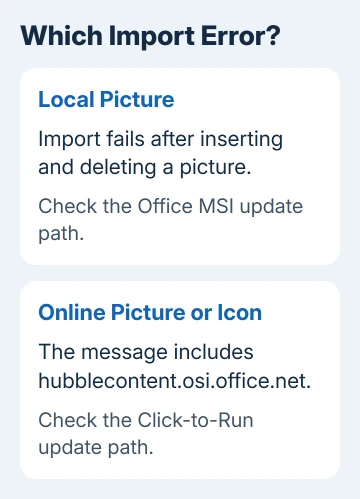
Open File > Account and look for Update Options. That control identifies a Click-to-Run installation. An MSI installation, installed through Windows Installer, doesn't show it. Use the update route for that installation type.
Save the product and version details from that screen along with the error. An Office 2016 label alone doesn't tell an administrator which installation they need to repair, and a package meant for MSI won't repair Click-to-Run.
If the slide already contains a red placeholder instead of its picture, use the relationship-ID recovery steps. Recovering an image that's disappeared from a saved deck differs from importing a new one.
2. Install the fix for your Office edition
For Click-to-Run, choose File > Account > Update Options > Update Now. Finish the update, closing Office when prompted, then reopen your duplicate. Repeat the failed operation, including deleting and reinserting if that was the trigger.
Microsoft's KB3114370 guidance describes the insert/delete crash in MSI-based Office 2016. The old standalone update is no longer available; that page now directs readers to later MSI updates.
For MSI, send the KB number to your administrator for an Office update review. Don't download an old installer from an unfamiliar download site, or try to force the package onto a Click-to-Run installation.
The hubblecontent error was fixed separately in Monthly Channel Version 1803, Build 9126.2116 or later. Those are historical minimums for that specific failure, rather than a recommendation to install an old release today.
After updating, a successful import puts the picture on the slide without an error or a crash. If the same message remains, continue with a local-file comparison instead of repeatedly running the updater.
3. Compare one local picture in a blank presentation
Copy a picture you can open normally into a local folder. Create a new blank PowerPoint presentation, select a slide, and use Insert > Pictures to choose that file. This checks local insertion without using your original deck.
Try a second, unrelated picture as well. If both work in the new deck, try a fresh blank slide inside your duplicate deck.
Objects already inserted but invisible across decks need PowerPoint display repairs, rather than another image import.
Successful insertion on the fresh slide suggests the original slide is damaged. Rejection there, despite success in the blank presentation, suggests a deck problem.
If only one picture fails, open the original in an image editor and save a separate JPEG or PNG copy. Use the editor's format choice; renaming a file extension won't turn it into another image format.
I'd try that small comparison before reinstalling Office. You'll know whether to focus on one file, one presentation, online pictures, or a problem affecting every new presentation.
Check the converted copy's appearance before using it. Keep your original for later editing. If a normal local JPEG works but online pictures still fail, focus on the online error and update history rather than converting all your photos.
Video insertion uses different format and playback support. For a movie that fails instead of a photo, follow the PowerPoint video import checks to address its separate media requirements.
4. Check add-ins when every local picture fails
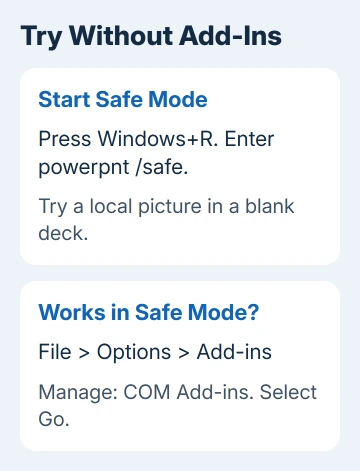
Close PowerPoint, press Windows+R, type powerpnt /safe, and press Enter. Try the local picture in a new presentation. Safe Mode limits what PowerPoint loads, helping you check whether an add-in is causing the failure.
If insertion works there, open File > Options > Add-ins. At the bottom, choose COM Add-ins beside Manage, then select Go. Record which add-ins are selected, then uncheck those entries before launching normally.
Close PowerPoint and start it normally. If the picture now inserts, re-enable add-ins one at a time, reopening the app and checking between changes. Ask the provider of the add-in that brings the failure back for an update.
Continue to Office repair if the picture still fails in Safe Mode. Don't leave every add-in disabled indefinitely when that comparison didn't change the result.
5. Repair Office after the smaller checks
Close Office. In Control Panel > Programs > Programs and Features, select Microsoft Office > Change. Follow the repair dialog for that edition. Click-to-Run offers Quick Repair, with Online Repair as the more thorough option.
Finish other Office work before Online Repair; it needs a connection while fixing the Office installation. Once repair completes, reopen PowerPoint and repeat the same local-picture attempt.
The asker tried the accepted Insert > Object suggestion and got another error. Online Repair failed too. Neither approach fixed their import problem, so I wouldn't rely on either as a proven workaround.
Embedding a picture as an object also changes how it behaves. Use ordinary picture insertion for an image you want to crop and format on the slide, rather than treating an embedded object as an equivalent replacement.
When insertion still fails
Send IT your error text, Office version, installer type and comparison results. Attach a picture that fails to import and contains nothing private, so they can try it on another computer.
Support for the Windows 2016 Office suite ended on October 14, 2025. Ask whether a supported Office release can open and edit your deck if you need a product fix that this retired version won't receive.
The Short Version
Choose the Office update by matching its installer type and error message. Compare a local JPEG in a blank deck, check add-ins in Safe Mode, and repair Office only if the failure affects the app broadly.
Checked November 21, 2026.
 If you have any business, I can build it online






