

When pictures, tables and text disappear on one PC but the deck works elsewhere, check that PC's PowerPoint installation. Update Office first, then try PowerPoint Safe Mode to check for add-in interference.
A missing picture that follows the file to every computer is a different case. Keep an intact copy before editing slides, and check which of those two patterns you're seeing so the repair fits the problem.
In this guide
1. Update the PC that displays the slides incorrectly
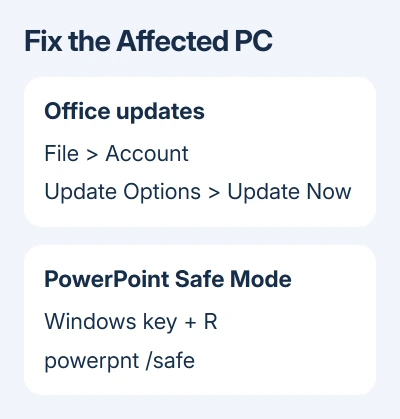
Save the presentation, then open File > Account > Update Options > Update Now in Windows desktop PowerPoint. Let the update finish, restart PowerPoint when required, and open the same deck again.
Check a slide with the missing elements in both editing view and Slide Show. Note whether only the small slide thumbnail is blank, the slide looks wrong in the main editing area, or the audience's slide is also missing content.
A blank thumbnail with a correct full slide doesn't call for rebuilding all the objects on that slide. Missing content in both views means you need to compare that file on another PC.
If Update Options isn't available, your Office installation may use an organization's update system. Ask your Office administrator which build is installed and whether it needs updates instead of downloading an unrelated Office installer.
The original owner said updates, Safe Mode, reinstalling and both Office repairs had failed. A graphics-driver update failed too; switching off hardware acceleration crashed Office. They didn't say whether a new Windows account helped.
2. Check whether the fault stays with this PC
Open the same saved presentation using another available computer. Compare the same slide, not an older attachment or a similarly named copy. If all its objects appear there, preserve that working file before changing the failing PC.
Next, on the failing PC, create a blank presentation. Add a short text box, insert a small local picture and add a simple table. See whether PowerPoint can display newly created objects in a new deck.
If several saved presentations and your new objects all display badly, focus on this PC's PowerPoint installation. If the new deck works and only one saved presentation fails, focus on that file or its source images instead.
For a file-specific picture problem, choose File > Save As and put the duplicate in another location. Close and reopen that copy, then check the images. This is a supported repair to try before replacing its objects.
For a message naming a missing relationship ID, use the PowerPoint relationship-ID repair. That error concerns the presentation's picture references and isn't the same as every deck rendering badly on one PC.
If Insert > Pictures itself fails, the picture-insertion error checks cover that operation. A picture that was never inserted and one already present but not displayed need different checks.
If the presentation shows correctly elsewhere and fresh local objects also fail on this PC, continue with Safe Mode. I'd make that comparison before replacing pictures that may be perfectly intact.
3. Open PowerPoint Safe Mode and check add-ins
Close PowerPoint. Press Windows key + R, type powerpnt /safe, and press Enter. Open the affected presentation from the PowerPoint window that starts, then inspect the slide you used for the comparison.
Office Safe Mode restricts startup features and disables hardware acceleration, the graphics card's drawing help. If the slides look right in Safe Mode, an add-in or the driver could be causing the problem. This isn't Windows Safe Mode.
Microsoft's PowerPoint troubleshooting steps describe disabling add-ins and restoring them one at a time. The comparison is useful when normal PowerPoint behaves badly but Safe Mode doesn't.
Open File > Options > Add-ins. At the bottom, select COM Add-ins in the Manage list and choose Go. Record the enabled entries, clear their checkboxes, and choose OK.
Exit the Safe Mode window, then launch regular PowerPoint. Open the deck again. If it now displays correctly, enable one add-in, restart PowerPoint and repeat the check. Continue until an enabled add-in brings the problem back.
Keep that entry disabled and ask its provider for help. If the same elements were missing in Safe Mode, keep checking beyond add-ins. Continue with the display-driver check before repairing the suite.
4. Check the display driver before a suite repair
Office draws its windows and slide content using the PC's graphics system. An incompatible display driver can therefore affect text and objects across presentations. The Office display guidance recommends updating that driver.
On Windows 11, open Settings > Windows Update > Advanced options > Optional updates. If a display-driver update is offered, select it and use Download & install.
On Windows 10, open Settings > Update & Security > Windows Update, check for updates, then open View optional updates if offered. Select the relevant display driver and install it.
Restart Windows, then check the same slide again. If no driver update is listed, ask IT or the PC maker which display driver your exact model needs. A driver update didn't help the original owner, so continue if your result is unchanged.
5. Repair Office when multiple presentations still fail
Save everything open in Office, then quit its apps. The repair applies to the installed Office suite, so documents and spreadsheets need saving too.
On Windows 11, right-click Start, choose Installed apps, find Microsoft 365 or Office, open its three-dot menu and choose Modify. Approve the Windows prompt when it appears.
On Windows 10, right-click Start and open Apps and Features. Choose your suite's entry, then Modify. Pick the suite that contains the failing PowerPoint installation.
If the repair window offers Quick Repair, that option checks and replaces damaged files in a Click-to-Run installation. Online Repair provides a fuller repair through an internet connection.
If you have an MSI installation, its repair window offers Repair instead. Select it and follow the prompts.
Reopen both the fresh deck and the original after repairing. Check that their objects display correctly. If only the original remains faulty, use the file-specific checks instead of repeating suite repairs.
If your organization's controls prevent Modify or repair, send the test results to IT. Tell them that multiple presentations fail on this PC and how Safe Mode affected the slides. Those results give IT a starting point for the repair.
When the missing picture follows the file
A red X or a picture placeholder that travels with the presentation can mean the picture data or link isn't available. Find the original image or an intact presentation copy before deleting the broken object.
For linked pictures, check that the source file still exists in the expected location and is accessible. A file stored only on another person's drive won't become available just because Office has been repaired on your PC.
If only one presentation fails, make changes in a copy and replace the affected picture from its real source. Check the saved copy again before presenting that repaired deck. Keep the working original from the other computer untouched.
For problems across decks, use Help > Support or your company's Microsoft 365 support team. Send the build from File > Account > About PowerPoint, a shareable sample and the Safe Mode result.
Ask for help with slide objects that won't display on that PC. Include screenshots of the same slide in editing view and Slide Show, plus whether the same saved file displays correctly on another computer.
The Short Version
Start with Office updates, then compare another PC and a fresh presentation. Try powerpnt /safe, then check add-ins or repair Office. Missing pictures that follow one file need their sources or an intact copy.
Checked November 22, 2026.
 If you have any business, I can build it online






