A missing resize cursor doesn't always mean a OneNote column is locked. In a reported bug, dragging the cell edge still changed its width without a cursor change. Type in one cell, then try dragging the vertical edge.
If the table is actually an inserted picture or Excel attachment, it needs different controls. Check what you're selecting before repairing Office or moving the notebook.
In this guide
1. Drag the cell edge even if the cursor stays ordinary
Click inside the affected table. Position the mouse directly on the vertical edge between two columns, then hold the left mouse button and drag sideways.
Use an internal column edge for this check, rather than the outer edge of the entire note container. Move slowly and try a few nearby positions if the first attempt selects text instead.
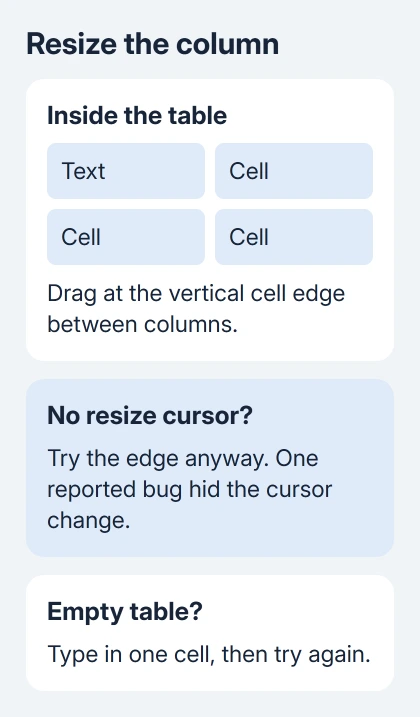
One owner on Microsoft's forum managed to resize columns without a changed cursor after several attempts to hit the cell edge. Another owner also resized columns successfully in a table containing text.
Watch whether the column gets wider or narrower, even if the mouse pointer never changes. If the whole note moves or its surrounding box changes, you've grabbed a different part of the page.
If the edge responds, finish the layout you need and continue with the update check later. Once you can resize the table, reinstalling Office to check the old bug further won't improve it.
2. Put text in the table before trying again
For a completely empty table, type a short word in one cell, click outside the text, and repeat the edge drag. Keep the mouse on the vertical boundary between columns.
The second owner couldn't resize an empty table when they tried this. With at least one cell filled, they could change column width each time they hit the edge accurately.
That doesn't mean every OneNote table needs text before you can resize it. It's a quick change you can undo if your blank table still won't respond.
If it works, replace the temporary word with the content you intended to use. If it doesn't, remove the test text and check the kind of object on the page.
I'd try adding text before changing where the notebook is stored or repairing Office. It changes just one cell and worked for another owner.
3. Check whether it's a OneNote table or another object
A table made in OneNote has cells you can edit. Click inside one and look for the Table Tools controls on the ribbon. Those controls appear when a table is selected, rather than staying visible all the time.
Microsoft's table formatting instructions describe that selection and the available row, column, and formatting commands for desktop OneNote.
If clicking selects one whole image, the table may be a screenshot or printout. Its drawn column edges aren't editable cell boundaries. Open the original document or spreadsheet to change the columns, then insert the revised content.
For an embedded Excel spreadsheet, open it for editing and adjust its columns there. Dragging the surrounding object on the OneNote page changes its placement, not the spreadsheet's internal column widths.
For notes built around spreadsheets, our Excel-in-OneNote guide explains the distinction between spreadsheet content and the note page, including the limits on iPad.
Once you know you're working with editable OneNote cells, try the column edge again. If it still won't respond, compare with a new table rather than converting the original to another object type.
4. Compare with a small table on a fresh page
Create a temporary page in the same notebook. Choose Insert > Table and make a small table with two columns and two rows. Type a word in one cell, then try dragging its internal vertical edge.
If this table resizes, resizing still works for some tables while the app is open. Compare the original selection and contents with this small example before making wider changes.
If both fail, record that the behavior occurs on a fresh page too. Tell support that a new table fails too. It helps them look beyond one troublesome table without assuming your notebook is damaged.
The original asker tried a new notebook without fixing the problem. Their cursor later returned without the proposed repair or reinstall, so creating multiple replacement notebooks isn't a confirmed fix.
Keep your existing notebook structure while checking the table behavior. Our OneNote organization guide covers sections and pages if the temporary test page leaves you unsure where to put the real content.
5. Update the desktop app before considering a repair
For OneNote installed with Microsoft 365, open File > Account > Update Options > Update Now. Let Office finish, reopen OneNote, and repeat the small-table check.
The report was about an Office build from 2020. Don't seek out that old build or assume the same cursor bug affects every current release. Record the build shown in File > Account > About OneNote if it still happens.
The original asker's alternative app, OneNote for Windows 10, worked at the time. That app lost editing support on October 14, 2025, so choose the supported Windows desktop version today.
If your company manages Office and the update control is missing, have IT check the build number and which Office updates your copy receives. A company policy can control updates even when your own settings are working correctly.
Consider an Office repair if these checks still haven't helped. On Windows 11, open Settings > Apps > Installed apps, select the suite by its product name, then pick Modify from its menu.
On Windows 10, use Settings > Apps > Apps & features, select the Office entry, and choose Modify. Save and close your documents before starting; repairing the suite affects other Office programs too.
Choose Quick Repair if your Click-to-Run installation offers it. Online Repair downloads components for a more thorough repair; MSI installations instead offer Repair. Recheck the small table after the repair finishes.
Give support a small example table
If populated tables on fresh pages still won't resize, report the problem to your help desk or Microsoft support. Include the OneNote build, Windows version, whether text can be edited, and whether dragging works without a resize cursor.
Provide a small example table without private notes if they ask for a sample. Describe both the absent resize cursor and the response to dragging a column edge, instead of asking for a general notebook reset.
The Short Version
Type in one cell, then drag precisely on the vertical column edge even if the cursor doesn't change. Confirm it's a native OneNote table, compare with a small new table, and update the desktop app if the problem persists.
Checked November 21, 2026.
 If you have any business, I can build it online