

OneNote on Android can return to sign-in when it can't load notebooks or use the selected account. Check which account it's choosing, then try signing into OneDrive with that account before clearing OneNote's data.
For the older Can't Refresh List problem, signing into OneDrive fixed it for one owner. Clearing OneNote's cache alone didn't help the original asker, and clearing app data can erase notes that haven't synced.
In this guide
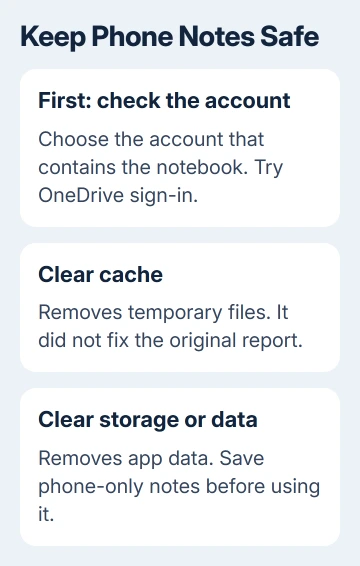
1. Check the selected account and protect local notes
Look at the account on OneNote's sign-in screen. Current versions can automatically use an account already signed into another Microsoft 365 app. A familiar name doesn't always mean it's the account containing your notebooks.
Tap Sign in using another account if the offered account is wrong. Select the correct one from the list or enter it. If OneNote already opens, tap the upper-left profile picture and use Add Account when needed.
Microsoft's Android sign-in instructions describe these account choices. The quick sign-in screen is convenient, but checking the account first can save you from resetting OneNote when it's simply using the wrong account.
Open the same notebook through OneNote for the web in a browser. Compare its latest pages and edits with the phone. A successful browser login checks the account, but not whether the phone uploaded its newest notes.
If recent notes exist only on the phone, copy their text and save important attachments elsewhere while they're accessible. Screenshots can preserve readable material when a page won't export, but not editable notebook structure.
Don't sign out, clear app storage or uninstall while the phone holds your only copy. If the login prompt blocks access to those notes, get recovery advice before resetting the app.
2. Sign into OneDrive with the notebook's account
Open the OneDrive app on the phone, or install its official Google Play version if you need it. Use the account containing your notebook to sign in. Complete any normal verification request rather than switching account security off.
Return to OneNote and try the notebook list again. One owner with a Galaxy Note 3 reported that downloading OneDrive and signing into it fixed Can't Refresh List. That's a useful next step when browser login already works.
Look for the expected notebook, then open a recent page. The result you want is both a working notebook list and access to its contents. The sign-in window disappearing doesn't tell you whether OneNote can open your notes.
If OneDrive also rejects the account, handle the account problem first. Write down whether the message mentions a password, verification or your organization's access rules. Resetting OneNote leaves account restrictions in place.
For an account that signs in but can't access one shared notebook, use the notebook permission checks. A refused invitation or missing permission needs the notebook owner, rather than another phone reset.
3. Update and restart before removing saved data
Open Google Play, search for Microsoft OneNote, and choose Update if offered. Restart your phone afterward and retry sign-in. Updating brings the sign-in process up to date without first deleting the app's saved notes.
For a work-managed phone, use your organization's approved app source if Google Play isn't available. If sign-in asks for device approval or a work policy, send that exact request to IT rather than reinstalling OneNote repeatedly.
If the notebook opens but shows a refresh prompt, tap Refresh Now. Current sync guidance also describes updating the app when an offline error appears without its refresh control. Follow the message your app actually shows.
When you can sign in but changes still don't sync, open the notebook's three-dot menu and choose Sync (account name) notebook, if shown. From the notebooks list, Sync all requests all notebooks to sync.
Leave the app time to finish an initial download. Confirm a recent desktop edit appears on the phone, then make a small phone edit and check it online. Those two checks show whether notes sync both to and from the phone.
If you're comparing the same notebook on an iPad, the iPad sync steps explain that device's controls. Keep troubleshooting the Android login separately if the other device already opens the notebook normally.
4. Clear temporary cache without confusing it with storage
Open Android Settings > Apps > OneNote. On a Pixel-style interface, choose Storage & cache > Clear cache. Samsung generally labels this area Storage, with Clear cache as a separate button.
Menu names vary by phone and Android version. Find OneNote in Android Settings; the notebook itself has no cache-clearing command. Close OneNote and open it again after clearing the cache.
Cache holds temporary data. Clear storage or Samsung's Clear data removes the app's saved data instead. These buttons do different things despite sitting side by side in Settings.
The original asker's follow-up says clearing only cache didn't fix their login or sync problem. Try it as a limited app refresh, then move on if the same prompt returns. Repeating it won't protect or upload missing notes.
5. Reset app data only after the cloud copy is complete
Check your saved copy of any phone-only notes before this step. Google's Android storage guidance states that clearing storage permanently deletes app data. Unsynced OneNote notes are part of what you're protecting.
If all needed notes are safely online or saved separately, return to Settings > Apps > OneNote > Storage & cache and choose Clear storage. On Samsung, the equivalent button is usually Clear data under Storage.
Open OneNote and sign in again with the notebook's account. Allow the notebook list and pages to download. Compare the restored notes with the copy you checked before resetting, rather than assuming the download is complete immediately.
The accepted answer suggested deleting cache and data, but the discussion doesn't show the asker succeeding with that reset. It erases local app data, so save your notes first. The report doesn't confirm a successful reset.
I'd stop after one properly checked reset if the same error returns. Keep its exact wording, the phone model, Android version and OneNote version for support instead of cycling through data deletion again.
If sign-in still returns to the same screen
If OneNote remains accessible, open its Help or feedback control. Otherwise, use Microsoft Support's OneNote help route, or your workplace administrator for a managed account. State whether browser login and OneDrive sign-in work.
Mention phone-only notes at the start of the request. Ask for help preserving them before any reinstall or storage reset. Include a screenshot of the error with private account details hidden.
The Short Version
Confirm the account and save phone-only notes, then try OneDrive sign-in. Update OneNote before trying cache clearing. Reset storage only with a complete safe copy, and send recurring errors to support with the account and device details.
Checked November 21, 2026.
 If you have any business, I can build it online





