

An embedded Excel workbook in OneNote 2016 may stay closed when Excel fails to start. Start Excel with a different spreadsheet and keep it open while you retry the embedded workbook in OneNote. Owners confirmed that this worked.
The important detail is a different spreadsheet. One owner could insert the file only while another workbook was open in Excel. Preview errors, locked files and damaged workbooks need separate checks.
In this guide
1. Open another workbook before returning to OneNote
Save any unfinished work, then close and reopen OneNote if repeated attempts have left it stuck. Start Excel directly from the Start menu. Open an unrelated workbook, such as a small test spreadsheet containing no private information.
Leave that workbook open. Return to the page in OneNote 2016 and double-click the embedded Excel icon. For a new insertion, choose Insert > Spreadsheet > Existing Excel Spreadsheet, select the intended file and finish inserting it.
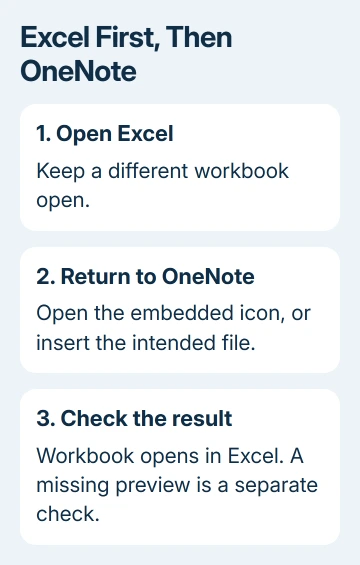
When it works, the workbook opens for editing in Excel, or the spreadsheet appears on the OneNote page after you insert it. You shouldn't need to keep clicking the object while nothing happens.
An owner on the forum reported successful insertion and display with Excel 2016 already running. Another reported success only after opening a spreadsheet other than the one being inserted. That's the sequence to copy.
Keeping another workbook open changes how OneNote starts Excel. It doesn't repair the notebook or explain every failure. If the object still won't open, check whether the workbook opens normally outside OneNote next.
I'd try this before an Office repair. It takes little time and doesn't replace files, remove settings or disturb notebooks that are otherwise working.
2. Open the source workbook directly in Excel
Open the source workbook directly in Excel, outside OneNote. For an attachment someone sent you, ask for the original Excel file if you don't have it separately. A spreadsheet picture on the page isn't an editable source file.
Handle any password, permission or file-repair message in Excel first. Putting the file in OneNote won't make it readable. Repair a spare copy and keep the original untouched.
If the original opens correctly, close that particular workbook and leave the unrelated test workbook open. Then repeat the insertion. That keeps a different workbook open, just as it was for the owners who got this working.
The original and the attachment are separate copies. Edits made inside OneNote might exist only in its workbook. Compare their contents before replacing an attachment that could hold your latest work.
When the same failure happens with an Excel table inside Word, use the separate embedded Excel editing checks. Word's add-in and document-recovery steps aren't interchangeable with this OneNote workaround.
3. Separate a missing preview from an inaccessible workbook
A worksheet on a OneNote page has a workbook you can edit and a preview on the page. The preview can fail even when the attached file is still there. Check whether the workbook icon opens instead of judging only the picture.
For a preview warning that offers Refresh, right-click the embedded spreadsheet and choose Refresh. Try it once with Excel already open. Owners in the old discussion said repeated refreshing never cleared their preview error.
If the workbook opens but its page image doesn't update, the immediate problem is its display in OneNote. Keep working in the workbook copy you opened, save changes and check the page again. Don't delete the attachment to clear the picture.
Microsoft's spreadsheet insertion instructions distinguish Attach File from Insert Spreadsheet. Attach File keeps an icon; Insert Spreadsheet adds a preview as well.
For urgent work, Attach File can keep the workbook with your notes without showing a worksheet preview. Test that the attached copy opens before relying on it. That won't help when Excel can't read the workbook itself.
The attached workbook and the original remain separate. Editing the source in its normal folder won't update the OneNote copy. Editing the OneNote copy won't update that source either, so choose which one will hold ongoing changes.
4. Clear the file-in-use state without losing edits
A second attempt can produce a file-in-use warning after the first attempt appeared to do nothing. Check Excel's open windows before assuming another person has locked the workbook. An editing window may be behind OneNote.
Save every open workbook, close Excel and OneNote normally, then restart Windows if the warning remains. Reopen Excel with the unrelated workbook before returning to the affected page. This gives the workaround a clean start.
If only one embedded file fails after that, compare it with a newly attached small workbook on a fresh page. Success with the small file points toward the original object; failure with both means Office still needs checking.
OneNote's Windows desktop app provides these spreadsheet controls. The iPad Excel attachment procedure uses a different app and doesn't provide the same desktop spreadsheet preview workflow.
5. Repair Office only after the simple workaround fails
Close Office apps before repair. On Windows 11, open Settings > Apps > Installed apps, find the Office product, open its three-dot menu and select Modify. On Windows 10, use Settings > Apps > Apps & features > Office > Modify.
For the older Windows 8.1 setup in the original report, use Control Panel > Programs > Programs and Features, select Office and choose Change. Pick the installation that supplies Excel and OneNote.
Click-to-Run Office offers Quick Repair, then the deeper Online Repair. Older MSI (Windows Installer) setups offer Repair > Continue. Follow the prompts, restart if asked and try a small workbook before your important attachment.
Repair didn't work for the original asker or the owner who later posted the accepted workaround. It's the next way to check the installation, but it hasn't been a reliable cure for this particular fault.
For a managed computer, give IT the Office versions and a harmless example workbook. Ask them to compare new insertions with existing attachments, and record whether opening a different workbook first changes the result.
The Short Version
Keep a different workbook open in Excel before trying the OneNote 2016 object. Check the file separately, distinguish a preview failure from an opening failure, and leave Office repair until those checks have failed.
Checked November 21, 2026.
 If you have any business, I can build it online






