OneNote sections that appear online but leave an empty notebook on the desktop can return when you reopen that exact notebook from the browser. Open the cloud copy, choose Open in Desktop App and approve the request to launch OneNote.
Several owners confirmed this route after the desktop app suddenly stopped showing their sections. If sections are missing online too, check the account and location before refreshing the desktop connection.
In this guide
1. Open the cloud notebook in the desktop app
Sign in to OneDrive with the account where the notebook is saved. Find the notebook and open it in OneNote for the web. Check that the section names and a recently edited page are present.
Choose Open in Desktop App on the ribbon. Depending on the interface, the command may be labeled Open in OneNote. When the browser asks permission to open the installed app, allow it for this notebook.
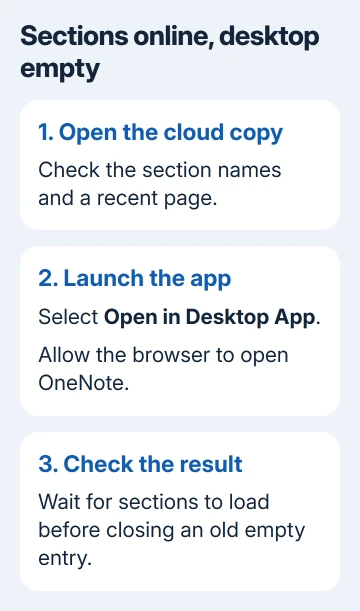
The app should open the selected notebook and begin loading its sections. A large notebook can take time to finish, so check a known section and page rather than judging it solely by the notebook name appearing.
Owners on the Microsoft forum restored their sections by opening from OneDrive and approving the app-launch request. Some suspected a security change, but that cause wasn't confirmed.
This opens the notebook whose pages you just checked online in the desktop app. It's more useful than repeatedly clicking an empty notebook already in the app, which may keep reopening the same unsuccessful connection.
If the expected sections return, continue with the duplicate-entry check. If the browser can't show the notes either, skip to the account and storage checks instead of creating replacement sections.
2. Close an old empty entry after checking the new one
The original asker reported that opening the notebook from the browser created duplicate notebook entries in the desktop list. The newly opened copy worked; they then closed the older entries one at a time.
Check the full notebook link and several pages before choosing which entry to close. Two notebooks can have the same display name, especially when personal and school accounts both contain a notebook called Notes.
On Windows desktop OneNote, File > Info lists open notebooks. Beside the old entry, select Settings > Close after confirming that the working entry contains the pages you need.
Copy any notes that exist only in the old entry before closing it. Those changes may not have reached the cloud, and closing an unsynced notebook could leave work inaccessible.
Closing an entry removes it from the app's open list. To tidy up the list, close the old entry in the app and keep the OneDrive notebook you just used to restore access.
If both entries are blank, wait until the sections load before closing either one. Removing entries before you know which notebook works makes the situation harder to compare without improving the connection.
3. Check the desktop app's sync result
When the notebook opens but sections still don't arrive, open File > Info > View Sync Status on Windows. Select Sync Now for the affected notebook and read the result beside its name.
Microsoft's OneNote sync troubleshooting steps compare the browser copy against the app to tell which part needs attention.
Record any error code and its full message. A permissions error, a storage problem and a refresh request call for different next steps, even when all three leave the same empty-looking notebook on screen.
For error 0xE000002E, follow the notebook refresh sequence. Match the repair to the code you see; don't use those steps unless your notebook shows that error.
Check another notebook in the same account. If it opens normally, tell support that only one notebook is affected. They'll need to check it differently from an account where every work notebook fails.
Use the working browser copy for ongoing reading while the app reconnects. Before editing on several devices, check which copy has the newest page so you don't confuse an older local version with the complete cloud copy.
4. Check the account when the browser is empty too
In Windows desktop OneNote, open File > Info and copy the notebook address using its right-click menu. Open that copied address in your browser. This checks the exact notebook instead of a similarly named notebook on a start page.
Use the account that can open that particular storage location. The desktop list can combine personal OneDrive with work SharePoint notebooks, while a browser session shows only one account.
If the direct link opens the right sections, use that copy for the first step. If it opens a different notebook or asks for access, correct the account or ask the notebook owner to restore your permissions.
When sections have actually been deleted, OneNote's notebook recovery options cover the recycle bin and backups. Reopening the notebook won't bring back sections that are missing from the stored copy.
I'd avoid clearing OneNote's cache for this symptom while the browser still contains a complete working notebook. Reopening the verified link is the smaller change, and it was enough for the owners who reported success.
5. Follow the Mac route when the app is OneNote for Mac
Mac menu paths differ from Windows. On the toolbar, use Notebooks > Notebooks > Copy Link to Notebook, paste the link into your browser and check the latest pages in OneNote for the web.
If the online copy is complete, save any unsynced Mac changes elsewhere, then use Notebooks > Notebooks > Close This Notebook. Return to the browser and choose Open in OneNote.
Wait for the notebook's content to finish loading before checking its sections. If the web copy is incomplete, return to the device with the latest notes and resolve its sync problem first.
When the notebook stays empty
For a school or company notebook, give IT the notebook link, app version, sync error and whether the same sections open in the browser. Ask them to check that specific notebook's SharePoint access and desktop launch restrictions.
For a personal notebook, send those details through OneNote's Help support options. Say whether another notebook opens and whether the browser asked to launch the app. Keep working in the verified web copy during the repair.
The Short Version
Open the complete notebook online, select Open in Desktop App and allow the launch request. Verify its sections before closing an old empty entry. If the online copy is empty too, check its exact link, account and recovery options.
Checked November 21, 2026.
 If you have any business, I can build it online