

An overloaded sync service can trigger OneNote error 0xE40200B4, so reinstalling the app again and again may not help. Check the notebook online and request a service-health check from IT before clearing local data.
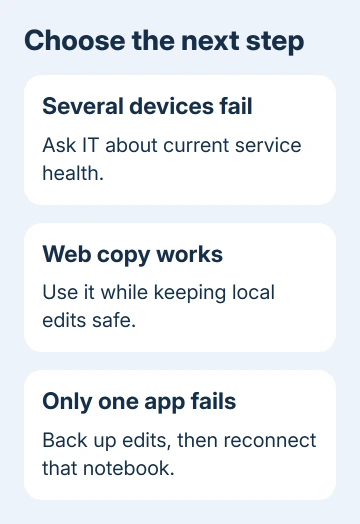
A working web notebook lets you carry on while the desktop app retries. If only one device fails and service health is clear, preserve its unsynced notes before reopening the notebook or refreshing its sign-in.
In this guide
1. Compare the notebook online before resetting it
In Windows desktop OneNote, open File > Info and copy the web address under the affected notebook. Paste that address into your browser. The account you choose needs access to those notes.
On Mac, choose Notebooks > Notebooks > Copy Link to Notebook, then open the copied notebook URL online. The same notebook can be available online while the desktop sync connection is failing.
Check a specific recent page, not only the notebook title. If the browser shows yesterday's text while the app holds today's edits, those edits still need saving separately before you change the app's connection.
If the web copy contains the work you need, use it temporarily. That was the workaround for the B4 service problem in 2018. Keep track of anything still waiting on the desktop so you don't accidentally create two conflicting versions.
If the browser refuses access, check the account shown and ask the notebook owner to confirm permission. A password prompt or access-denied page needs account help, even when the app also displays a sync code.
2. Ask whether the sync service is affected now
For notebooks belonging to your organization, tell your Microsoft 365 administrator that OneNote reports 0xE40200B4. Ask them to check current service health for the SharePoint or OneDrive service storing the notebook.
Include the time the failures began and whether coworkers or other devices are affected. If Windows, Mac and an iPad all fail, changing one computer's app files is unlikely to fix the shared problem.
Microsoft's older known-issue notice ties this code to heavy server demand in March 2018. That date matters: the notice isn't a live report of an outage today.
The original thread later identified incident SP132688, starting March 26, 2018. That incident number explains the old reports. For a failure happening now, your administrator needs to check current incidents or open a fresh support case.
During that incident, owners reported failed manual syncs, restarts and notebook reopening. An engineer explained that the app would continue retrying the server. Deleting app folders wouldn't reduce that server load.
For a confirmed current incident, follow IT's updates and use the working web copy. The code alone can't predict recovery time. Keep your local edits until you can see them in the online notebook.
3. Retry once and read the resulting status
On Windows desktop OneNote, choose File > Info > View Sync Status. Select Sync Now beside the affected notebook. Let the request finish, then read the current message and check which sections remain unsynced.
On Mac, Control-click the notebook name and choose Sync This Notebook. A request that fails during a service incident doesn't mean you've damaged the notebook. It means that attempt didn't complete.
For an iPhone or iPad, pull down the notebook list to request a sync. The app shows a spinning indicator during the attempt. The phone uses its notebook list; it has no desktop-style File menu.
If the code changes to OneNote error 0x800701F4, follow that server-error advice. Use the changed code when asking for help with any later failures.
If the newest page appears online and the notebook reports successful syncing, compare one small new edit as well. Seeing an older page tells you less than watching a fresh edit arrive.
4. Reconnect a notebook when only this app still fails
Use this section when current service checks are clear, the online notebook opens and another device can sync. Save the missing desktop text and attachments outside OneNote before closing the affected notebook.
I'd compare the last edited page first. A notebook can open online while its newest paragraph is still missing, and that paragraph is the work a reset could discard.
In Windows, copy the notebook URL from File > Info. Choose Settings > Close for that notebook. Open that URL in your browser and use Open in Desktop App to reconnect the notebook.
On Mac, use Notebooks > Notebooks > Close This Notebook after copying its link. Open the web notebook and choose its desktop-opening option. Let the sections finish loading before reviewing recent pages and the sync status.
These are the notebook reconnection steps used for an app connection that won't recover. Opening it online helps narrow down the problem, but desktop syncing can still fail while the web viewer works.
If the error continues, stop reopening the same large notebook. Check whether one section is named or whether the whole notebook fails, and give support that distinction along with the result on the other device.
For the separate 0xE0000070 b6d09 sync error, a recent antivirus installation is a useful check when other devices work.
5. Refresh sign-in only after protecting local changes
For Mac notebooks showing a server-busy error after service checks, the sync guidance also offers OneNote > Sign Out, followed by OneNote > Sign In. Use the same notebook account when signing back in.
Signing out and back in on both Mac and Windows got syncing working for one owner. Other owners continued seeing the error. A fresh sign-in can help after service recovery, but it won't repair an overloaded server.
For Windows account prompts, check File > Account and confirm that the notebook's work or school account is connected. If an organization manages the sign-in, have IT handle a persistent account error.
A failure only on a company network calls for a OneNote proxy check. Tell IT which network works. Don't run old OneNote proxy commands on a current managed installation without checking with them.
Have IT submit a case to Microsoft 365 support with the error, version, storage service and affected devices. For personal notes, use OneNote Help support. Include whether your latest pages open online.
The Short Version
Check the web notebook and service health. Retry syncing before reconnecting a failing app, and save local edits first. Report recurring failures across devices with the full B4 code.
Checked November 22, 2026.
 If you have any business, I can build it online






