

A grayed-out Create a Video command in PowerPoint can come from missing Windows N media components. Check your Windows edition first. On Windows N, install Media Feature Pack and restart. One owner confirmed this restored video export.
The fix depends on the edition: ordinary Windows Home and Pro don't need the N-edition pack. Also check that you're exporting a presentation into a movie, rather than trying to insert a video or record your screen.
In this guide
1. Confirm which PowerPoint video command is unavailable
In Windows desktop PowerPoint, open your presentation and choose File > Export > Create a Video. This turns the presentation into a movie. It isn't the Online Video command used to put a hosted clip onto a slide.
Save the presentation first so its latest changes are included. If the entire app is read-only or asking for activation, resolve that restriction before treating one unavailable export control as a missing media component.

For Insert > Online Video, check the video insertion route instead. That command brings a clip into a slide, so check its service and format requirements separately from movie export.
If export has started, check the progress indicator in PowerPoint's status bar. Complex decks can take a long time. An export already running needs time to finish; a disabled command never starts that work.
If the command is gray and no export is running, check your Windows edition next. In the original report, export failed on one computer even though the account worked elsewhere. Reinstalling Office didn't fix it.
2. Read the complete Windows edition name
Open Settings > System > About and look under Windows specifications. Read Edition, including any letter at the end. Windows 10 Pro N and Windows 10 Pro have different media components.
The same distinction applies to Windows 11 Home N or Pro N versus their ordinary Home or Pro equivalents. The version and OS build identify a release, but they don't tell you whether it's the N edition.
Windows N leaves out certain media technologies. Media Feature Pack adds those components back. PowerPoint can need Windows media functions even though it opens slides and runs an ordinary presentation without trouble.
The owner in that thread found Windows 10 Pro N while checking why Media Features wasn't available. They installed the pack and then confirmed that PowerPoint could save presentations as video files.
If your edition ends in N, continue with the installation step. If it doesn't, skip to the app-and-file comparison in section 4. Don't download an N-edition package just because the PowerPoint symptom looks similar.
I'd check that edition before reinstalling Office. It's a short check, and another Office installation won't supply a Windows component left out of the N edition.
3. Add the missing media components
On Windows 10 N, open Settings > Apps > Apps & features > Optional features. Choose Add a feature, find Media Feature Pack, and install it. This Optional features route applies to version 1909 and later.
On Windows 11 N, search Start for Optional features and open that Settings page. Depending on the release, it sits under Apps or System. The Start search gets you to the page without having to find it in either menu.
Select View features beside Add an optional feature. Search for Media Feature Pack, select its checkbox, and choose Next > Add (or Install on older releases). Let the installation complete before reopening PowerPoint.
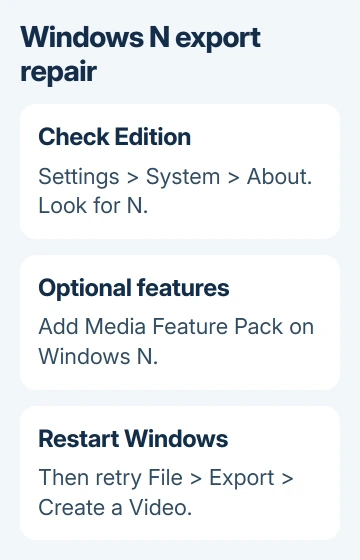
Restart Windows even if it doesn't ask you to. Microsoft says the restart is required to finish installing the Windows N media components.
After signing back in, open the same presentation and return to File > Export > Create a Video. If the command is available, try exporting a short presentation before converting the full one.
If the pack isn't listed on a confirmed N edition, use the missing Media Feature Pack checks. Keep the full edition and build ready for IT if a managed PC can't add optional features.
Older Windows 10 releases used version-specific packages. Don't install a random old download on a newer system. Use Optional features on supported versions or ask IT to check the appropriate package for that exact Windows build.
4. Compare a simple deck if the command stays gray
Create a new blank presentation with one title slide, save it as .pptx, and check File > Export > Create a Video. This tells you whether export is unavailable throughout PowerPoint or only in the original file.
If the new deck exports, compare the original with a separate copy. Note its file format and any editing or saving restrictions. Missing Windows components would generally affect the simple deck too.
If neither file can export on ordinary Home or Pro, note that result. Media Feature Pack isn't the right installation for that edition. Include whether this started after an Office update or another change to the computer.
In PowerPoint, use File > Account > Update Options > Update Now where available to install Office updates. Managed installations may handle updates through IT. Restart the app after the update and retry the same short deck.
If updating doesn't help, save your work and repair Office. In Windows 11, open Settings > Apps > Installed apps, find the installed suite, open its three-dot menu, and select Modify.
In Windows 10, use Settings > Apps > Apps & features, select Office, and choose Modify. For Click-to-Run, try Quick Repair, then Online Repair if needed. An MSI installation offers Repair > Continue.
Office repair checks and repairs the installed app files. If both presentations still fail afterward, keep the export error or a screenshot for support rather than repeatedly reinstalling the media pack.
5. Check the exported movie before sharing it
Once the control works, choose a video quality and whether to use recorded timings and narrations. Select Create Video, choose a filename and folder, then save using a video format offered by your PowerPoint version.
Wait for the progress indicator to finish, then open the movie from that folder. Check the start, a middle slide and the end. If the presentation includes narration, listen to it in the exported file rather than only in PowerPoint.
The recording and timing choices affect the finished movie. A silent export after the command becomes available calls for checking narration and playback, rather than installing that Windows feature again.
If export remains disabled, give Microsoft Support the Windows edition, build, PowerPoint version and simple-deck result. Confirm whether the media pack installed and you restarted Windows. Use IT on a managed PC.
The Short Version
Read the Windows edition and confirm which command is gray. On Windows N, add the media pack and restart before retrying export. On ordinary Home or Pro, compare a simple presentation and check Office.
Checked November 22, 2026.
 If you have any business, I can build it online






