

PowerPoint's cloud Reuse Slides search is deprecated. Browse to a local presentation through Reuse Slides if your version offers it. Otherwise, copy slides from the open source deck.
A missing cloud search and a missing local-file command need different fixes. Older discussions describe search appearing for some accounts, so their ribbon-reset advice doesn't necessarily apply to today's missing search.
In this guide
1. Separate cloud search from local slide reuse
Check what PowerPoint actually lets you open. The older Windows version offered two options with similar names: a file picker for a presentation you already had, and a search for files across your work storage.
The asker in the original Reuse Slides discussion could use the file-browsing version. Their missing feature was the search across local files, SharePoint and OneDrive in Office 365 ProPlus version 1909.
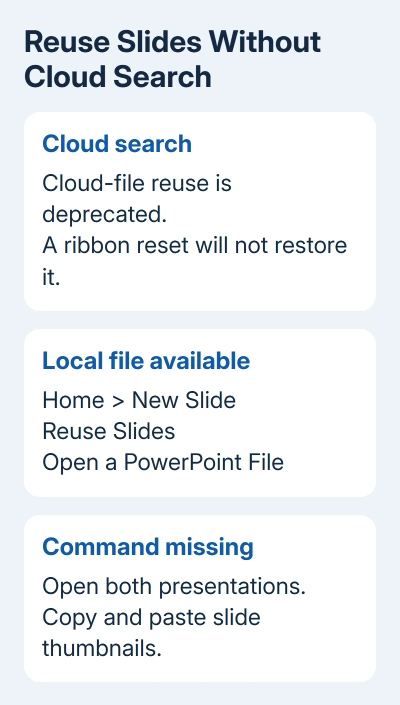
Microsoft's current Reuse Slides instructions state that the feature is for local files and cloud-file reuse is deprecated. Those old account tests don't provide a fix for today's missing search.
If a local-file pane opens, you have a way to import slides without restoring cloud search. Continue with a local copy of the source presentation. If the Reuse Slides command itself is absent, use the open-both-files method instead.
Don't change your subscription or your organization's Microsoft 365 location just to chase the old search button. The current documentation's cloud limitation is the useful starting point, whichever account showed that feature in 2019.
2. Save the source slides on your computer
Find the presentation through your organization's normal OneDrive or SharePoint access. Use an approved local copy or a file that's already on your computer. Ask its owner if you don't have permission to download or reuse it.
For a file in a synced folder, make sure it can open in desktop PowerPoint. A placeholder that still needs to download isn't the same as an available file when you're offline or the cloud service can't be reached.
Open the source once and check that it is the right presentation. Similar file names and older copies can make a successful import look wrong because the expected slide wasn't in that version of the file.
Imported slides become copies in the receiving deck. Editing them leaves the originals unchanged. Keep that in mind when building a talk from a team presentation that others are still updating.
If the source opens read-only, check whether the owner allows reuse before trying other routes. The PowerPoint editing checks explain common read-only and protection cases.
Once the intended source opens normally, return to the destination file. Choose the point in the presentation where the imported material should appear, then use the available import method.
3. Browse to the file in Windows PowerPoint
In a Windows version that still offers the local Reuse Slides pane, follow these steps to open the file:
- Open the presentation receiving the slides.
- In the left thumbnail pane, select where the new material should be inserted.
- Open the New Slide menu on Home, then choose Reuse Slides.
- Select Open a PowerPoint File, browse to the local presentation and choose Open.
- Select Keep source formatting before inserting if you want the incoming slides' original design.
- Click a slide to insert it. To bring in the entire deck, right-click a preview and choose Insert All Slides.
Without the source-formatting choice, imported slides take the styling of the destination. Check the first inserted slide before adding a large set so you're happy with the result.
This is file browsing, so the pane doesn't need to discover presentations across your organization's cloud storage. If the file opens and its slide previews appear, you can reuse those slides without cloud search.
If your version doesn't have that command, use the copying steps in the next section. Repeatedly customizing the ribbon won't recreate a feature that your installed version doesn't offer.
4. Use the open source deck when import is unavailable
Open both presentations in desktop PowerPoint. Select the complete slide thumbnails in the source deck, copy them, and paste after the intended thumbnail in the receiving deck.
Use Ctrl+C and Ctrl+V on Windows, or Command+C and Command+V on Mac. Select the thumbnail rather than an individual text box in the editing area; otherwise only that selected object is copied.
Choose the paste formatting when the slides arrive. The cross-presentation copying guide covers selection and the choice between keeping the source design and using the destination theme.
On Mac, Home > New Slide > Reuse Slides, where offered, imports the deck's slides together. For a small selection, copying thumbnails from the open source may be easier than deleting unwanted slides after import.
I'd use that direct copying route when you're on a deadline and both files open properly. It gets the needed material into the deck without spending the session trying to bring back cloud search.
Why the old account fix isn't a current repair
In the 2019 thread, switching to a supplied test account made the search button appear, and switching back made it disappear. The asker linked this to restrictions on where the old Tap feature was available.
Resetting the Home tab and disabling add-ins didn't help them. Removing stored Office credentials didn't change it either. Those failed attempts matter because they show why a generic ribbon reset wasn't the answer to that case.
No reply confirmed that search ever worked on the original account. Its old regional restriction list isn't a current availability list: the support page now limits reuse to local files.
When local files won't import either
Try one simple source presentation with one ordinary slide. If even that file won't open or copy in desktop PowerPoint, report the local-file failure separately through Help > Contact Support or your Microsoft 365 administrator.
Include the version from File > Account > About PowerPoint on Windows, or PowerPoint > About PowerPoint on Mac. Say whether the command is missing, the file picker fails, or the previews appear but insertion fails.
The Short Version
Cloud-file Reuse Slides search is deprecated. Use a local presentation with the file-based import pane if your version offers it. Otherwise, open both decks and copy complete slide thumbnails, then choose the pasted slides' formatting.
Checked November 22, 2026.
 If you have any business, I can build it online






