

The OneNote ruler depends on which app is open. In current Windows OneNote, check Draw > Ruler. The OneNote for Windows 10 instructions describe a separate app whose ruler required a touch screen.
Don't reinstall Office just because a 2021 screenshot doesn't match today's ribbon. First identify the app, then use its drawing tools or a straight line shape when a ruler isn't offered.
In this guide
1. Separate current OneNote from the retired Windows 10 app
Check the app's name before trying to fix it. OneNote in Microsoft 365 and OneNote for Windows 10 were different Windows applications, even though both could open the same cloud notebooks.
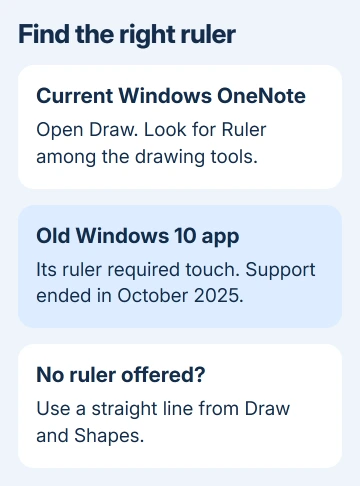
The older app's support ended in October 2025. Its touch-only ruler instructions aren't a reason to install it now. Open the current OneNote supplied through Microsoft 365 or the Microsoft Store instead.
In the original discussion, one owner with a touch-capable laptop reported that changing to the appropriate Windows app solved their missing-ruler problem. Other owners said updates alone didn't make the button appear.
That discussion was about the apps available in 2021. Since then, current OneNote has gained drawing features, so the old answer's touch-device restriction shouldn't be treated as the rule for every modern OneNote installation.
If the app name already says OneNote and you have File > Account, continue with the current Windows checks. For a browser-based notebook, use the web section; desktop menus won't be available in that tab.
2. Open the ruler in current OneNote for Windows
Open a page, select Draw and look for Ruler among the drawing tools. Turn it on to display a straightedge on the page. Selecting the same button again hides it when you're finished.
If the ribbon is collapsed, expand it so the commands are visible. A narrow window can also tuck commands into smaller groups, so give the window more room before deciding the feature is absent.
Choose a pen, move the ruler where the line should go and draw along its edge. The ruler controls the line's direction; it isn't a page-margin control and won't set paragraph indents like Word's horizontal ruler.
For a mouse, place the pointer over the ruler and turn the wheel to change its angle. On a touch screen, use one finger to move it and two fingers to rotate it. Watch the angle change before drawing.
The current ruler rotation instructions include mouse operation. A non-touch laptop shouldn't be dismissed solely because the older Windows 10 app had a touch-screen requirement.
If Ruler is present but you're looking for a way to keep the app in typing mode, that's a separate setting. The OneNote stylus mode checks explain the older pen-versus-typing behavior.
3. Update when the current Windows ribbon lacks the command
For a Microsoft 365 desktop installation, open File > Account > Update Options > Update Now. Let the update finish, reopen OneNote and check the Draw tab again on an ordinary page.
For a Store-managed installation, open Microsoft Store and look for OneNote updates under Library or Downloads. Install an offered update. Use the updater for your copy of OneNote instead of adding a second copy.
School and workplace devices can receive Office updates through IT. If Update Options is unavailable, ask which version and update channel it uses, and whether that version has the current drawing tools.
I'd check the app name and update route before you change Windows touch settings. The old thread includes an owner with a touch-capable laptop who still lacked the ruler, so hardware alone wasn't the whole answer.
If the updated app still doesn't offer Ruler, use a line shape for the immediate task. That lets you finish a diagram without changing the notebook or waiting for a feature to arrive.
4. Use the web and Mac tools that are actually offered
Open Draw in the browser version and inspect its available commands. If it offers Ruler, use it there. If it doesn't, switching a browser setting won't create a desktop-only button.
Microsoft's current pages aren't fully consistent about platforms: its ruler rotation page lists OneNote for the web, while its drawing-tools page describes the ruler as a Windows feature. Follow the commands your app actually provides.
For a notebook that needs a ruler and doesn't offer one online, use current Windows OneNote if a suitable PC is available. You'll be using a different app to draw the line, rather than fixing the browser version.
On Mac, don't follow File > Options or Windows touch-device instructions. Those menus don't belong to OneNote for Mac. Use its pens and highlighters, or open the synced notebook in Windows for the ruler workflow.
If the notebook itself is absent in the other app, use the missing notebook checks first. A missing drawing button and a notebook that hasn't opened are different problems.
5. Draw a straight line without the ruler
In Windows OneNote, select Draw, open the Shapes gallery and choose a line. Drag on the page to create it, then select the line to move or resize it. This makes a line object instead of freehand ink guided by a ruler.
That works well for a table edge, a labeled diagram or a simple separator. It doesn't reproduce the ruler's angle display, so choose the ruler when you need to position a straightedge at a particular angle.
For freehand notes, choose a pen and return to normal typing when finished. If drawing mode remains active, press Esc when using a mouse. Then you can type the next part of your notes without drawing on the page.
When to ask the administrator or support
Send the app name and version from its account information, plus a screenshot of the expanded Draw tab. Mention whether your computer has a touch screen. Ask whether that installed build supports the ruler and how it receives updates.
For school devices, start with the Microsoft 365 administrator. For a personal installation, use the app's Help support route. Include whether a line shape works, so support knows it's the ruler command that's missing.
The Short Version
Ruler availability depends on the app edition. Use Draw > Ruler in current Windows OneNote, use its update tool, and use a line shape when the ruler isn't offered. The retired Windows 10 app's touch-only rule isn't universal.
Checked November 22, 2026.
 If you have any business, I can build it online






