Selecting Type in OneNote 2013 doesn't always stop a stylus from switching straight back to ink. Turn off automatic pen switching in File > Options > Advanced > Pen, restart OneNote, then select Type again to tap checkboxes or select text.
That restores manual control, but it has a tradeoff: the eraser end of some pens stops erasing. Keep the Draw tab's eraser available if you choose this workaround.
In this guide
1. Turn off automatic switching in OneNote
Open File > Options > Advanced in the desktop version of OneNote 2013. Scroll to Pen and clear Automatically switch between inking, selecting, typing, and panning. Click OK, then close and reopen OneNote.
Return to the page, choose Draw > Type, and tap a checkbox with the stylus. The checkbox should tick or clear instead of getting a pen stroke. Try selecting a little typed text too. Automatic switching also got in the way of that task.
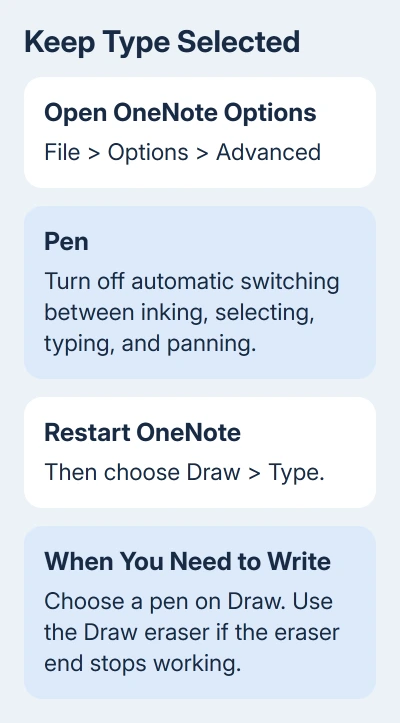
The original asker confirmed that clearing the setting and restarting let them switch between ink and Type manually. Later replies confirmed checkbox tapping on a Surface Pro 4, while also reporting the eraser problem.
This setting changes which tool OneNote chooses when you use the pen. It doesn't repair the pen or change Windows' handwriting recognition. If your stylus draws accurately, its input is reaching OneNote; the app is choosing the wrong tool.
A Surface running OneNote 2016 that turns white and stops responding needs the handwriting-freeze checks instead of another tool-mode change.
If the setting was already clear, finish the restart and choose Type again before changing anything else. Leaving a pen selected on the Draw tab still tells OneNote to write, even with automatic switching disabled.
2. Choose the tool for the next task
With automatic switching off, you'll need to choose a tool when you change tasks. Use Type for typed text, clickable checkboxes and selecting page content. Pick a pen on Draw when you're ready to write by hand again.
For erasing, select Eraser on Draw and use the pen tip. Choose a pen again when you've finished removing ink. This is particularly useful if turning the stylus over now adds ink instead of removing it.
Don't judge the change only by whether handwriting still works. Check all three jobs you actually use: tapping a checkbox, writing a short note and erasing that note. That tells you whether manual mode suits the way you take notes.
The awkward moment is usually the return to handwriting. Type mode has stayed selected, which is exactly what the workaround was meant to achieve. Selecting a pen gets writing back without returning to the Advanced options each time.
For meetings, I'd leave Type selected while marking attendees, then select a pen for the handwritten notes. That saves you switching tools between every name. You only change tools when you're ready to write notes.
3. Put the mode button within reach
Right-click the Type command on the Draw ribbon and look for Add to Quick Access Toolbar. Add the pen command you use as well if its menu offers that option. The small toolbar gives you a shorter route between the two tasks.
One owner on a Surface Pro 2 confirmed that adding the select/type button to Quick Access worked after automatic switching was disabled. Their eraser still failed. The toolbar saves taps, but it doesn't fix the pen's other problems.
Use your Draw tab's command. Some replies described other OneNote versions, with a Tools menu and Select & Type. OneNote 2013 uses the ribbon, so searching for an older menu sends you to the wrong place.
If the toolbar disappears in your full-screen layout, return to the normal ribbon while changing tools. Several owners disliked the extra tapping in full screen; adding a button doesn't mean it will remain visible in every view.
The OneNote organization guide covers the notebook and drawing tools if you're rebuilding a workflow around handwritten meeting notes.
4. Restore automatic switching when the tradeoff is worse
Some Surface owners lost eraser-end recognition after disabling automatic switching. Others lost touch gestures, including scrolling or pinch zooming. Check those on your tablet before relying on manual mode.
To undo the workaround, return to File > Options > Advanced > Pen, select the same automatic-switching checkbox and restart OneNote. The mouse, keyboard and pen can then trigger their usual tool changes again.
Microsoft's Advanced options description explains that enabling this option activates the pen for stylus use, selection for the mouse and typing for the keyboard.
That's why choosing Type alone doesn't stop OneNote from switching tools when your pen touches the page. Turning it back on restores that behavior too. Use a mouse or trackpad for checkboxes if you need automatic pen handling more.
A pen that fails to erase even with automatic switching enabled has a different problem. The OneNote pen eraser fixes cover that case, including settings and pen hardware checks.
When manual switching still isn't usable
Owners in the discussion didn't confirm a way to keep the stylus in Type mode and still have the eraser and touch gestures work automatically. Later reports continued to describe that compromise, including reports from OneNote 2016 users.
A new pen battery won't keep Type selected when automatic switching is changing the tool. A reinstall also makes little sense before checking that setting. Decide whether manual mode suits your work before trying unrelated repairs.
For an existing work tablet, ask your IT team to help move the notebook to a supported OneNote installation. Show them the checkbox behavior and the eraser tradeoff separately, so they can check both before changing your everyday setup.
Keep the notebook available until its pages open correctly in the replacement setup. The problem is how OneNote handles the pen. Trying a different tool mode doesn't require deleting notes, emptying a cache or rebuilding the notebook.
The Short Version
Disable automatic switching in Advanced Pen options, restart, and pick Draw > Type. Choose pens and the Draw eraser manually. Restore automatic switching if losing eraser or touch behavior makes manual mode less useful.
Checked November 21, 2026.
 If you have any business, I can build it online