Maximum battery life in OneNote 2016 stopped handwriting freezes for one owner in the Surface discussion. Try File > Options > Advanced > Battery Options first when the pauses interrupt notes taken on battery power.
The change reduces background activity; it isn't a Surface Pen repair. A white window that recovers after a pause differs from OneNote closing completely or simply switching out of its writing tool.
In this guide
1. Reduce OneNote's background work on battery
Open the desktop OneNote app that has a File tab. Choose File > Options > Advanced, then scroll to Battery Options. Under Optimize for the following battery life, select Maximum battery life and confirm with OK.
Use the same notebook and write normally while the Surface is running on battery. Check whether you can keep writing without the window turning white and becoming unresponsive. Opening the app successfully isn't enough.
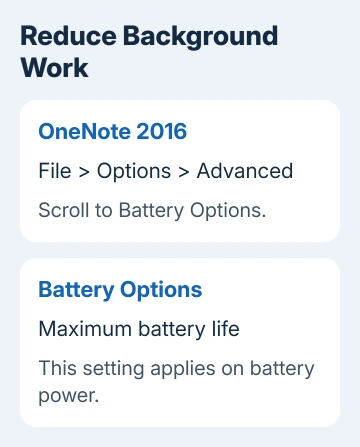
One owner in the Surface freezing discussion reported that this stopped their interruptions. They didn't say which device they used, so try it on your Surface and check whether it helps.
On battery, this setting makes background jobs less frequent, including search indexing, handwriting recognition and syncing. The features remain available. Windows battery saver is a separate control.
If writing becomes smoother, keep the setting and see how well the background features keep up with your work. Search or recognition may need more time to catch up. Restore the previous choice if that tradeoff causes a larger problem.
If the freezes happen only with the charger connected, this battery-only control isn't a complete answer. Try the notebook comparison next. Keep the charger connected or disconnected throughout, so that doesn't change the result.
2. Check whether the pause follows a busy page
Create a new page with a short heading and a little handwriting. Don't add a document printout or recording yet. Compare writing there with writing on the page that repeatedly freezes.
If the small page stays responsive, try another page in the same notebook. If only one large page freezes, check its content before repairing the whole Office installation.
One reply describes frequent hangs or restarts with an inserted PowerPoint presentation. That report doesn't show that every printout causes freezes, but it makes a simple page a useful comparison.
Keep the existing page intact while making that comparison. Work on a separate page for the next class or meeting if it responds better, then deal with the heavy page when you aren't trying to keep up with someone speaking.
If a new notebook freezes too, the problem reaches beyond a single page. Note whether the window recovers on its own, whether typing pauses too, and whether the rest of Windows still responds.
A pen that changes tools without freezing needs different advice. The OneNote Type Mode setting controls automatic switching between handwriting and typing; it doesn't repair an unresponsive window.
3. Try the older graphics option only if it exists
In OneNote 2016, open File > Options > Advanced and look under Display for Disable hardware graphics acceleration. Select it, confirm with OK, then close and reopen OneNote before checking the same page.
That older switch changes how Office draws its window. It was the accepted suggestion in the Surface thread, but later owners said it didn't solve their freezes. An accepted answer can still fail to fix the problem for other owners.
If your build doesn't show the checkbox, skip this step. Don't recreate an absent switch through registry edits taken from old posts.
If it helps, check handwriting and page navigation. Otherwise restore your earlier choice before continuing. Leaving unrelated settings switched off makes it harder to understand what actually improved the pauses.
I'd try the battery choice before this display change. The thread contains a clear success report for reducing background activity and several clear failures for turning off graphics acceleration.
4. Protect the notes before a larger Office change
Once OneNote responds, open File > Options > Save & Backup and choose Back Up All Notebooks Now. Wait for the completion notice. To save the backup on a separate drive, use Backup Folder > Modify and choose that drive.
Microsoft's OneNote backup steps describe those desktop controls. A notebook saved only on the Surface needs that backup just as much as a notebook that also syncs online.
For a cloud notebook, compare its newest pages with the copy available through your account online. Recent handwriting visible only on the Surface hasn't necessarily reached the service, even if older pages appear correctly.
Don't clear the cache or remove your account to try to speed things up while those changes are unprotected. A pause that eventually recovers gives you a chance to preserve work before trying a reset.
An actual corrupted-cache message belongs with the OneNote cache repair instructions. Repeated pauses alone don't tell you the cache is damaged. Leave it intact unless that specific error appears.
5. Update the installation, then consider repair
Open OneNote's File > Account page. If Update Options is available, open it and select Update Now. If your university or workplace controls Office updates, give its IT team the version shown on the Account page.
Check Windows Update too. Windows 10 uses Settings > Update & Security > Windows Update; Windows 11 uses Settings > Windows Update. Follow the installed system's path, since Surface models don't all run the same release.
If it still freezes after those checks, close Office and open Control Panel > Programs and Features. Select Microsoft Office > Change and use the repair offered for that installation. Recheck the small page afterward.
The asker had tried Office repair unsuccessfully. Another owner still had freezes after reinstalling and switching Office versions. Those failures are a reason to avoid repeating a full reinstall without new information.
What should IT check if OneNote still freezes?
Give the person maintaining the Surface the OneNote version, notebook location, charging condition, and results from the small page and Battery Options. State whether it recovers, crashes, or makes the whole computer unresponsive.
Microsoft stopped supporting the Windows edition of Office 2016 on October 14, 2025. Ask IT about a supported OneNote setup that preserves your local notebooks, instead of expecting a new patch for the retired installation.
The Short Version
Use OneNote's Maximum battery life option for battery-powered handwriting. Compare a small page and undo a graphics change that doesn't help. Back up before repair or migration; pen-tool switching is a separate fault.
Checked November 21, 2026.
 If you have any business, I can build it online