Edge support on macOS Big Sur ends at version 138, so check your browser version before trying to reset sync. For current Edge releases, upgrade to a compatible newer macOS first, then update the browser and check its signed-in profile.
The older Big Sur sync fault was fixed by an Edge update for its owner in February 2021. That success doesn't mean today's newest Edge can be installed on Big Sur, or that deleting your profile will make it compatible.
In this guide
1. Check the Mac and Edge versions together
Choose Apple menu > About This Mac and note the macOS version and Mac model. In Edge, enter edge://settings/help to see its version and update status. Note both numbers to check whether your setup is supported.
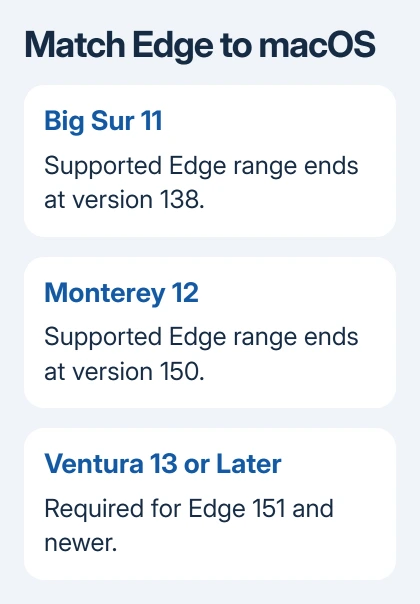
Microsoft lists these supported operating systems: Big Sur with Edge 129 through 138, Monterey with Edge 139 through 150, and Ventura or later for Edge 151 and newer.
Version 139 and later may have installation or launch problems on Big Sur. If Edge's updater can't offer a current supported release there, repeating the update won't remove the macOS limit. Move to the macOS upgrade check in section 2.
An up-to-date message on an old operating system doesn't mean you have the newest Edge a newer Mac can run. Compare your Edge version with the compatibility list before trying a repair that could remove your data.
The macOS limits are the same for Macs with Intel processors and those with Apple silicon. The upgrade your particular Mac can install depends on its model; the processor alone doesn't tell you the newest compatible macOS version.
2. Upgrade macOS before chasing a current Edge fix
Back up the Mac first. On Big Sur, open Apple menu > System Preferences > Software Update. Check which compatible upgrades your Mac offers. Downloading an Edge installer that needs a newer macOS won't solve the problem.
On newer macOS releases, the route is System Settings > General > Software Update. Searching for Software Update with Spotlight also opens the correct control without needing to remember which settings app your version uses.
Install an offered compatible upgrade that meets the current Edge requirement, then run Edge's update check again. For Edge 151 or newer, Monterey still isn't enough; you'll need Ventura or later.
If no suitable upgrade appears, check your Mac's model against the upgrade's compatibility list. A macOS update that isn't offered needs a compatibility check, not repeated browser resets.
If your Mac can't upgrade to a supported macOS, you'll need another supported device to use current Edge. Moving favorites manually can preserve access to your sites, but it doesn't restore ongoing sync or extend the old browser's support.
3. Keep your local favorites before changing profiles
Open Favorites in Edge, then its More options menu and choose Export favorites. Name the HTML file clearly, save it in Documents and include it in your backup.
That file preserves favorite links. It isn't a full Edge-profile backup and doesn't include passwords, history or open tabs. Keep any important page addresses separately if those tabs exist only on this Mac.
One owner deleted their Mac profile and lost data without fixing sync. I'd keep the profile until its local information is saved and the browser has a supported operating system.
If another device has the complete favorite list, export it there too. Compare those lists to decide what needs saving. Signing in successfully doesn't show whether every recent bookmark reached the other device.
4. Check the account and the individual sync switches
In Edge, open Settings > Profiles > Sync. Compare the signed-in email address with the device where your data is correct. Work and personal Microsoft accounts keep their browser data separately, even when the displayed names look alike.
Turn sync on if it's off, then check the switches for the information you need, such as favorites and passwords. If one switch is off, that type of information won't sync even while the others do.
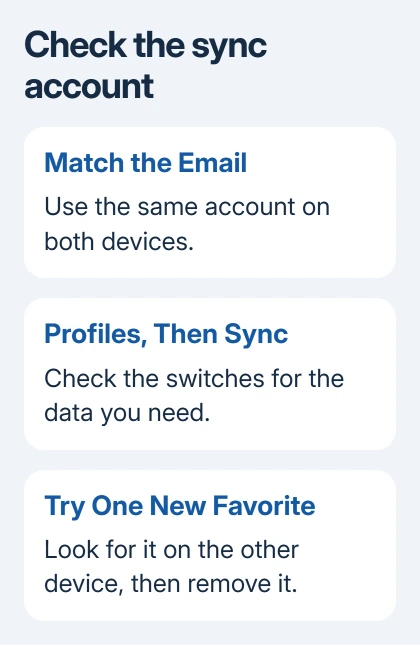
After updating, create a harmless temporary favorite on one device and check for it on the other. Remove that test favorite afterward. This checks whether new changes sync; old favorites may predate the fault.
If the correct account still won't sync, sign out through Settings > Profiles > Sign out, then sign back in with that same account. Keep your saved local data when the dialog offers that choice.
The Edge sync troubleshooting page covers a connection stuck at Setting up sync, including filtering and the later re-sync controls. Use it once your Mac and Edge versions are compatible; those repairs won't bypass Big Sur's limit.
5. Use the old success for the right situation
The original Mac was running Edge 88.0.705.56 when sync failed for one live.com account. Another account on that Mac worked, while the affected account still synced on Windows and iOS.
The owner said that resetting sync, removing the Mac profile and disabling real-time scanning hadn't helped. They sent feedback with diagnostic information, then reported that the latest Edge update restored sync across their devices.
They didn't give the working update's version number or say what it changed. Repeating the failed profile deletion isn't the answer. Keep your saved data safe, and update Edge on a supported macOS.
When the supported setup still won't sync
Open edge://sync-internals, then the browser's three-dot menu. Choose Help and feedback > Send feedback. Include your macOS and Edge versions, your account type, and whether the same account syncs on another device.
Send diagnostic details through the support tool rather than posting them publicly. For a work account showing an administrator restriction, give IT the message and ask them to check sync permissions and account licensing.
The Short Version
Big Sur support ends at Edge 138. Check for a compatible macOS upgrade, save local favorites and verify the sync account. The historical owner recovered after an update; deleting their profile had failed.
Checked November 22, 2026.
 If you have any business, I can build it online