ESET's HTTPS filtering caused Windows Update error 80244004 for several owners by interrupting the update connection. With ESET installed, try its SSL/TLS filtering repair before clearing the update folders.
That fix comes from a 2012 incident, so the old menu names don't match current ESET releases. The same error without ESET needs a connection check, particularly on a work PC using an organization's update server.
In this guide
1. Check whether the ESET fix fits your PC
Check your security app's product name and version. Reports included ESET Smart Security 5.2.9.12. Turning off HTTPS protocol checking restored updates for owners, including one whose update-component resets hadn't helped.
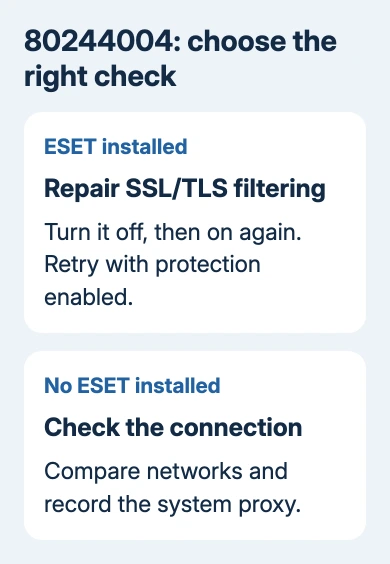
Microsoft's error-code reference describes 0x80244004 as the update client failing its server connection. The shorter 80244004 display refers to that same code.
The code doesn't name ESET or tell you that Windows is damaged. Owners traced this incident to ESET's checks on encrypted traffic, but that doesn't make ESET the cause of every connection error.
Press Windows + R, enter winver, and write down the installed edition and build. For Windows 11, open Settings > Windows Update. On Windows 10, use Settings > Update & Security > Windows Update to see the current failure.
Check whether it fails while searching or after an update has downloaded. A search that can't reach its server fits this route. A different error during installation needs the update-code guide for that new code.
A downloaded KB5033375 that rolls back with Malwarebytes has a confirmed removal case, separate from an ESET connection failure.
2. Repair current ESET SSL/TLS filtering
SSL/TLS filtering lets your security app inspect encrypted connections. A problem with the certificate it uses can interrupt that traffic even when the internet connection itself works.
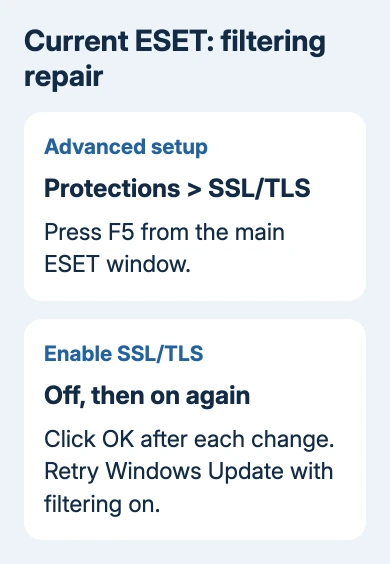
In current ESET Windows applications, open the main program window and press F5 for Advanced setup. Choose Protections, expand SSL/TLS, and find Enable SSL/TLS.
Turn that setting off and click OK. Return to the same setting, turn it on again, and click OK. ESET's current repair guidance uses this off-and-on sequence to correct certificate registration problems.
Try searching for updates again with filtering enabled. It should display available updates or confirm that none are needed, rather than return 80244004. That gives you a working update connection with the security feature still active.
If the error keeps appearing, briefly try the search with only SSL/TLS filtering off to help support narrow down the problem. Restore the setting immediately afterward; encrypted traffic loses that inspection while it's off.
If updates work only during that comparison, give ESET support your product version, the Windows version and that result. Ask for a repair of SSL/TLS filtering or its certificate setup, rather than a permanent switch-off of web protection.
3. Recognize the old ESET menu without copying its advice
The old menu path was Advanced Setup > Web and email > Web access and antiphishing protection > HTTP,HTTPS. Under HTTPS scanner setup > HTTPS filtering mode, owners selected Do not use HTTPS protocol checking.
That is the setting the successful replies describe. It wasn't a Windows service change, and it wasn't the Windows Update troubleshooter. One owner specifically said those other update repairs hadn't worked for them.
The old instructions said a restart may be needed after that change. Save open files before restarting, then retry the update search. Include the ESET product version in the support request so its team can identify the menu you changed.
I'd treat an ESET 5 installation as an old-software problem as well as an update problem. Have ESET support check which current product your Windows version can run. A menu from 2012 isn't a reason to keep a security suite from that period.
XP and Vista lost their old update endpoints. Fixing ESET filtering can't restore a retired service. An unsupported Windows installation needs a move to supported software, rather than more antivirus adjustments.
4. Check the connection when ESET isn't involved
Disconnect a personal VPN and retry through your normal connection. Then, if possible, compare a second connection through your own phone hotspot. This comparison shows which connection fails.
If the second connection works, check the first network's proxy, filtering or router setup. Reinstalling Windows isn't the next step. If both connections fail, your PC's security app and update settings still need checking.
On Windows 11 and 10, the user proxy settings are in Settings > Network & internet > Proxy. Record any script address or manual proxy entry. Don't erase an employer's configuration to imitate a home PC.
Windows Update can also use a system-level proxy that differs from the browser's settings. A working browser connection doesn't mean the update service can reach its server.
For an IT support ticket, open Command Prompt and run netsh winhttp show proxy. This displays the system proxy without changing it. Include that output if the PC is managed or the browser works while update searches consistently fail.
5. Try the Windows troubleshooter once the connection works
For Windows 11, open Settings > System > Troubleshoot > Other troubleshooters and run Windows Update. Follow the repair prompts, then retry the failed search and record whether the code changed.
Windows 10 puts this under Settings > Update & Security > Troubleshoot > Additional troubleshooters > Windows Update > Run the troubleshooter. The available experience can differ on older builds as troubleshooting moves into Get Help.
A Windows Update component reset belongs later, when the connection is working and Windows still has a problem with its saved update files or settings. It won't repair an ESET certificate or an organization's unreachable update server.
When it still won't connect
Tell ESET support if changing filtering affected the result.
For IT or Microsoft Support, include the code, Windows build, where the update failed, proxy output and results from both connections. Ask them to check the connection to the update server.
The Short Version
Check ESET SSL/TLS filtering first when ESET is installed. Use its current off-and-on certificate repair, keep protection enabled, and check network or managed-server settings if that doesn't change the result.
Checked November 26, 2026.
 If you have any business, I can build it online