A damaged Windows Update client can produce error 80004002. Check your Windows version, then repair its update components. An application or camera showing the same number needs different checks.
The original Check for Windows Updates report was about Vista. The accepted answer helped open a repair log, but later replies don't confirm an update fix. Current Windows needs its own tools instead of an old Update Agent installer.
In this guide
1. Confirm the error comes from Windows Update
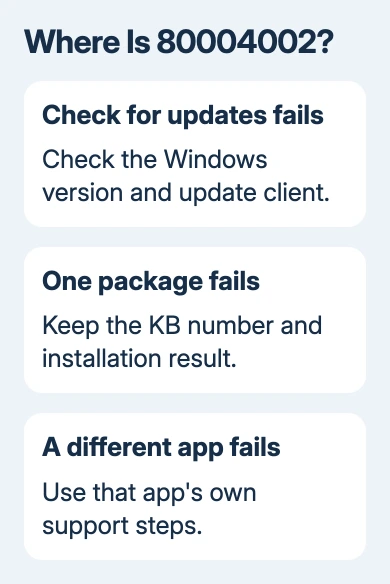
Press Windows+R, type winver and record the Windows version. Then open Windows Update and write down the full message. Check whether Windows can't check for updates at all or a particular update downloads but won't install.
On Windows 11, open Settings > Windows Update. Windows 10 uses Settings > Update & Security > Windows Update. In Vista or Windows 7, search Start for Windows Update and select the matching Control Panel entry.
If a package has already downloaded, record its KB number and the error listed for it in update history. A downloaded package that won't install has failed later than an update search that never finishes, even with similar messages.
If the number appears inside Access, a webcam app or another program, stop using Windows Update repairs for that message. Send the program's own error text to its publisher, since 80004002 isn't unique to the update screen.
A different update code needs its matching remedy. The Windows Update error guide covers common alternatives, including failures that require attention to a particular component rather than the update client itself.
2. Run the update diagnostic on current Windows
Find Troubleshoot under System in Windows 11 Settings. Open Other troubleshooters, then choose Run for Windows Update. Follow Get Help when it opens, then test whether the update search now completes.
Windows 10's current route also uses the Get Help app. Open it and enter Windows Update troubleshooter, then follow its questions. Use that replacement when the old Settings diagnostic is unavailable.
The result that matters is a fresh completed update check. Even if the troubleshooter reports a change, you'll need to check that Windows Update can search and install the pending update.
If the same error remains, keep the diagnostic result and continue to component repair. Running the same diagnostic again is unlikely to help if it keeps returning the same result.
For a work PC that receives updates through company management, send the result to IT. They can check the update-client and deployment logs together, rather than replace a managed client with a package intended for a home installation.
3. Use DISM and SFC to repair Windows files
Search Start for Command Prompt. Open its right-click menu, choose Run as administrator and approve the permission request. Start with DISM:
DISM.exe /Online /Cleanup-Image /RestoreHealthWait for its final result, then run:
sfc /scannowDISM repairs Windows' component store, which supplies the files used for repair. SFC checks the protected system files against a healthy copy. That order matters when the repair source is damaged as well as the files Windows is using.
If SFC successfully repairs files, restart and check Windows Update again. A clean SFC result means it hasn't detected damage to protected files. If it can't repair some files, continue with the log and repair-source check.
The SFC repair-results guide explains how to handle the different final messages. Keep the final result rather than judge the scan from the percentage while it is still running.
I'd save both command results before making another change. Support can use a failed DISM download followed by SFC failure to choose the next repair. A list of commands without results doesn't give them that detail.
4. Open a copy of CBS.log when access is denied
The repair log is normally C:\Windows\Logs\CBS\CBS.log. If opening it there is denied, copy the file to your desktop and open that copy. Approve the copy's permission prompt if Windows requests it.
To extract SFC's entries without copying the entire log, return to the administrator prompt used for DISM and SFC:
findstr /c:"[SR]" %windir%\Logs\CBS\CBS.log >"%userprofile%\Desktop\sfcdetails.txt"Open sfcdetails.txt and check entries from the latest scan. The log can contain several scans. Give support the recent entries describing files it couldn't repair, together with the Windows Update error.
The Vista owner confirmed that copying the log let them read it, but still had repair failures. Reading the log helped explain the failure, but it didn't fix error 80004002.
Leave ownership and permissions on the Windows folder alone. You can read a copied log without changing access to the whole folder. Changing those permissions can cause another problem without repairing the update files.
5. Choose a repair installation for the installed Windows
On Windows 11, check Settings > System > Recovery > Fix problems using Windows Update. Select Reinstall now if available. Microsoft's repair reinstall steps say this preserves apps, files and settings.
Back up important work and keep power and internet connected during repair. This option needs certain updates installed first and can be unavailable on a company-managed PC. A broken update connection can also prevent the download.
For Windows 10, ask support for matching Windows installation files and steps that preserve your apps and files. Check before choosing a reset instead, because it handles installed programs differently.
For Vista or Windows 7, don't run the Windows 10 and 11 DISM repair command. The historical System Update Readiness Tool and Update Agent instructions belong to those older systems. The original owner reported those attempts failing too.
When the update check still fails
Open Get Help on a supported personal PC and request help with the update-client failure. Provide the complete code, Windows version, diagnostic results, DISM result and recent unrepairable-file entries.
For managed devices, IT should examine the Update Agent and deployment logs together. For Vista or Windows 7, ask a technician to recover your files and help you move to a supported system instead of reinstalling obsolete update packages.
The Short Version
Match 80004002 to the Windows Update screen and the installed Windows version. Use the current diagnostic, then component repair. A copied CBS log helps explain failed repairs, but reading it doesn't repair the update client.
Checked November 26, 2026.
 If you have any business, I can build it online