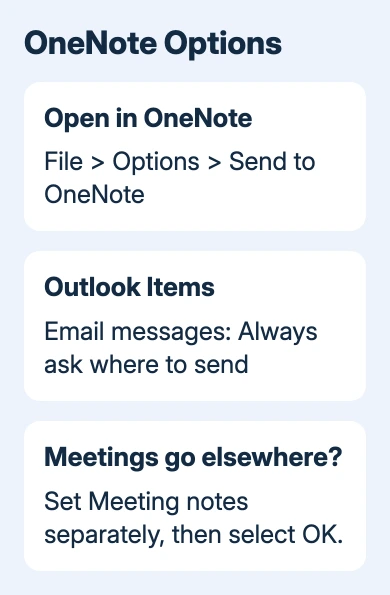
Outlook can keep sending every message to the same OneNote page after the option to remember that destination is selected. Open OneNote's own File > Options > Send to OneNote settings and change Email messages to Always ask where to send.
That fix applies to the desktop integration with the older destination dialog. The newer OneNote add-in has a notebook-and-section task pane, so check which interface opens before looking for a missing setting.
In this guide
1. Change the destination inside OneNote
Open the full OneNote desktop app for Windows, then select File > Options > Send to OneNote. Make sure this is OneNote's options window: changing Outlook's general options won't reset OneNote's saved destination.
Under Outlook Items, find Email messages. Change its destination to Always ask where to send, then select OK. Return to Outlook and send one ordinary message to OneNote as a check.
The location dialog should appear again, letting you choose where that message belongs. Select the intended notebook destination and complete the send. Open the resulting note and check its subject and contents before sending more messages.
One owner had accidentally enabled the remembered destination. They got the location choice back through OneNote's options after initially looking in Outlook's options.
If the location dialog returns but a notebook is missing, you've cleared the saved destination. Continue with the notebook check instead of repeatedly changing the same preference.
2. Set email and meeting destinations separately
The Send to OneNote options contain separate choices for Email messages and Meeting notes. Changing the email choice doesn't necessarily change where a meeting goes. Change the setting for the item you're having trouble with.
For meetings that keep landing in one section, change Meeting notes to Always ask where to send, then select OK. Send one meeting item and choose its destination when prompted.
Leave any remember-this-location box unselected if you want to choose again next time. Selecting it is useful for a permanent inbox section, but it changes the next send as well as the current one.
Check an email and a meeting separately when both have been affected. An email arriving correctly doesn't tell you if the meeting setting changed. The new notes should arrive in the destinations chosen for those two tests.
Printing a PDF to OneNote uses another preference, Print to OneNote, under Other Content. Change that only when printed documents are being filed automatically. It isn't the email destination control.
An old browser missing only its right-click command needs the IE8 menu registration fix, separate from Outlook destinations.
I'd change just the item that's going to the wrong place. Keeping separate destinations can be useful when emails belong in a reading notebook but meeting notes belong with a project.
3. Open the notebook that should receive the message
Open the destination notebook in OneNote and confirm that its intended section is available. Add a short temporary note there to check that you can edit it, then remove the test text when you're done.
If OneNote says the notebook is read-only or asks you to sign in, resolve that first. Asking where to send won't help if the destination is closed, unavailable or read-only.
An actual cannot-create-page error needs the destination and legacy Office installation checked, rather than only a remembered-location reset.
Return to Outlook, send the same kind of item again and choose the now-open destination. Open the note in OneNote to check that the content arrived, even if Outlook says the send succeeded.
For content that exists but can't be found afterward, the OneNote search checks address a different stage. First confirm which notebook received the message; rebuilding search won't change where later messages are sent.
If messages aren't reaching OneNote at all, use the Outlook OneNote add-in guide. A disabled or failing add-in needs its own repair, while this setting controls a send that already succeeds.
4. Recognize the newer add-in's section picker
The newer Send to OneNote add-in opens a task pane, a panel beside your message. Select the notebook and section in that pane, then choose Save. It differs from the older desktop dialog that can remember a particular page.
The subject of the email or meeting becomes the new OneNote page's title. Once saved, you can move that page within OneNote. Choosing a section for a new page is different from selecting an existing page to receive the content.
Microsoft's Outlook-to-OneNote instructions explain the newer pane and the older desktop add-in. Use the instructions matching the interface that appears on your computer.
In classic Outlook with OneNote 2016, the older integration is listed under File > Options > Add-ins. Select COM Add-ins beside Manage, then Go, and look for OneNote Notes about Outlook Items.
The documented older setup also clears Use Send to OneNote with OneNote for Windows 10, if available under File > Options > Advanced > Other. Those controls belong to classic Outlook; don't search for them in new Outlook or on a Mac.
If the modern pane sends correctly and choosing a section meets your needs, keep using that route. Only restore the older add-in if you need it for that supported desktop setup.
When the destination choice still won't return
Send these results to IT or use Microsoft 365 support for a personal installation. Describe whether Outlook opens an older destination dialog, a task pane or sends immediately without a location choice.
Include the Outlook and OneNote versions, whether Outlook is classic or new, and the affected item type. Send a cropped image of the destination settings without private notebook names or message content.
For the newer web add-in, the diagnostic shortcut is Ctrl + Shift + L after selecting a save location. Give support its session ID and timestamp, plus View logs details if requested. These details point support to the failed attempt.
The Short Version
Reset the email destination in OneNote's Send to OneNote options. Set meetings separately and leave the remember-location box clear. In the newer task pane, choose a notebook and section, then save.
Checked November 26, 2026.
 If you have any business, I can build it online