OneNote cannot create a new page in the destination section when it can't write to the selected section or its old Office connection is broken. After an Office 2007/beta upgrade, an owner restored sending by removing the older installation.
Check that section before reinstalling anything. A deleted, locked, or read-only section needs different steps from the confirmed Office 2010 upgrade problem. Outlook's current task pane, the panel beside the email, uses different controls.
In this guide
1. Try creating a page directly in the target section
Open OneNote itself and choose the email's intended notebook, then its section. Press Ctrl + N and type a short temporary note on the new page. This checks whether that section accepts pages without Outlook doing the sending.
If the section asks for its protection password, unlock it first. If it opens read-only, have its owner review your edit permission. A notebook that isn't available in OneNote can't receive the message at its old destination.
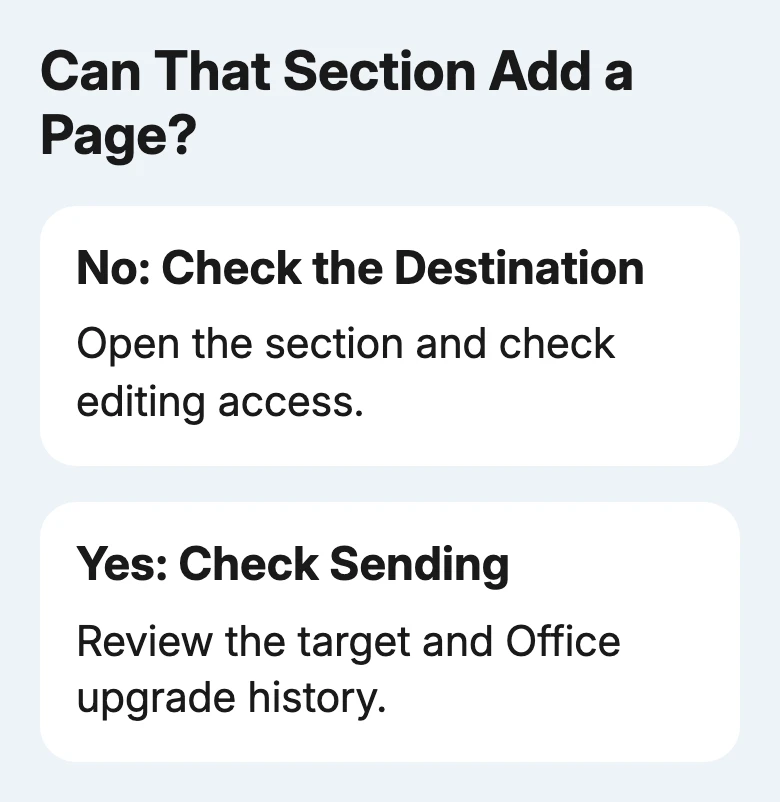
If you can create the temporary page, leave that notebook open and try sending a short email. If you can create a page yourself but Outlook still can't send to it, check the sending settings or the connection between the apps next.
If the section was deleted, choose another section that still exists. Don't create an empty replacement notebook with the same name and assume it contains the original notes. Find the intended notebook before setting a new destination.
If pages are missing rather than transfers failing, use the OneNote notebook-location checks. Check an empty start-page list separately from an error that stops page creation.
2. Correct the legacy destination in OneNote's options
For OneNote 2010, select File > Options > Send to OneNote. Look at E-mail messages and choose a destination you can edit, or select Always ask where to send. Confirm with OK, then retry from Outlook.
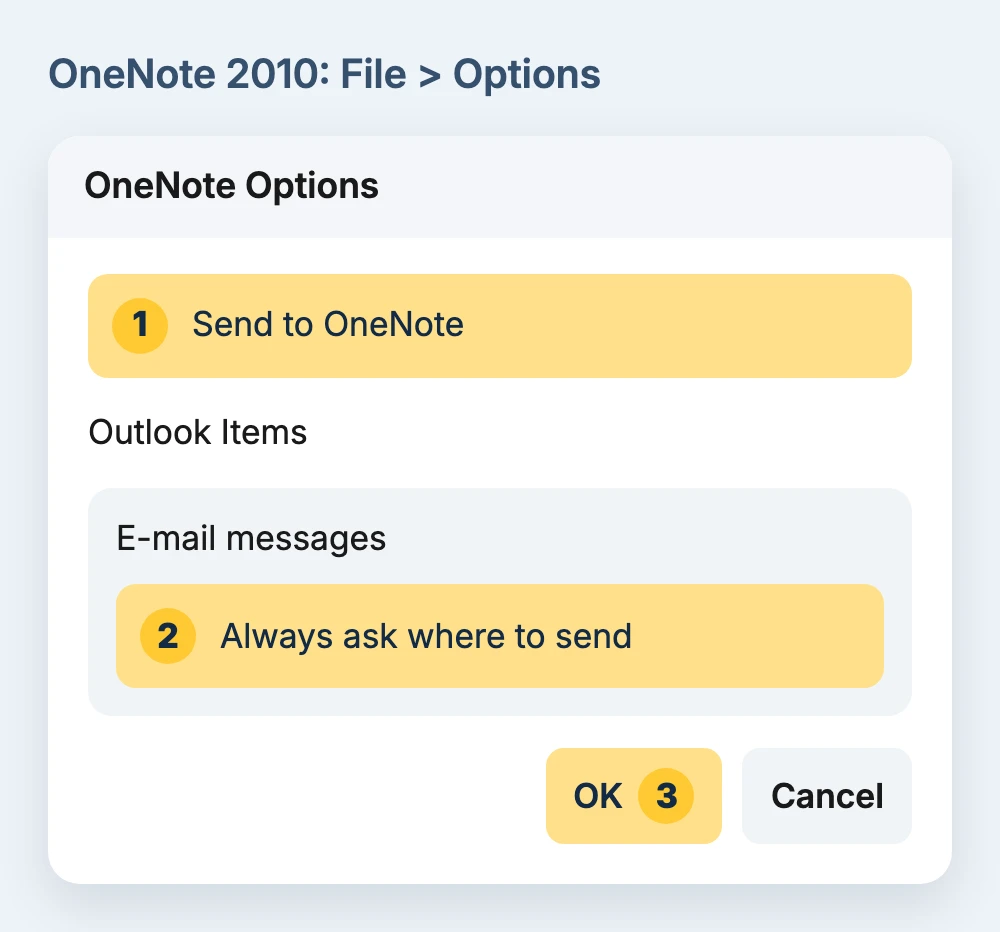
The old error can direct you to Tools > Options > Outlook Integration. That path belongs to OneNote 2007. It won't appear as a Tools menu in OneNote 2010, whose options moved under File.
In the original discussion, the asker tried the 2010 destination settings without success. Use this quick check before the confirmed upgrade repair. If it changes nothing, check which Office versions were installed.
For a transfer that succeeds but always lands on one page, the remembered OneNote destination guide covers that preference. Here, Outlook is reporting that the new page couldn't be created at all.
Keep the change limited to email if email is the failing item. Meeting notes and printed documents have separate destination choices; changing all of them won't help you tell whether the email target caused this error.
3. Check whether the fault followed an Office upgrade
Think back to when sending stopped. The confirmed case began after a OneNote 2010 beta was removed and the retail Professional edition installed, with Office 2007 also on the system. The beta had previously sent messages successfully.
An accepted reply asked about that older installation, but the important confirmation came later. On the third page of the owner's discussion, the asker reported that removing the earlier installation fixed the problem.
Removing the older installation fixed that mix of Office versions. It doesn't mean every current destination-section error comes from an Office beta, or that removing a working Office edition is the right first step.
I'd check the upgrade history before spending time resetting destinations repeatedly. When the error began immediately after replacing the beta, and direct page creation works, it's time to check the installed Office versions.
One email that fails while others transfer needs its own check. Someone in the discussion copied text from an email that crashed OneNote. They later took back their explanation for the original error because that problem was already fixed.
Copying the needed message text into a normal OneNote page can keep the information available while the sending feature is repaired. Check attachments separately; copied text doesn't bring all the attachments with it.
4. Remove the old installation only with notes and media safe
Before uninstalling an old Office edition, save the notebooks and any changes that haven't reached their backup or cloud copy. Locate the notebooks and keep a usable copy outside the installation folders.
Have licensed installation media and activation details for the edition you're keeping. Microsoft no longer offers Office 2010 downloads. Without an installer, uninstalling can leave you unable to put the programs back.
On Windows 7, open Control Panel > Programs > Programs and Features and review the Office entries. On Windows XP, the older route is Control Panel > Add or Remove Programs. Match the entries to the old 2007 or beta installation.
For a managed computer, give IT the list so they can remove the old Office installation before reinstalling the intended edition. On a personal legacy PC, use the relevant entry's Uninstall or Remove control and follow its setup prompts.
Don't remove Office folders manually. Finish the normal uninstall process, restart when requested, and reinstall from the licensed media. The successful repair removed the older version; it didn't rename program folders or delete notebooks.
Open the OneNote edition you're keeping and your existing notebook, then send one short email from Outlook. Check the resulting page's contents. If the same error remains, give the maintainer your installed versions and destination results.
5. Recognize a newer add-in before applying an old repair
Current Send to OneNote can open a task pane beside the Outlook message. In the pane, select your destination notebook and section before choosing Save. This isn't the OneNote 2007 Tools menu or the old Office 2010 desktop dialog.
Microsoft's Outlook-to-OneNote instructions distinguish the newer pane from the older desktop add-in. Follow the instructions for the controls you actually see.
If that newer pane can't save into an editable section, request OneNote help through Microsoft 365 support or your workplace helpdesk. Include both app versions, the full error, account type, and a comparison with another section.
For an Office 2010 computer, ask its maintainer about moving to supported software. The historical cleanup can repair that old installation, but won't bring back security updates or make the old feature current.
The Short Version
Test page creation directly, then choose a writable email destination. The confirmed 2007/2010 beta upgrade fault needed the old installation removed. Save notebooks and licensed media before that repair.
Checked November 27, 2026.
 If you have any business, I can build it online