A TraceID error means the BitLocker account page failed to display its keys. Try the direct key address, then check OneDrive storage. One owner regained access after making room in a full account.
Freeing storage helped that owner, but a TraceID error doesn't always mean OneDrive is full. If the computer is already locked, use another phone or computer for these checks and keep its recovery key ID in view.
In this guide
1. Open the key page directly with the right account
Open https://aka.ms/myrecoverykey on another device. For sign-in, choose the Microsoft account from the locked PC's original setup. This skips the Devices > Info and support > Manage recovery keys route that failed in the report.
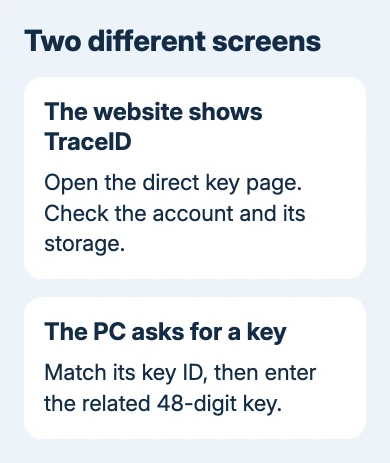
If the page displays keys, match the key ID on the locked computer with the entry online. Enter the matching 48-digit recovery key on the computer. The key ID identifies the entry; it isn't the unlock code itself.
Microsoft's recovery-key instructions explain that a key can be in the original setup person's account. Have them look in that account if yours has no matching entry.
Windows 11 24H2 introduced an account hint on that recovery screen. Use it to choose the account before repeatedly signing into different ones. Older recovery screens might not provide that help.
If the direct page shows Something happened. Wait a bit, then try again, save its TraceID and the time. Continue with the account check next; encryption settings on the locked PC won't repair that website.
2. Check whether the same account's OneDrive is full
Sign in to OneDrive.com using that same personal account. Read its storage status and look for a full-storage or frozen-account notice. Check the account holding your keys, even if another account has plenty of room.
The owner could still open their OneDrive files even though the storage was full. They deleted some items, then reported the next day that the BitLocker keys were visible again.
They believed freeing storage fixed it. Try that when your account is full; leave your files alone when the account already has space.
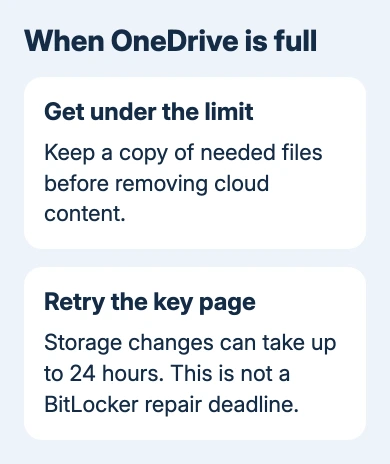
Download any files you need to keep before removing them from cloud storage. Deletions in OneDrive can also reach devices that sync those folders, so choose files you can safely remove rather than clearing a whole folder in a hurry.
Use OneDrive's storage management to get under the account limit, either by removing unneeded content or adding storage. Follow the account's prompts if it is frozen. Don't change the PC's TPM or encryption settings to fix a website error.
The storage changes can need up to 24 hours before they apply. If OneDrive remains frozen after 48 hours, use its support option. Those times apply to OneDrive. They don't tell you when the BitLocker website will work again.
Return to the direct recovery-key page after the account's storage status has updated. If the keys appear, match the key ID before using one; the first device listed isn't necessarily yours.
3. Use organization keys on a managed PC
For a device connected to work or school, open https://aka.ms/aadrecoverykey and sign in with the organization account. Select Devices, expand the affected device, and choose View BitLocker Keys when your account has that option.
An organization may keep the key even when the person using the laptop also has a personal Microsoft account. If the device is managed, ask its IT team for the recovery key matching the ID on your screen.
Give IT the device name, recovery key ID and any asset number on the laptop. Send the TraceID too if the organization's key website is failing. Ask them to retrieve the key from those records, rather than reset your Windows password.
A personal account can't bypass your school or employer's key permissions. If the key list is hidden or access is denied, the administrator needs to retrieve the key through the organization's management tools.
4. Look for a saved copy while account support checks the error
Check for a printout, a text file saved on another drive or a USB copy created when encryption was enabled. A recovery key stored only on the locked drive won't help you open that drive.
The BitLocker recovery-key guide covers those backup locations in more detail. Compare the key ID on each saved copy with the current screen before spending time entering all 48 digits.
I'd check a paper or USB backup before changing account security settings. In the original thread, turning off passwordless sign-in wasn't the successful fix: the owner already had it turned off and still saw the error.
If Windows still opens and this is only a website-access problem, keep your important files backed up while you resolve it. The BitLocker activation guide explains the different case where encryption hasn't finished protecting the drive.
5. Give account support the exact failing page
If OneDrive has space but the key page still fails, use Microsoft Support's Contact us option. Include the TraceID and describe which recovery-key addresses failed. Ask for help with the recovery-key page in your account.
Mention whether every device entry fails or just one, the signed-in account, and whether the PC is currently locked. Don't post the actual recovery key in a public question or screenshot.
Support can't recover a missing encryption key. If no copy exists and the trigger can't be undone, a reset removes the files. Tell support or the shop which data matters before agreeing to a reset.
The Short Version
Use the direct recovery-key address for the PC's setup account. If OneDrive is full, clear space and retry after its storage status updates. Look for organization or offline key copies before a reset that removes the files.
Checked November 26, 2026.
 If you have any business, I can build it online