An Explorer.exe crash naming ExplorerExtensions.dll can involve a graphics driver or software that puts extra commands in Explorer. Check the driver first if crashes followed a graphics update. The DLL name alone doesn't identify the cause.
An early NVIDIA driver change helped one owner briefly, but the crashes returned. Their later report confirmed a clean Windows 11 installation stopped the random crashes. Try the changes you can undo before taking on a full reinstall.
In this guide
1. Match the crash to the recent driver change
Right-click Start and select Device Manager. Expand Display adapters, open your graphics adapter's Properties, then select Driver. Record the driver version and date before changing anything.
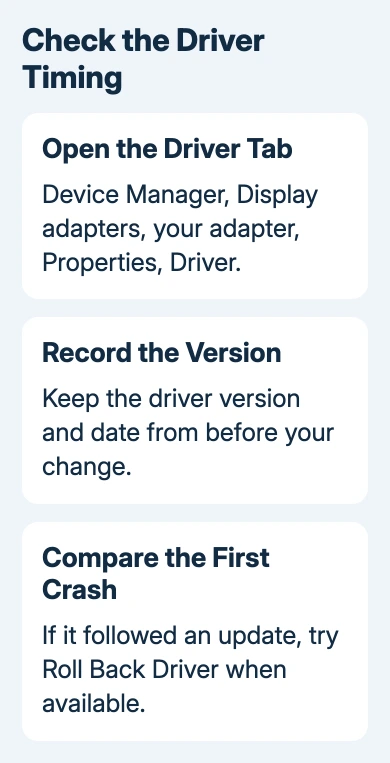
If crashes followed a graphics update, select Roll Back Driver when available. Choose the appropriate reason, finish and restart Windows. A gray button means there isn't a saved driver for this rollback.
Microsoft's driver rollback instructions cover that route. Don't uninstall the display adapter simply because rollback is unavailable.
Open folders or switch between the remote session and desktop again, using whichever action caused Explorer to crash. Note whether Explorer closes and the taskbar reloads. Check whether Explorer stays open while you do the same thing.
I'd start with this check when the dates line up. Changing several apps and a graphics driver together makes it much harder to tell which change helped. If the crashes continue, keep the recorded version for the next step.
What does ExplorerExtensions.dll identify?
Press Windows+R, enter eventvwr.msc, and open Windows Logs > Application. Look for an application error at the time Explorer restarted. Open its General tab and record the faulting application, module and exception code.
For this problem, the faulting application should be explorer.exe. An entry naming a game, a browser or another program needs that application's repair steps, even when its crash happened close to the desktop restart.
ExplorerExtensions.dll is the module Windows names in the crash report. Replacing that file won't necessarily fix what's causing the crash. Leave Windows DLL files in place instead of fetching individual DLL downloads.
In the original report, a crash dump also referenced an NVIDIA component and two Internet Download Manager components. Those names narrowed the checks. The module name in Event Viewer alone didn't identify the responsible program.
If your error instead says Failed to Load Resource DLL, use the extension-specific checks for that message. A missing-resource error and a repeating application crash need different starting points.
2. Reinstall the graphics driver without relying on an old fix
For an NVIDIA-equipped PC, use a compatible driver installer supplied by NVIDIA or your laptop manufacturer. In the standalone NVIDIA installer, choose Custom (Advanced), then Perform a clean installation, when those options are offered.
This resets your graphics driver settings. Record any graphics settings you need first, then let the installer finish and restart. A laptop may need its manufacturer's package for the hardware configuration it shipped with.
The owner originally installed driver 472.12 using the clean-install checkbox. Explorer stayed open for several hours, compared with crashes within minutes before that change. However, their next report said the fault returned.
The old driver version isn't a current recommendation. A few quiet hours after reinstalling also weren't enough to confirm success. Check ordinary work across several sessions, including after restarting.
SFC and DISM hadn't stopped the owner's crashes. Running them again won't check a driver or an app's added Explorer component. Continue to the software comparison if driver repair leaves the crashes unchanged.
3. Check the software integrated with Explorer
Check Settings > Apps > Installed apps for Internet Download Manager and other programs that add Explorer commands. The original machine had IDM components in its crash dump, even though simply turning IDM off hadn't helped.
Closing an app doesn't necessarily unload its Explorer extension. Update the related app first. If you can manage without the app for now, uninstall it through Settings, restart Windows and retry the folder or session-switching action.
Early Windows 11 calls this application list Apps & features. Keep any installer or license details needed to put a paid application back before removing it.
Change one application at a time. If Explorer stays stable after removal, send that application's publisher the crash details and both version numbers. If nothing changes, reinstall it if needed and continue with Windows repair.
A later participant blamed IDM integration without reporting a successful retest. That report gives you something to check if you use the same software. That doesn't justify removing IDM from every PC or disabling unrelated extensions.
4. Choose between repair and a fresh installation
When driver and application checks fail, make a backup that includes your personal files before reinstalling Windows. A repair installation started inside Windows can preserve apps and files when Setup offers Keep personal files and apps.
The original owner eventually used a fresh installation instead. Their later follow-up said the random crashes hadn't returned, although switching from a very low-resolution game could still crash Explorer.
The fresh Windows installation helped, but the driver change hadn't provided a lasting fix. Discuss a repair installation with support first if you'd prefer an option that can keep your apps.
The Windows repair installation guide explains the option that preserves applications. If the desktop won't stay usable, ask support which recovery route fits before starting an installation.
Ask the PC maker to review the Explorer error, driver history and any app removal that helped. If they recommend a fresh install, work out how you'll restore your files and apps before starting.
The Short Version
Match Explorer's crash time to the graphics update, try the available rollback and check software named in the crash. The original driver's improvement didn't last. A later fresh Windows installation stopped that owner's random crashes.
Checked November 26, 2026.
 If you have any business, I can build it online