Windows + Shift + S copies a clipping to the clipboard; it no longer opens OneNote's location picker. Open the destination note and press Ctrl + V to insert the picture. Choose the note when you paste instead of through a separate picker.
If the screen never dims, check the capture shortcut itself. That's different from a captured image not reaching your notes. Check whether Windows captured the image first, then choose the right insertion method for your OneNote app.
In this guide
1. Paste the clipping into the destination page
Display the content you need to capture. Press Windows + Shift + S, select a rectangular capture, and drag across the area you need. Finish the selection by releasing the mouse button.
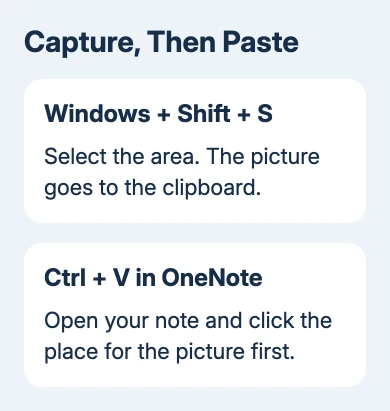
Return to OneNote, open the correct notebook and page, and click where the picture belongs. Press Ctrl + V before copying anything else. The captured image should appear at that position, ready to move or resize.
Microsoft's missing location-picker guidance describes this change. The clipboard is Windows' temporary holding place for copied content; the shortcut puts the image there so it can be pasted into another application.
Don't wait for a notebook selection box after releasing the mouse. That extra window was part of the earlier OneNote workflow. With the Windows shortcut, choosing the destination happens when you open the note and paste.
If the picture appears, the shortcut worked. If nothing appears, continue with the clipboard check in section 3. If the capture toolbar never appeared at all, go to section 4 instead.
2. Use OneNote's own Screen Clipping command
In the installed Windows desktop app, you can start the capture from the note itself. First bring the source window into view, then return to OneNote and click the page where the image should go.
Choose Insert > Screen Clipping. OneNote minimizes so you can select part of the window behind it. Drag across the area you need; OneNote puts the selection into the note without opening the old location picker.
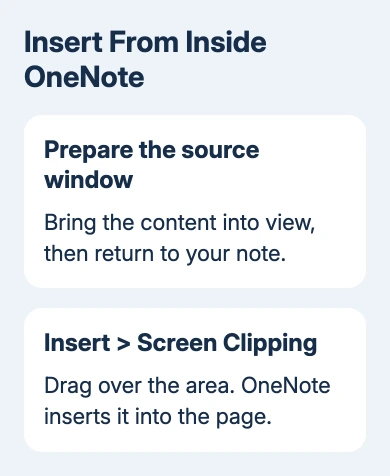
Use the source window immediately before returning to OneNote. Otherwise, minimizing OneNote can reveal another application. Cancel the wrong selection, bring the source forward and try again.
Use this command in the installed app. The same notebook can open in a browser tab, but its capture controls differ from those in the desktop program.
The older OneNote 2016 tray command
The 2017 report involved OneNote 2016 after a Windows update. Its accepted reply suggested Take screen clipping from the notification-area OneNote icon. Use that route only if your installation has that icon and command.
I'd use the ribbon command when I'm already working in the note, and the Windows shortcut when another app is in front. Both let you choose a useful crop without changing OneNote's settings.
3. Check what is currently on the clipboard
Take a fresh capture of a small, recognizable area and paste it immediately. Copying a link, a sentence or another picture between capture and paste replaces the item that ordinary Ctrl + V will insert.
If text appears instead of a picture, the paste command is working but the clipboard contains text. Capture the image again, return directly to the note and paste without copying anything on the way.
If nothing appears, open Paint from Start and press Ctrl + V there. A picture appearing in Paint tells you that Windows captured it and the problem is at the OneNote destination. Changing the keyboard shortcut won't help with that.
Return to OneNote and click an editable area of a new blank page before trying again. A page you can only view can't accept the picture. Check whether typing a short word works there, then remove that word after the check.
If a new page accepts the picture, keep that copy and check editing access on the original. If the picture is on this device but missing on another, use the OneNote sync checks, rather than another screen capture.
4. Open the capture tool directly when no toolbar appears
On Windows 11, open Start, search for Snipping Tool, and open it. Select screenshot mode and choose New. After capturing the area, copy the image from the editor and return to the OneNote page to paste it.
If the open app captures successfully, the shortcut is the part that isn't working. Check the Windows and Shift keys with other familiar shortcuts, and tell support whether those work.
Windows 10 installations can have Snip & Sketch as well as the older Snipping Tool. Use the capture app actually installed on that computer; the Windows 11 app name and controls won't describe every Windows 10 screen.
If capturing directly also fails, tell Windows support. Include whether the screen dims, whether selection starts, and whether Paint can receive a picture. Those three answers help support work out where capture stops.
For capturing content into a document instead of a note, the Word screenshot controls offer their own window and clipping options. A Word command doesn't restore OneNote's removed location picker.
Tell support whether capture or insertion failed
If a capture pastes into Paint but won't paste into any editable OneNote page, contact Microsoft Support from the app's Help controls. Include your OneNote and Windows versions, and say whether you can type on the destination page.
Ask IT about capture and paste restrictions on a managed PC. Follow your organization's policies for protected notebooks. For an inserted picture that hasn't synced, give IT the sync message separately.
The Short Version
Capture with Windows + Shift + S, open the destination note and paste with Ctrl + V. Use Insert > Screen Clipping in desktop OneNote when you want the capture inserted directly. The location picker no longer opens with the Windows shortcut.
Checked November 26, 2026.
 If you have any business, I can build it online