KB5058499 was a May 2025 preview for Windows 11 24H2. An installation failure isn't a reason to force that old package onto your PC. Let Windows Update supply the newer cumulative package for your installed release.
If current updates also fail, the problem needs repair. If Windows won't start, use recovery first. Those are different situations from an otherwise working PC with one failed preview entry in its history.
In this guide
1. Check whether the failure is still happening
Open Settings > Windows Update > Update history. Find the newest failed entry and record its KB number, date and full error code. Check whether it actually says KB5058499, instead of treating every failure as that same package.
Next, press Windows + R, enter winver, and select OK. KB5058499 is the May 28, 2025 preview for Windows 11 24H2, build 26100.4202. It doesn't belong on every Windows 11 release.
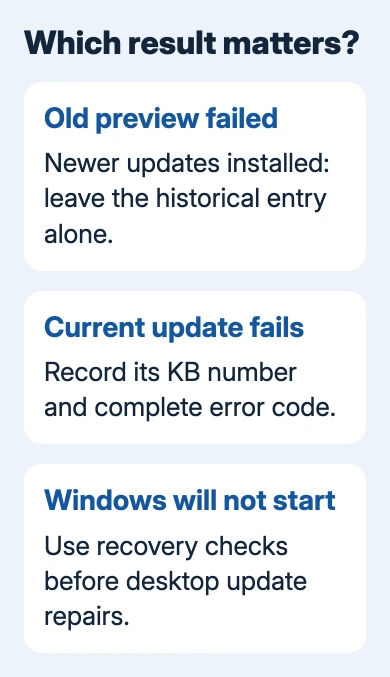
Microsoft's KB5058499 release notes identify the package as a preview. It was optional, so you don't need to make every old preview entry show success to repair your PC.
Leave the old entry alone when newer updates install and Windows works. Check the present update status and installed build instead of clearing history. Old failures can stay in history after newer updates install.
Use the newest failed KB number for further checks. It may have different prerequisites or known issues. Keep its full code too: a download failure needs different attention from an installation that rolls back.
2. Take the current cumulative update through Settings
From Settings, select Windows Update. Click Check for updates. Accept the latest security or cumulative package offered. Before accepting its restart request, save open documents.
A cumulative package includes earlier changes. Install the newer update Windows offers without installing every missed monthly preview first. Windows Update chooses the package and any earlier updates it needs.
Leave a separately offered preview's Download and install choice alone while repairing normal updates. The Get the latest updates as soon as they're available switch controls early delivery of extra changes.
Turning that switch off leaves regular security updates enabled. It doesn't repair damaged update components. Don't expect it to remove a package that's already pending or make an existing failure disappear instantly.
One owner's update-hiding attempt didn't stick. The thread has no confirmed universal installation repair. I'd concentrate on current updates instead of chasing a retired tool to hide the preview.
After restarting, check the newest installation result in Update history. If the latest cumulative update succeeds, stop troubleshooting the old preview. If it fails too, continue with that current code.
3. Repair Windows only when current updates fail too
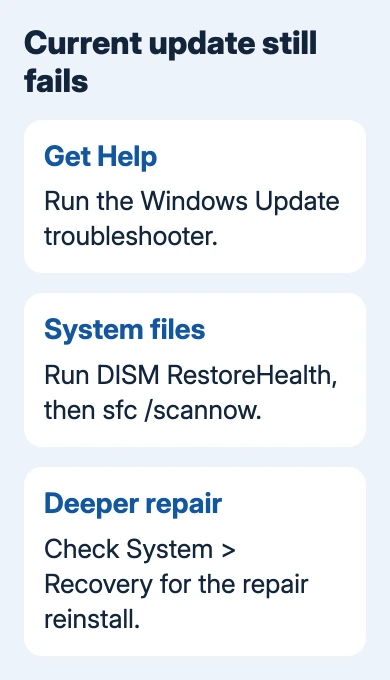
Open Get Help from Start, search for Windows Update troubleshooter, and follow the diagnostic. After it finishes, return to Settings and retry the failing current update once.
For file repairs, find Command Prompt in Start search. Use its right-click menu to select Run as administrator. Run each command separately:
DISM.exe /Online /Cleanup-Image /RestoreHealth
sfc /scannow
DISM repairs Windows' component files. SFC checks protected system files, using the repaired source when replacements are needed. Stay connected to the internet during the repair, and let each command finish before continuing.
Save the final messages. A report that Windows repaired files calls for a restart and another update attempt. A report that it couldn't repair files gives support a more specific problem to work on than the KB number alone.
For the asker, neither DISM nor resetting the update folders fixed the installation. Repeating those failed attempts won't tell you much. Stop after a clear result and move to the deeper repair if needed.
For a current failure that rolls back after restarting, the Windows Update stuck guide explains how to judge a stalled installation. A percentage pause alone doesn't call for interrupting setup.
4. Use the recovery repair instead of repeated resets
On Windows 11, open Settings > System > Recovery. Locate Fix problems using Windows Update, then select Reinstall now. This repairs the installed Windows version and keeps apps, files and settings.
Back up important files first. Review the restart choice and select OK. Leave power plugged in and internet access available while the repair downloads and installs. Restart afterward if Windows hasn't done so automatically.
Try the latest cumulative update again after the repair. Check that the current package installs successfully and Windows runs normally. An old failed preview record doesn't need to disappear for that result to count.
Company management or older Windows versions can leave this option unavailable. Ask IT for an approved repair, with the failure code attached. Check the effects of Reset this PC before choosing it; installed apps are handled differently.
If the PC instead loops into recovery, use the Automatic Repair log guide to identify the startup failure. A machine that can't reach Settings needs recovery checks before these desktop instructions.
When the latest update still won't install
Request Windows Update support through Get Help with the newest failed KB, full code, Windows version and repair results. Ask them to check update components and whether that package fits your PC, rather than force the May 2025 preview.
Send IT those details for a managed PC. The historical release notes give manual package prerequisites and order. An administrator installing it needs to follow the procedure for that package and processor type.
A hardware check becomes reasonable if the repair also fails or the PC has other crashes. Ask for the Windows setup failure logs to be reviewed before replacing parts solely because an update wouldn't install.
The Short Version
Leave the old preview entry alone if newer updates work. For a current failure, try the diagnostic and Windows repair, then give support the latest code and logs. Forcing KB5058499 isn't the goal.
Checked November 27, 2026.
 If you have any business, I can build it online