A blank Windows Security window after running a cracked game's Defender-disabling tool calls for malware recovery.
Stop using the crack and take the PC offline. Getting the window back doesn't tell you whether it's safe to use the PC.
Recovery depends on what Windows Security lets you do. If scans open, use them first. If protection is missing, won't run or keeps changing back, move to a clean Windows installation rather than trying more Defender-disabling utilities.
In this guide
1. Stop the tool and protect your accounts
Close the game and its installer. Disconnect Wi-Fi or unplug Ethernet so the suspect PC isn't your device for banking, email or password changes. Use another trusted phone or computer for those tasks.
If you signed into sensitive accounts after running the crack, change those passwords from the trusted device. Review account activity and sign out unfamiliar sessions.
Start with the email account used to reset passwords for other services.
One owner in the reported case had more than a broken shortcut. An adviser reviewing the owner's logs identified a miner, software that uses the computer to mine cryptocurrency.
The owner's Defender service was missing, and a simple service-start command hadn't worked.
Don't run another downloaded tool to switch Defender on. A tool with administrator access can change more than the setting shown in its window. Don't trust the crack's promised undo function to repair Windows.
Before a reset or reinstall, copy essential documents and personal photos to separate storage. Keep game installers, cracks and unknown executable files out of that backup.
Open a few backed-up documents to check the copies before you erase Windows.
2. Run the built-in scans if Windows Security opens
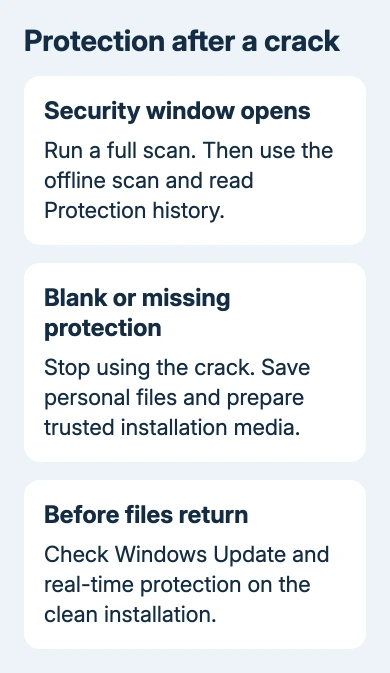
Search Start for Windows Security and open Virus & threat protection. If the page loads, reconnect only to get protection updates, then choose Scan options > Full scan > Scan now.
Let the scan finish and follow its recommended actions.
A full scan checks files across the computer. It can take time, so keep a laptop on power. A scan that completes with no threats found is useful, but a tool that altered security services still needs the recovery checks in the next section.
For threats that may hide while Windows is running, choose Scan options > Microsoft Defender Offline scan > Scan now. Save open work first and follow the BitLocker preparation in the linked offline-scan guide if your drive is encrypted.
The computer restarts and runs the scan outside the normal Windows session.
The offline scan's device requirements exclude ARM Windows. On an ARM laptop, ask the manufacturer or your workplace support team for its supported malware recovery route instead.
After Windows returns, open Virus & threat protection > Protection history to read the result and any action needed.
The official scan controls and history instructions describe these built-in options.
If the app stays blank, the scan won't start, or the service is missing, skip this route. Don't spend the afternoon forcing a button that isn't there. At that point, move on to deciding how to reinstall Windows.
3. Choose between repairing the app and rebuilding Windows
Windows Security is the app you open; Microsoft Defender Antivirus does the scanning. The app can look normal again while a harmful startup item or changed security setting remains elsewhere on the PC.
In the original thread, a cleanup written for that PC let the owner run full and offline scans again. Other problems continued, including update errors, before later support work restored Defender and Windows Update.
A single PowerShell command didn't fix all of those problems.
Don't borrow that owner's Farbar Fixlist file. Its instructions were written for entries in their logs.
For help recovering your existing installation, ask a qualified malware-removal adviser to review logs from your PC.
I'd choose a clean installation when a crack has changed protection and I can't trust the remaining software.
Microsoft's Windows recovery choices direct suspected malware cases toward reinstalling with installation media.
The Windows malware and access-denied guide covers related symptoms if folders are blocked or searches also redirect.
Mention those symptoms when asking for help. The adviser needs to address them as part of the cleanup.
4. Prepare clean installation media on a trusted computer
On the trusted PC, open the official Windows 11 download page. Use Create Windows 11 Installation Media, choose Download Now, then launch the media-creation utility.
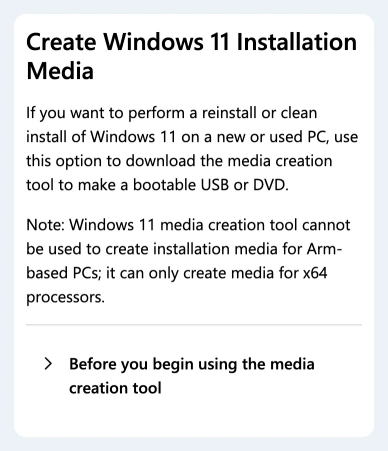
These media-creation steps are for Intel and AMD PCs. For an ARM laptop, ask the manufacturer for its supported recovery-media instructions instead of using the x64 creation tool.
Use an empty USB stick of 8 GB or larger. The tool erases its contents while creating the installer. Choose the language and Windows edition that match the affected PC, then let the tool finish.
On the affected PC, note whether Windows is Home or Pro in Settings > System > About. Also check Settings > System > Activation and keep the recovery key for any BitLocker-encrypted drive before changing the installation.
Boot the affected PC from the USB using the manufacturer's boot menu. The key varies by model, so use that maker's instructions rather than changing firmware settings at random.
Disconnect other external storage after the backup is complete.
5. Complete the clean install and check protection before restoring files
Follow Windows Setup for a clean installation. The current installer asks you to agree to delete files, settings and installed apps. Stop if your backup isn't complete or you aren't certain which disk holds Windows.
Choose the same licensed edition.
If prompted for a product key on a previously activated PC, you can choose I don't have a product key; activation normally returns online when the hardware and edition match the license.
At the disk-selection stage, follow the official installation instructions for the Windows disk only. If several internal disks make the choice unclear, get the manufacturer or a repair technician to handle disk selection.
Erasing the wrong drive can't be undone by Setup.
After installation, connect to the internet, finish Windows Update and open Windows Security. Confirm that real-time protection is active and run a scan.
Reinstall applications from their official sources, then scan your document backup before restoring it.
When protection still won't work
Open Get Help on the rebuilt PC and request help with Microsoft Defender Antivirus. Give support the new Windows build and the exact protection or scan error.
On a managed computer, have IT handle recovery and reconnect the rebuilt PC to its management system.
A notification saying Defender is off can have another explanation, including another antivirus provider.
The Defender turned-off notification guide covers that different symptom when the protection interface itself works.
The Short Version
Stop the crack, protect accounts from a trusted device and save personal files. Use full and offline scans when they work.
Missing or repeatedly disabled protection after a crack calls for trusted installation media and a clean rebuild, with protection checked before files return.
Checked November 27, 2026.
 If you have any business, I can build it online